Categories
Android Android 15 funtouch os 15 News vivo

iQOO Z7s 5G receives Android 15-based Funtouch OS 15 Update

Vivo is doing a great job rolling out the Android 15-based Funtouch OS 15 for its devices. Over the past two months, the brand has rolled out the update for a bunch of phones, including the Z9s lineup and more. Now, the major Funtouch OS 15 update is rolling out to the iQOO Z7s 5G with a long list of changes.

A user has confirmed receiving the Funtouch OS 15 on the iQOO Z7s 5G. The update weighs over 6GB, which is common for a major update. The update is rolling out with the build number PD2251JF_EX_A_15.2.10.1.W30. It has been confirmed to be rolling out in India, but it may also be available in other regions.

Funtouch OS 15 for iQOO Z7s

As the Funtouch OS 15 is a major update, it brings a bunch of new features. Although the user shared a screenshot, it doesn’t reveal the full changelog. Nevertheless, the changes will be largely similar to those in the update for other devices. Therefore, we’ve compiled a changelog based on the Z9s update.

System

  • Added memory enhancement technology, which accurately classifies and manages memory, compresses memory to save space, improves memory usage efficiency, and enables smooth multitasking
  • Added a Link to Windows feature, which supports seamless access to notifications, calls, photos, and more on your computer, enhancing the synergy between your phone and your computer. You can use it by tapping Settings and going to More connections > Link to Windows.
  • Optimized system dynamic effects with the new Origin animation that incorporates principles from human factors research and integrates the natural laws of the physical world into the dynamic effects design.
  • Optimized the system’s public control and kit library and system icon library by establishing a systematic order for public controls within the system to create an intuitive and comfortable user experience.

Wallpapers

  • Added multiple sets of static wallpapers with a variety of styles for you to choose from, enriching your screen with vibrant colours
  • Added multiple sets of live immersive wallpapers, bringing vibrant and dynamic visuals to your home screen in every moment
  • Added a feature to set local videos as live home screen and lock screen wallpapers, allowing you to bring a precious moment or an interesting clip to life on your home screen. When viewing a local video, you can go to More > Set as wallpaper, to configure settings

Home screen

  • Added new icon styles and rounded corner styles and added support for hiding app names, allowing icon styles and the home screen to blend in seamlessly
  • Added Large folder to facilitate home screen app organisation while providing quick access to apps, enhancing efficiency

Widgets

  • Added styles for 1 clock kit and 2 world clock kits, enriching the styles of clock kits on the home screen

Ultra Game Mode

  • Added a quick entry to the small window app list, enabling one-tap access to small windows, allowing for seamless multitasking between gaming and social activities

S-capture

  • Added a three-finger gesture for area screenshot to enhance screenshot efficiency
  • Optimised the screen recording panel, supporting simultaneous writing while recording and quick settings
  • Optimised the screenshot editing page, adding support for more efficient tools to enhance editing efficiency
  • Fixed the issue where in multi-audio recording scenarios such as video conferences, the screen recording was unable to capture both the user’s voice and the other party’s voice simultaneously

Smart sidebar

  • Added Screen translation, allowing you to quickly access Google Lens for translation via Smart sidebar, enabling quick translation of on-screen content

Notes

  • Added more text editing tools, making it easier and more enjoyable to record ideas
  • Added a feature to export notes in Word format for easy sharing

Settings

  • Enhanced the search scope and fuzzy search capability, making it easier to search for features within Settings
  • Optimised menu categorisation and hierarchy, providing clearer and more logical layouts that make it easier to locate settings

Multitasking

  • Added switching gestures for split-screen and small window modes, allowing you to drag a split-screen to the middle of the screen to switch to a small window, and drag a small window to the edge of an app supporting split-screen to switch to split-screen mode
  • Optimised the startup gestures for split-screen and small window modes. You can swipe up from the bottom of the screen to the upper left or upper right corner to quickly enter split-screen or small window mode more easily when Full screen gesture navigation is used

Security & Privacy

  • Added Passkey, which offers a simpler and more secure authentication method compared to passwords. It also supports cross-device sign-in by scanning a code
  • Optimised screen sharing notification privacy protection by hiding notification details when using a third-party app for screen mirroring or screen recording to protect privacy
  • Optimised partial screen sharing, allowing you to select a single app for screen sharing when using a third-party app for screen mirroring or screen recording to protect privacy
  • Optimised permission settings with restricted settings for apps downloaded through unofficial channels. This restricts the use of some important permissions to reduce the risk of harmful apps engaging in invasive behaviour. To lift the restricted settings for an app, you can go to “App info” and tap the icon in the upper right corner and “Allow restricted settings” to configure the settings
  • Optimised the fingerprint verification pop-up box to support the presentation of more information, enhancing usability

Accessibility

  • Added Live Transcribe, which displays speech content in text format on the screen
  • Added sound notifications to remind users of important sounds in their surroundings

Dynamic Effects

  • Added 4 fingerprint recognition animations, providing a rich selection for those seeking personalisation, while also enhancing animation smoothness

Albums

  • Added Shadow removal for documents, which enables easy removal of annoying shadows and restoration of the original appearance of the document. When viewing a photo, you can go to More > Super Documents > Shadow removal to configure settings
  • Added Memory Film, enabling the browsing of memories in the form of films. The feature intelligently pairs different music, effects, styles and more based on the memory theme, allowing easy creation of personalised memory films for you
  • Added Cleanup suggestions to help you clean up unnecessary photos on your phone, such as duplicate photos, similar photos, and old screenshots and screen recordings. This helps you keep your albums well-organised
  • Optimised the Al tagging system with improved algorithm capabilities, supporting the tagging of various image categories such as people, pets, architecture, sports, art and technology. It can accurately identify photos and intelligently classify them

The Funtouch OS 15 OTA update for iQOO Z7s is rolling out in batches, so it may take a few weeks for the complete rollout. If you haven’t received the update yet, it will be available soon. You can check for the update in the Settings. Before installing the update, make sure to back up important data as a precautionary measure.

Also Check:
Categories
Android android 16 News pixel

Android 16 Beta 2.1 update fixes choppy animations

Google has released a hotfix for Android 16 Beta 2, which was released on February 13. The minor update, Android 16 Beta 2.1 is now available to all eligible models running on Android 16 beta, including the Pixel 6 and newer models.

The latest beta update comes with build number BP22.250124.010 and is based on the same security patch as the second beta update. Since this is a minor update focused only on fixes, it also weighs less.

Android 16 Beta 2.1 fixes various issues such as choppy animation while configuring live wallpapers, accidental reboot, connectivity, and more. Here is the complete changelog available with the latest small fix update.

  • Fixed an issue that sometimes prevented devices from entering Doze mode.
  • Fixed issues that caused some animations to appear choppy while configuring live wallpapers.
  • Fixed an issue that sometimes caused devices to reboot unexpectedly.
  • Fixed various other issues that were impacting system stability, connectivity, and performance.

If you have an eligible Pixel device and opted for the beta program, you’ll receive Android 16 Beta 2.1 as an OTA update. In case you haven’t joined the beta program yet but still want to test the Android 16, you can also sideload the factory image on your device.

Before switching from the stable to beta, make sure to back up important data.

Also Check:

Categories
Apple How To iphone Mobile News Privacy Protect Your Devices Quick Tips Safety Security

How to update your passcode on your iPhone

Have you ever stopped and thought, “Is my iPhone as secure as it could be?” Maybe your current passcode is a bit too easy to guess. The good news is that changing your iPhone’s passcode to something more robust is not only possible but pretty straightforward.  Here are some easy steps to give your iPhone an extra layer of security.


MORE: BEST ACCESSORIES FOR YOUR PHONE 


How to change the passcode on your iPhone

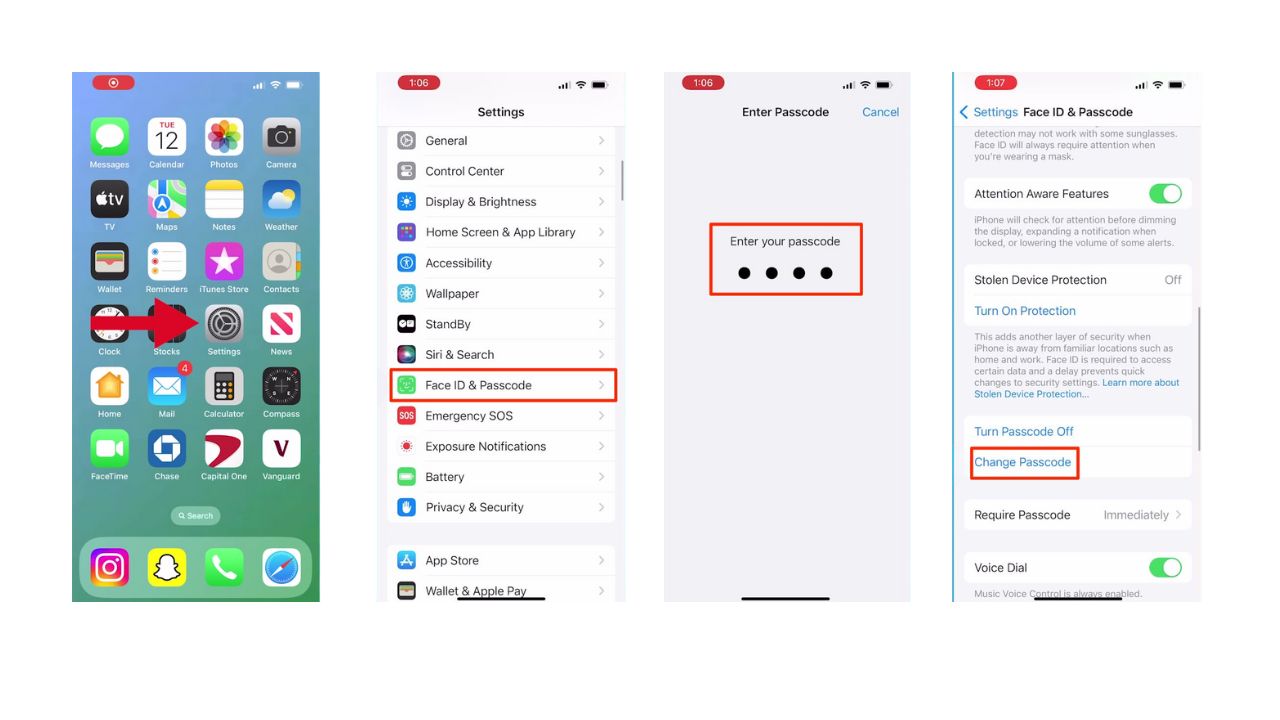
  • Open the Settings app
  • Then scroll down until you find Face ID & Passcode and tap it
  • When prompted, type in your current passcode
  • Then scroll down to Change Passcode and click on it

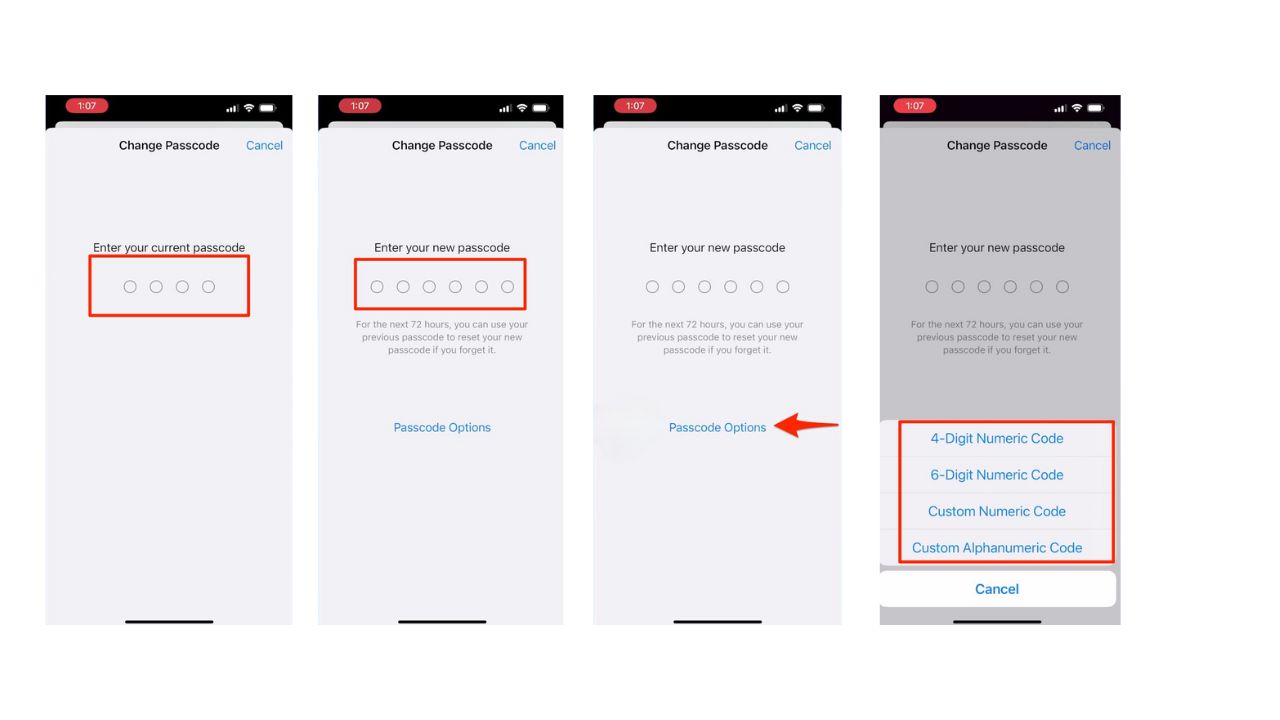
  • Type in your current passcode
  • Then, you’ll be prompted to type in a new passcode
  • Before you do this step, there’s an advanced option at the bottom of the screen called “passcode options” that will allow you to choose from:
  • 4-digit numeric Code
  • 6-digit numeric Code
  • Custom numeric Code
  • Custom Alphanumeric Code

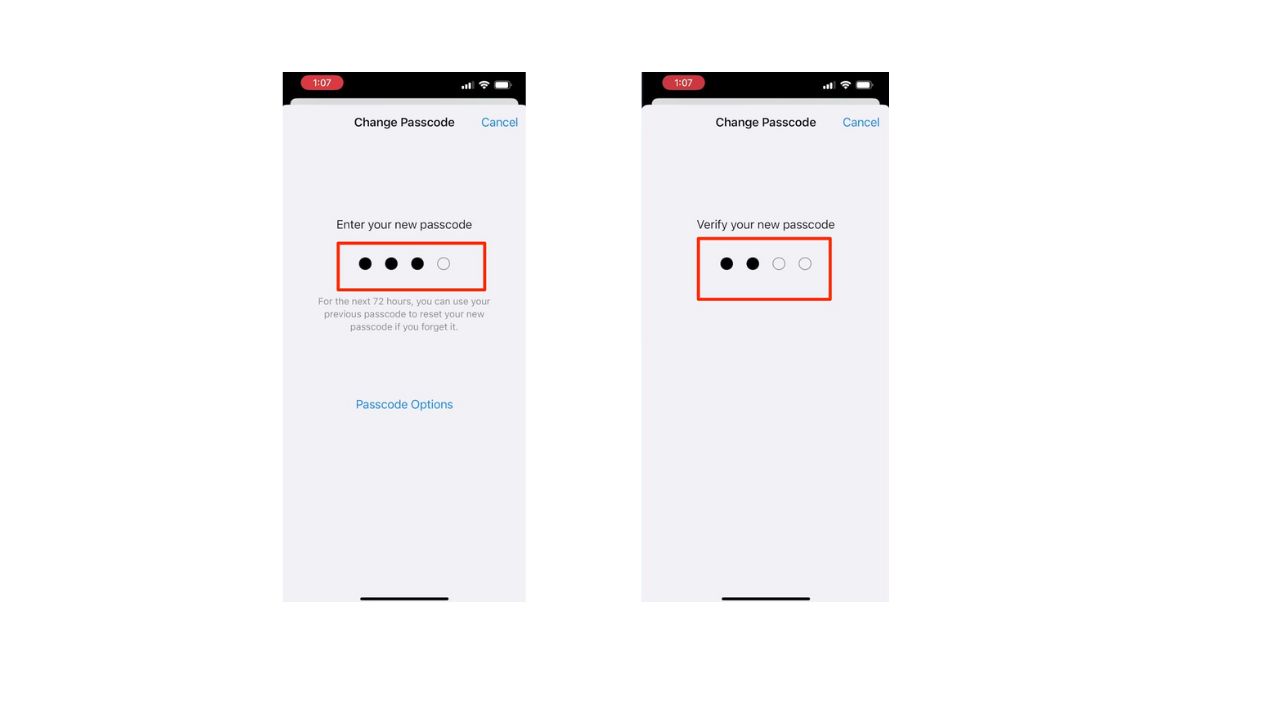
  • Once you choose what you want your passcode to be, type in your new passcode
  • To verify, type in your new passcode again

Remember, the longer and more complex your passcode, the tougher it is for prying eyes to sneak a peek as you type it in.  Also, consider investing in a privacy screen. These screen protectors limit the viewing angle of your display, making it difficult for anyone besides you to see what’s on your screen. This adds an extra layer of security, especially when you’re in public.


MORE: TOP AFFORDABLE CELL PHONE PLANS  


Use strong and unique passwords

While a strong passcode and privacy screen are great first steps, there’s more you can do to secure your iPhone. What about those complex passwords you created? Remembering them all can be a nightmare.  This is where password managers come in. Password managers take the burden off you. These apps generate strong, unique passwords for all your accounts and store them securely.  It will help you to create unique and difficult-to-crack passwords that a hacker could never guess. Second, it also keeps track of all your passwords in one place and fills passwords in for you when you’re logging into an account so that you never have to remember them yourself.  The fewer passwords you remember, the less likely you will be to reuse them for your accounts.

One of the best password managers out there is NordPass. NordPass is a secure and user-friendly password manager that uses zero-knowledge and military-grade XChaCha20 encryption to protect your data. It supports Windows, macOS, Linux, Android, iOS, and major browsers while offering unlimited password storage, secure sharing, password health reports, data breach monitoring, auto-fill, and emergency access. 

CyberGuy Exclusive NordPass Deal: Save 56% and get 3 extra months FREE with a 2-year plan. Try 30 days risk-free for only $1.29/month!

Get more details about my best expert-reviewed Password Managers here.


MORE: 8 WAYS TO LOCK UP YOUR PRIVATE STUFF ON YOUR IPHONE


Kurt’s key takeaways

With a stronger passcode and some extra tricks like a privacy screen, your iPhone can be a fortress of security. Don’t forget to check out the password manager recommendations too – remembering strong, unique passwords for everything is a pain, but these apps can do the heavy lifting for you.

Beyond passcodes and passwords, what do you consider the biggest security risks for your iPhone? Let us know in the comments below.

FOR MORE OF MY TIPS, SUBSCRIBE TO MY FREE CYBERGUY REPORT NEWSLETTER HERE


Copyright 2025 CyberGuy.com.  All rights reserved.  CyberGuy.com articles and content may contain affiliate links that earn a commission when purchases are made.

Categories
Android Apple Apps Home Tech How To Privacy Protect Your Devices Quick Tips Security Software Tech Tips & Tricks

How to update all of your devices and keep them safe

The New Year is a great time to ensure that all your devices are operating on the most up-to-date software and that your privacy is being protected.

With all this in mind, here’s a step-by-step guide to help you with these top priorities.


WINDOWS

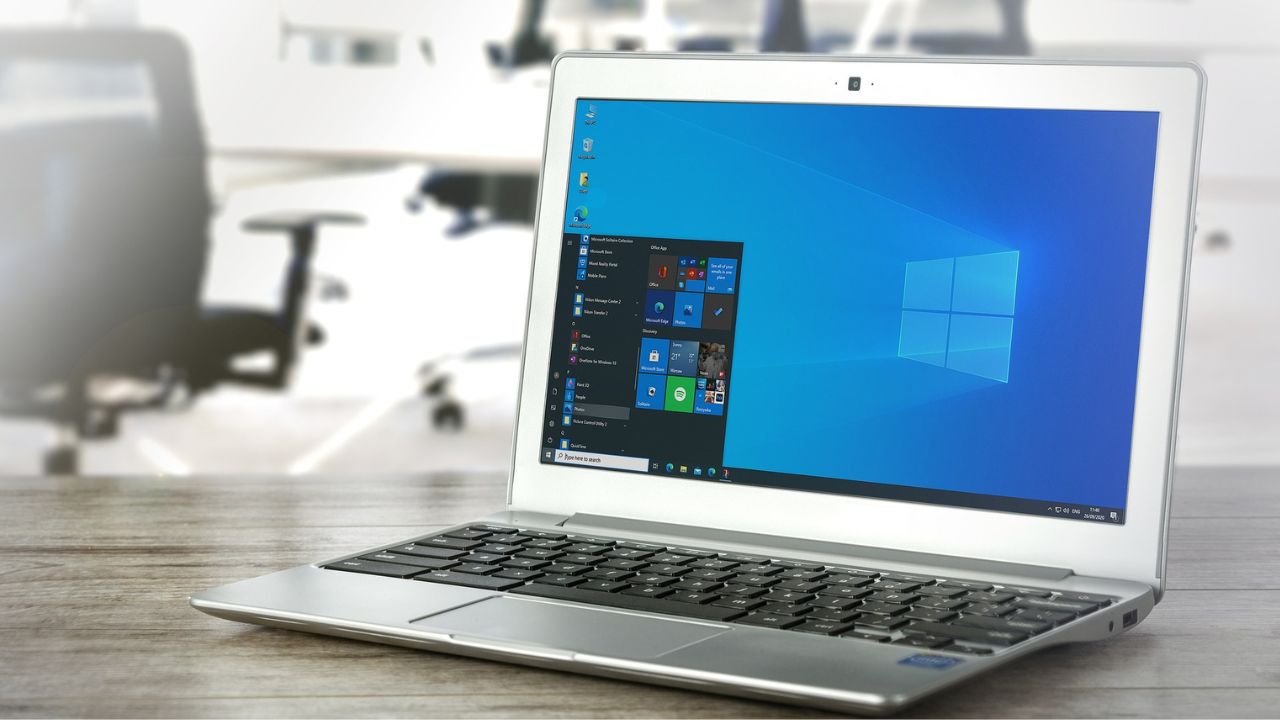
https://pixabay.com/photos/laptop-computer-windows-screen-5603790/

How to keep your Windows devices up-to-date

  • Select Start
  • Click Settings
  • Click Windows Update
  • Click Check For Updates
  • If a feature update is available for your device, it will appear separately on the windows update page.
  • To install it, click Download and install now

You can also set your Windows to automatically update… But should you?

If you’re an individual who never remembers to update your computer, you may choose to set this option.  But sometimes automatic updates don’t play nicely with old programs.  So if you do decide to set this feature, be sure to always have your computer backed up as described here so you can restore if need be.


MAC

Macbook

How to keep your Mac devices up-to-date

  • Click The Apple menu
  • Click System Preferences
  • Click Software Update
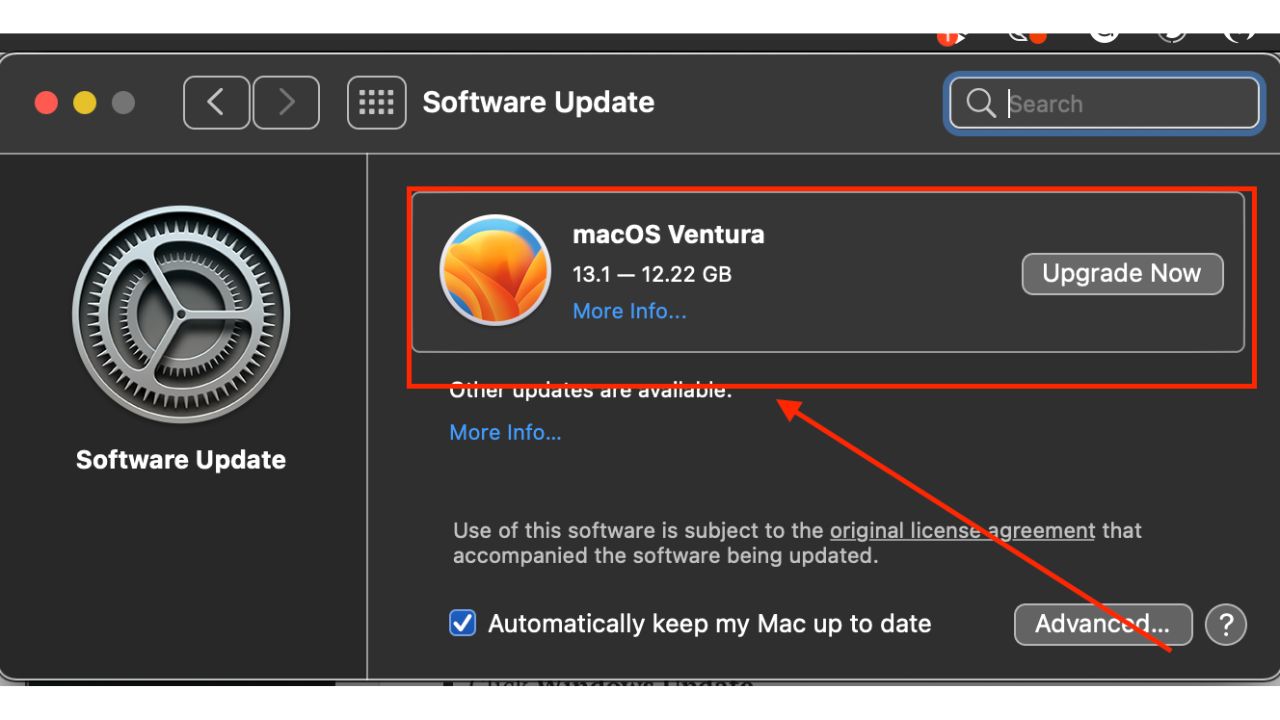
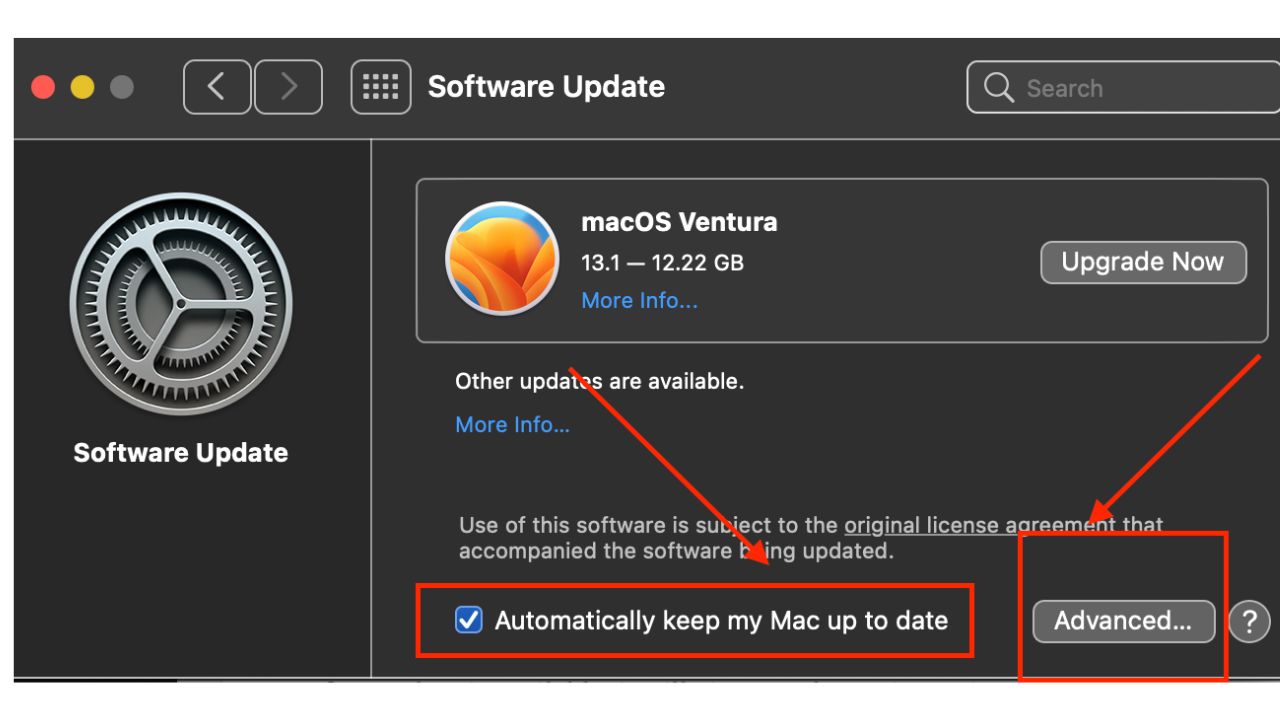
  • If a Software update is available, it will give you the option to update. You can do this by clicking the Upgrade Now button.

Mac screenshot

A word of caution: Often new operating systems offer new slicker interfaces and functionality.  If you have older programs on your computer, sometimes newer operating systems don’t always play nice with older programs.  That said, when it comes to installing new operating systems like you see below, be sure to always back up your computer just in case.  More about backing up your computer here.


You can also set your Mac to automatically download any relevant updates by… But should you?

If you’re an individual who never remembers to update your computer, you may choose to set this option.  But as mentioned above, sometimes automatic updates don’t play nicely with old programs.  So if you do decide to set this feature, be sure to always have your computer backed up as described here so you can restore it if need be.

How to keep your Mac automatically updated

  • Click The Apple menu
  • Click System Preferences
  • Click Software Update
  • Check-off Automatically keep my Mac up to date
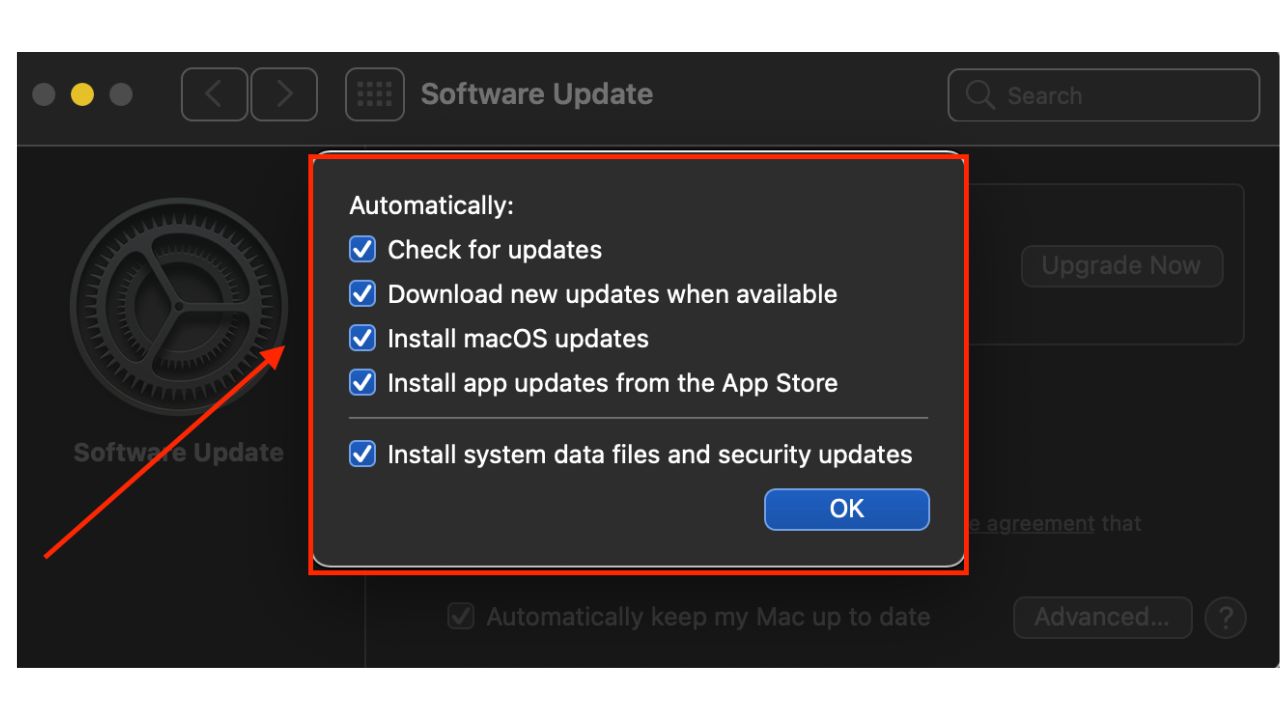
  • Click Advanced

Mac Screenshot

  • Check off all relevant services you wish to enable

Mac screenshot


ANDROID

https://pixabay.com/photos/android-samsung-samsung-galaxy-1814556/

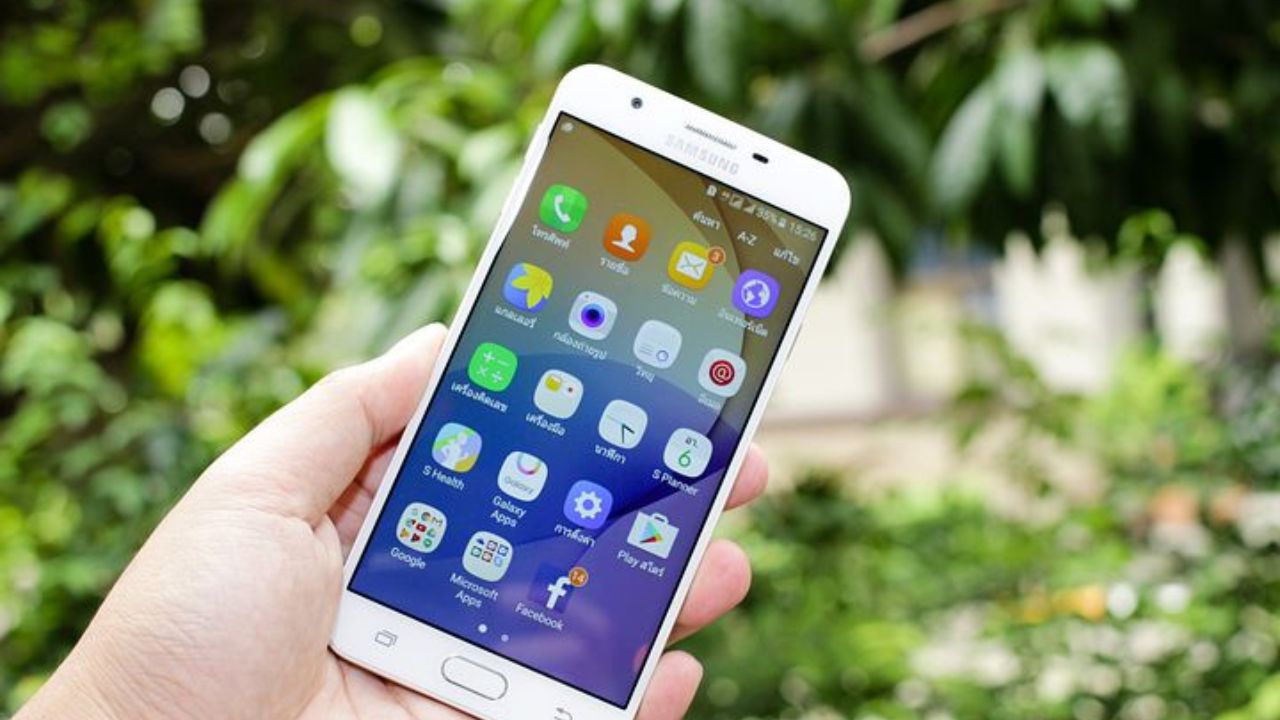
How to make sure your Samsung and Android phone and tablets are up-to-date

Samsung

  • Tap Settings
  • Near the bottom, tap Software Update
  • Then, tap Download and install
  • You’ll be shown if there are any updates available and will be given the option of whether or not to update

Other Androids

Please note settings may vary depending on your Android phone’s manufacturer.

  • Tap Settings
  • Near the bottom, tap System
  • Then, tap System Update
  • You’ll be shown if there are any updates available and will be given the option of whether or not to update


iOS DEVICES

iPhone

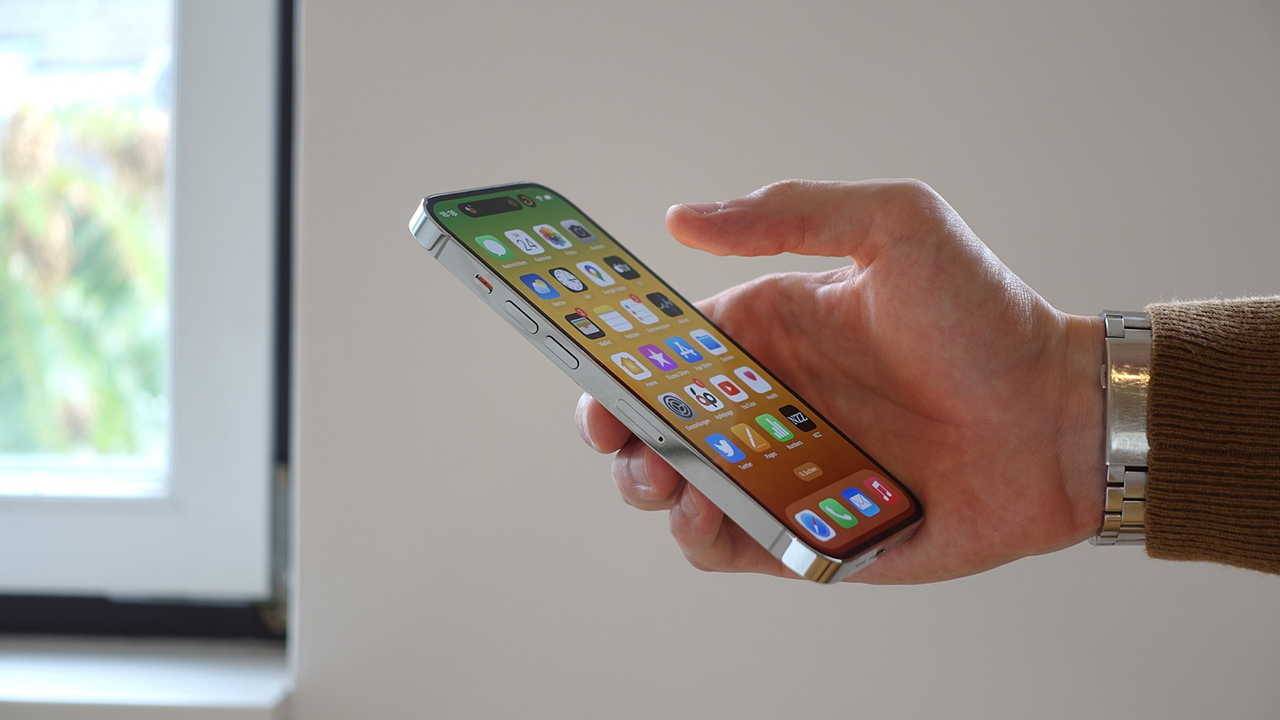
How to make sure your iPhone and iPads are up to date

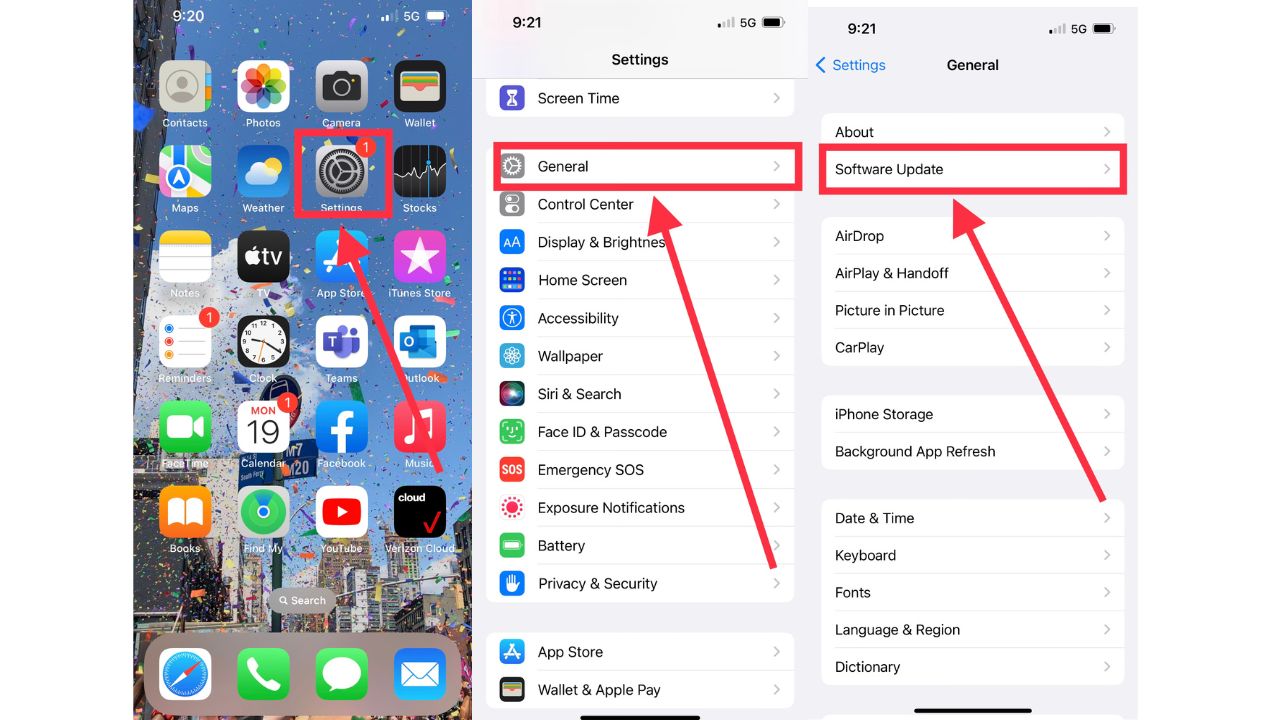
  • Tap on Settings
  • Tap on General
  • Tap on Software Update
  • If an update is available, it will give you the option to download and install

Iphone screenshot

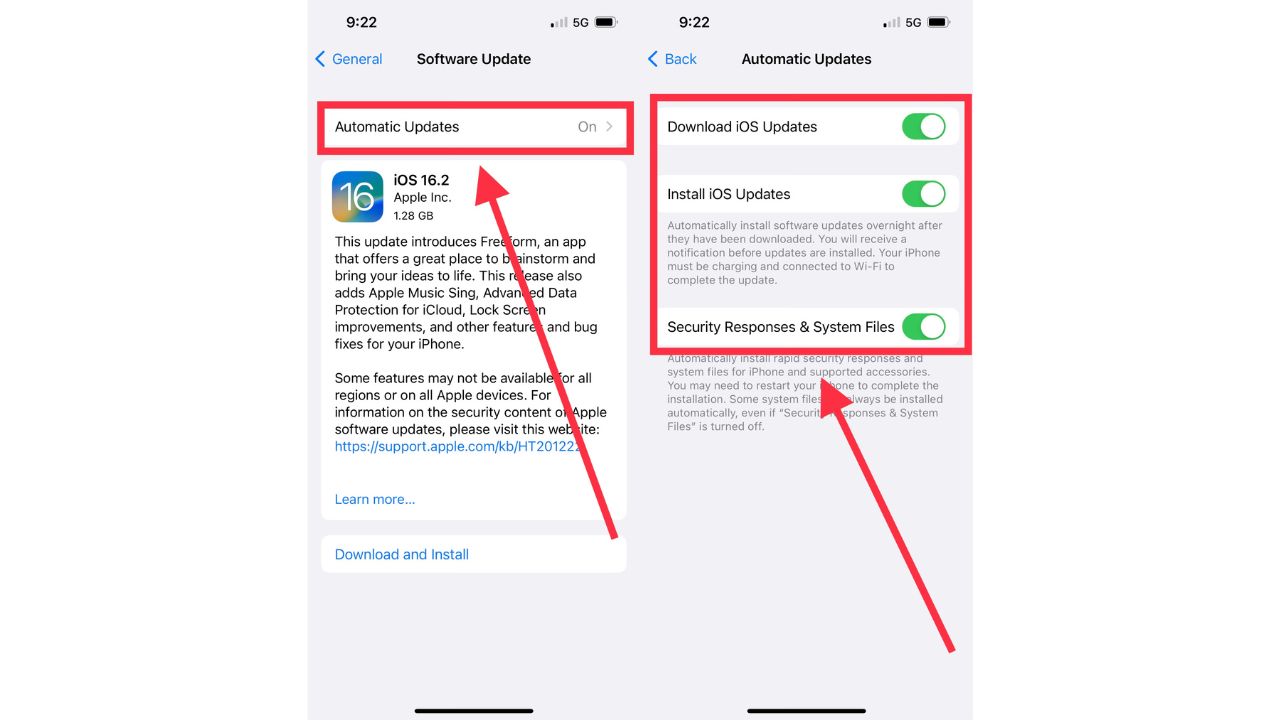
To keep your phone always up to date, you can turn on automatic updates by:

  • On the Software Update screen mentioned above, click the Automatic Updates row
  • Switching on all relevant services you wish to keep updated automatically

iPhone screenshot

A word of caution:  Always back up your phone just in case.  More about backing up and restoring your phone here.

How to make sure your Apple Watch is up to date

  1. Update Your iPhone:
    • Before updating your Apple Watch, update your iPhone to the latest version of iOS. Go to Settings > General > Software Update on your iPhone.
  2. Prepare Your Apple Watch:
    • Place your Apple Watch on its charger and ensure it has at least 50% battery.
    • Keep the Apple Watch in range of your iPhone.
  3. Start the Update from Your iPhone:
    • Open the Watch app on your iPhone.
    • Tap My Watch tab.
    • Go to General > Software Update.
    • If an update is available, tap Download and Install.
    • Enter your iPhone or Apple Watch passcode if prompted.
  4. Download and Install:
    • The download will start. It can take from a few minutes to an hour, depending on your internet speed.
    • After the download, the installation process will begin on your Apple Watch. This can also take some time. You’ll see a progress wheel on your Apple Watch.
  5. Wait for the Update to Complete:
    • Do not restart your Apple Watch or iPhone during the update.
    • Keep the Apple Watch on its charger until the update is complete.
  6. Completion:
    • Once the update is finished, your Apple Watch will restart.


BROWSER UPDATES

After you update your software, it’s also a good idea to ensure your web browser is up-to-date to fix any security issues which would help prevent hackers from getting into your computer, crashing programs and getting around your computer’s security systems.   While there are many browsers out there, below are a few of the more popular ones.


How to update your Chrome browser

Mac

  • Open Google Chrome browser
  • Select About Chrome from the Chrome menu
  • Allow it to scan from a most recent update
  • Click Relaunch to complete the update

Windows

  • Open
    Chrome browser
  • At the top right, click More 
  • Click Help, then About Google Chrome
  • Select Update Google Chrome
    Note: If you do not see the “Update Google Chrome” button, then your browser is already updated
  • Click Relaunch to complete

Android

  • From your phone or tablet, open the Google Play Store app
  • Tap the profile icon from the top right
  • Select Manage apps & device
  • Find Chrome located under “Updates available
  • Tap Update

iPhone & iPad

  • Launch Apple App Store
  • Tap Profile from the top right (it looks like you or a shape of a person)
  • Scroll down to “Available Updates” and search for Chrome
  • If you see Chrome on the list, tap Update
  • Enter your passcode or Apple ID password if prompted
  • Chrome will automatically update when finished downloading


How to update your Safari browser on a Mac

Safari is a built-in App on all Apple products and will automatically update alongside your device’s software.


How to update your Microsoft Edge browser

On Windows 

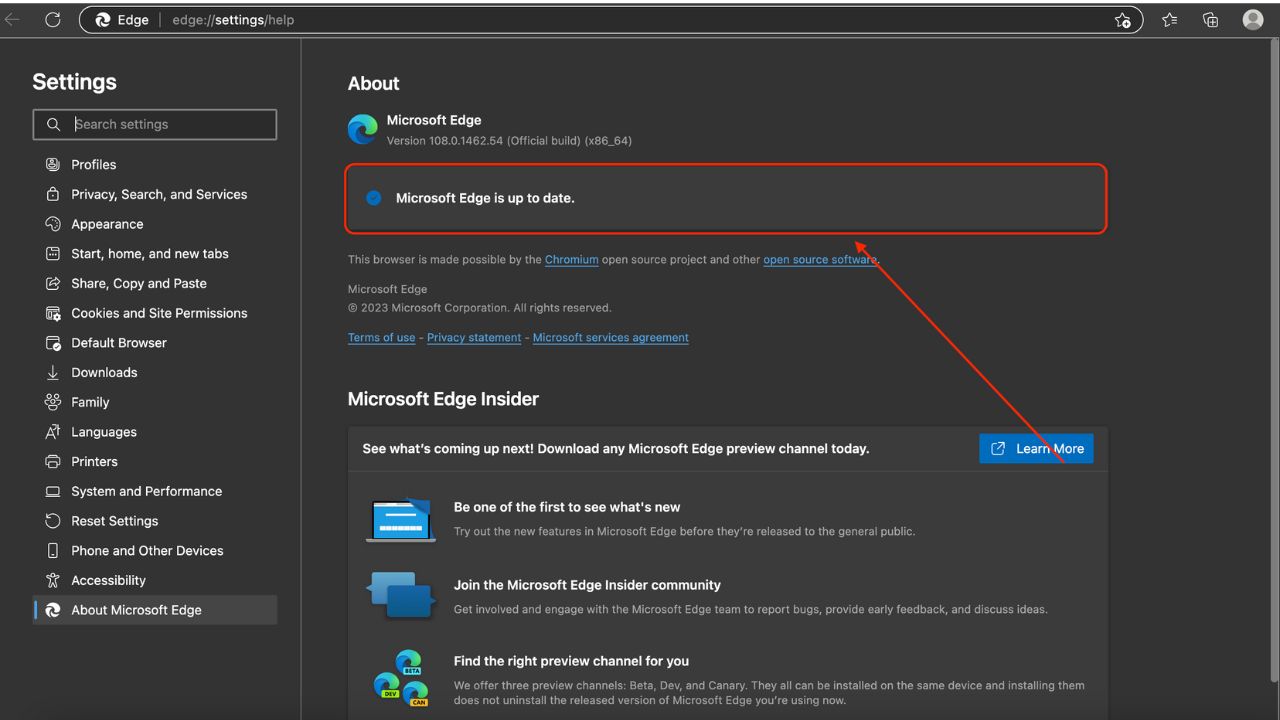
Microsoft Edge is programmed to update automatically every time you restart your browser.  You can, however, update Microsoft Edge manually:

  • Open the Microsoft Edge browser
  • Click Settings and More
  • Click Help and Feedback
  • Click About Microsoft Edge

Here, it will tell you whether or not Microsoft Edge is up-to-date or if an update is available. If an update is available:

  • Click Download and Install
  • Click Restart


On a Mac

  • At Menu at top, click Microsoft Edge
  • Then click About Microsoft Edge 
  • Any available updates will be displayed

iPhone screenshot

Microsoft Edge is also available to download on iPhones, iPads, and Androids. To make sure it is up-to-date, follow the same steps above to update Microsoft Edge as you would to update Chrome on those devices


MICROSOFT PRODUCTS

On a PC

  • Open an Office App: Start by opening any Microsoft Office app, such as Word or Excel.
  • Go to File: Click on the “File” tab in the top-left corner.
  • Account: Select “Account” from the menu on the left.
  • Update Options: Click on “Update Options” and then select “Update Now”
  • Windows Update: Alternatively, you can update Office through Windows Update. Go to Settings > Update & Security > Windows Update and make sure the option “Receive updates for other Microsoft products when you update Windows” is turned on

On a Mac

  • Open an Office App: Start by opening any Microsoft Office app, such as Word or Excel.
  • Help Menu: Click on the “Help” menu at the top of the screen.
  • Check for Updates: Select “Check for Updates” to launch the Microsoft AutoUpdate tool
  • Update: Click “Update” to install any available updates. You can also check the box to “Automatically keep Microsoft Apps up to date”.
  • Mac App Store: If you downloaded Office from the Mac App Store, you can also update it by opening the App Store, clicking on “Updates” in the left sidebar, and then clicking “Update All” or the “Update” button next to individual apps


Be sure you’ve installed reliable antivirus software

While most devices come with free antivirus software installed, none of them are as effective at protecting your devices or preventing them from being infected with malware as they could be

It is important to make sure you have a reliable antivirus program installed and running on your devices. Our most recommended antivirus program is Total AV,  available for PC, Mac, Android and iPhone devices.  Their product is full of features to keep you safe from malware and protect you when browsing the internet, including ransomware protection, real-time antivirus protection, elimination of viruses and malware, a tool to free up your computer’s space, plus more.  Read our review here: Best Antivirus Protection.


Related:


Categories
Android Android 15 coloros 15 News oppo

Oppo A59 5G receives the latest ColorOS 15 Update

Oppo, after rolling out the ColorOS 15 update for the Reno 10 Pro, A60, and A78 earlier this month, is now rolling out the Android 15-based update for the affordable Oppo A59 5G. Oppo has officially announced the update for users in India. With this major update, the Oppo A59 5G gets a bunch of new features that make the device even better.

Oppo has already released the update for many of its eligible devices, and with each release, they are getting closer to completing the rollout for all models.

The Oppo A59 5G was released in late 2023 with Android 13 based ColorOS 13 out of the box. This means the Android 15-based ColorOS 15 is the second major update for the Oppo A59.

This is a major update, meaning you can expect a lot of new features. However, since it’s an entry-level phone, it might not receive all the features like flagship phones. You can expect features such as new animations, app icons, themes, lock screen customization, limited AI features, and more. You can navigate to our dedicated article on ColorOS 15.

The update is being rolled out in phases, and it’s also available in the release candidate if you want to get it right away. To manually apply for early access, you can follow these steps, as advised by Oppo.

Go to Settings > About device > Tap the top of the page > Tap icon on the top right > Trial versions > Official version > Apply Now.

After some wait, check the Settings for the update. Once the major ColorOS 15 update is available, you can download and install it immediately. Before proceeding, make sure to back up your device, and also charge it to 50%.

Also Check:

Source

Categories
Android Android 15 coloros 15 News oppo

Oppo F27 Pro+ and A79 start receiving ColorOS 15 update

Oppo has started rolling out the Android 15-based ColorOS 15 update for two more devices. Oppo F27 Pro+ and Oppo A79 are now the two latest Oppo devices to get the stable ColorOS 15 update. The rollout has started, but it may take a few weeks for the complete rollout.

Among Android phone brands, Oppo is making a remarkable progress in rolling out the major update for its devices. Despite having a vast library of devices, they have already successfully pushed the update for most of them.

ColorOS 15 is the latest custom skin based on Android 15 for Oppo devices, which brings a range of new features, including much awaited AI features and easier transfer between Oppo phone and iPhone.

Unfortunately, Oppo hasn’t shared an official changelog, but it should be similar to other devices. You can expect features and changes such as improved animations, new lock screen customization tools, private space, new AI features set, new app icons, new themes, and more. For more details, you can check out the dedicated article on ColorOS 15.

The stable ColorOS 15 update for Oppo F27 Pro+ and Oppo A79 is rolling out in batches. Since it’s a staged rollout, it may take some time to cover all devices. However, Oppo follows a release candidate process that let you experience the stable ColorOS 15 update before others by manually applying for it.

Currently, the update is rolling out to users in India. If you’re from India, you can follow the steps mentioned to apply for the official update.

Go to Settings > About device > Tap the top of the page > Tap icon on the top right > Trial versions > Official version > Apply Now.

Once you’ve applied for the update, you will receive it on your device soon. You can check for the update in Settings. Before installing the update, make sure to backup your device and charge it to at least 50%.

Also Check:

Source

Categories
Android Android 15 News One UI 7 samsung

Galaxy S24 gets a new One UI 7 Beta update in the USA, shortly after Beta 4

Samsung has released another beta for the Galaxy S24 models in the USA, just two days after the fourth beta was released. As of now, the update is available on AT&T and Verizon’s networks, which suggests it might be carrier-specific.

The fourth beta was a big update, with over 1GB in size, while the fifth beta is significantly smaller, with the size around 500MB. The new One UI 7 beta update for Galaxy S24 series is available with build version S92xU1UEU4ZYBB.

According to the changelog, it looks like Samsung missed a major bug in the last beta, which they have now addressed in the latest beta. One UI 7 Beta 5 fixes the VVM crash issue on the Galaxy S24 series. Yes, there is only one fix mentioned in the changelog.

The beta update is available only to users who have opted for the beta program. If you have done so, you can check for the update by going to Settings > Software update > Download and install.

This might be the last beta as an Indian Beta Team moderator has informed users that the beta test is coming to an end, and the stable version will be released soon. However, Samsung has repeatedly delayed One UI 7 compared to the expected date, so we shouldn’t be entirely sure until the stable version is released.

Source | Thumbnail: Samsung

Also Check: