Do you ever wish you could know who is calling you without having to actually look at who’s calling you? If you are like me, you probably have a lot of contacts on your phone, and sometimes it can be hard to remember who is who.
Maybe you have a friend who always calls you with good news, a family member who needs your help, or a boss who expects you to answer right away. Wouldn’t it be nice if you could tell who is calling just by the sound of your phone ringing?
Well, guess what? You can. Both iPhone and Android devices have a feature that lets you set a custom ringtone for any contact on your phone. This way, you can assign a different sound to each person and recognize them instantly when they call.
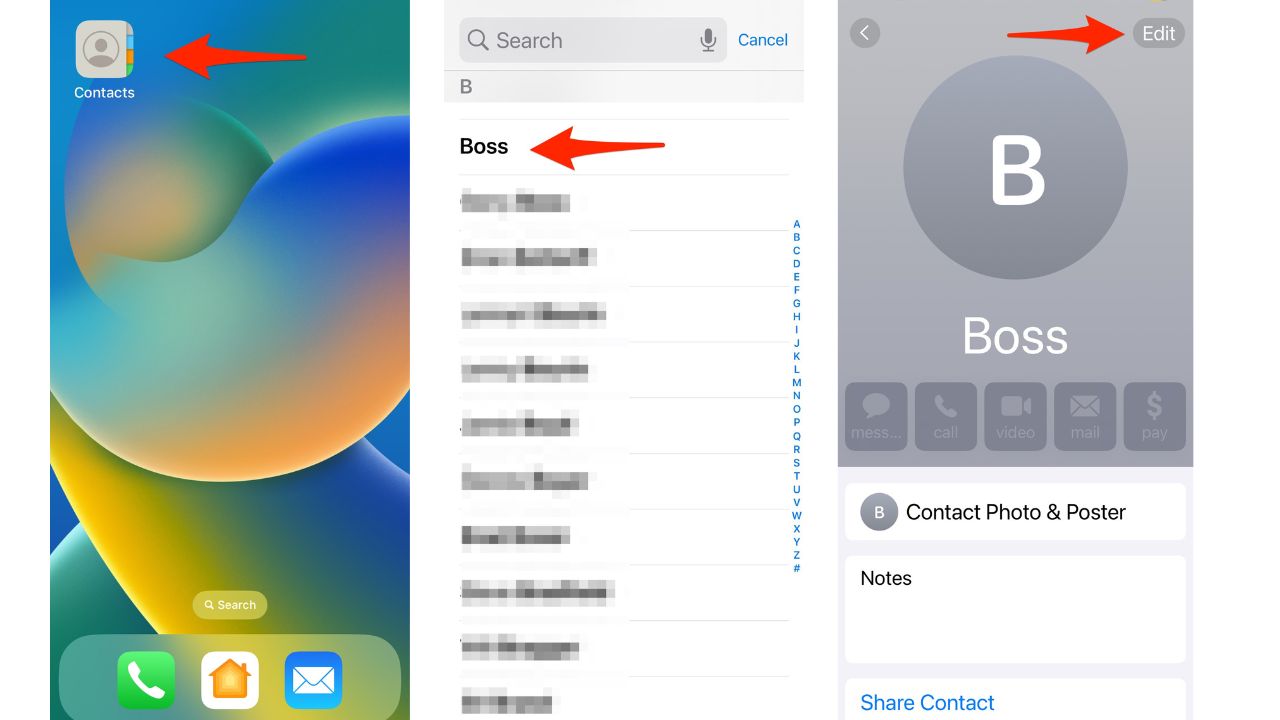
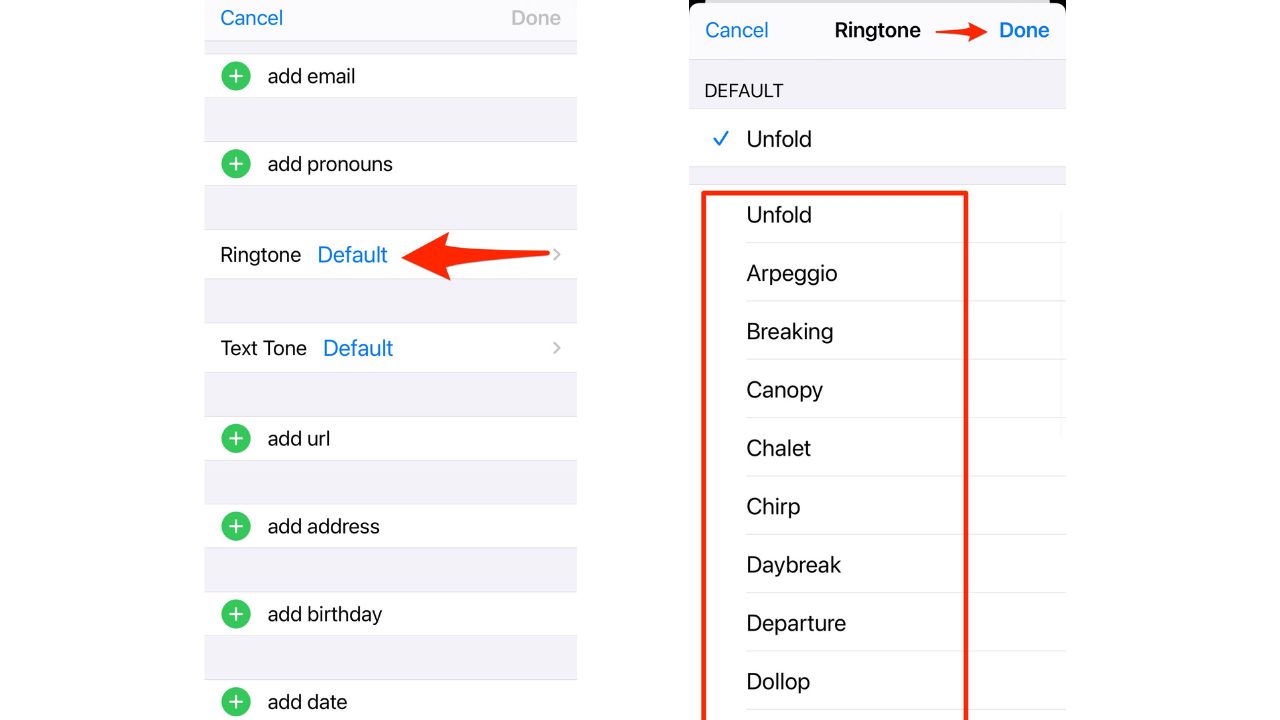
How to set custom ringtones on iPhone
- Go to Contacts
- Tap on a person’s name
- Then in the upper right corner tap Edit
- Next, tap Ringtone
- Then choose a new sound
- Click Done
MORE: NEVER MISS A CALL AGAIN EVEN WHEN YOUR PHONE’S IN ANOTHER ROOM
How to set custom ringtones on Android
Settings may vary depending on your Android phone’s manufacturer
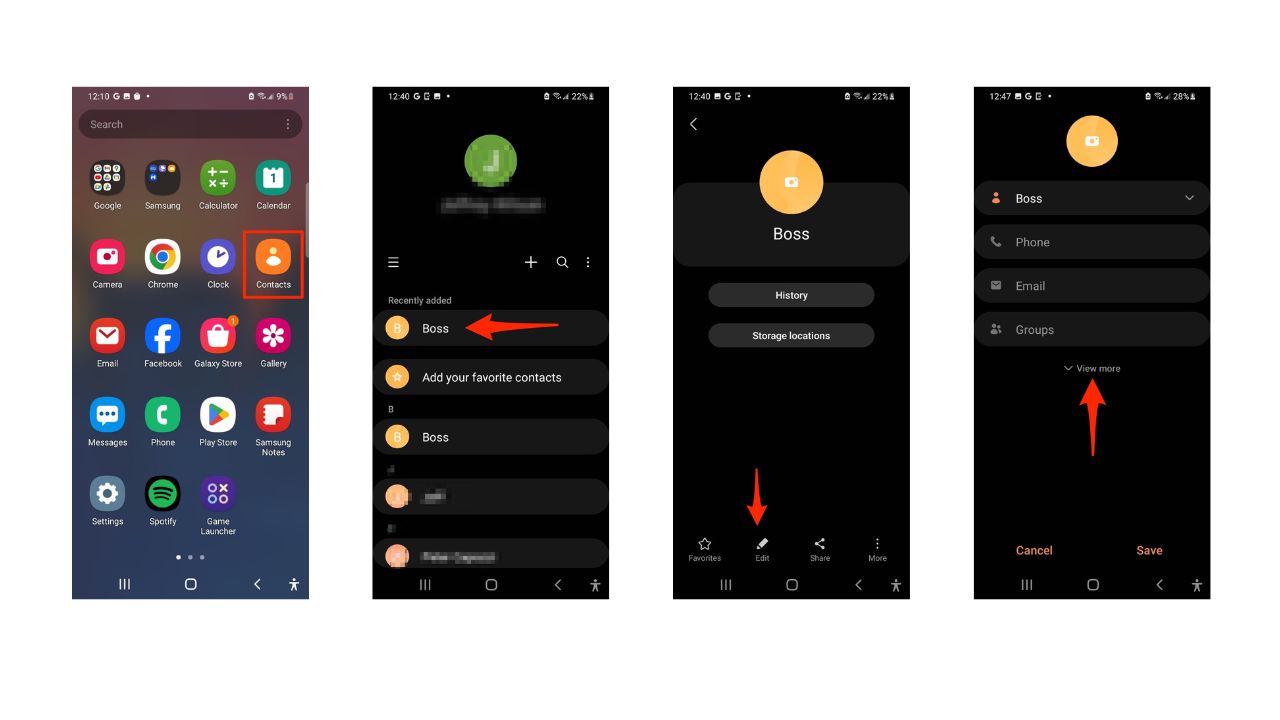
- Go to the Contacts app
- Tap on a person’s name
- Tap Edit
- Then click View more
-
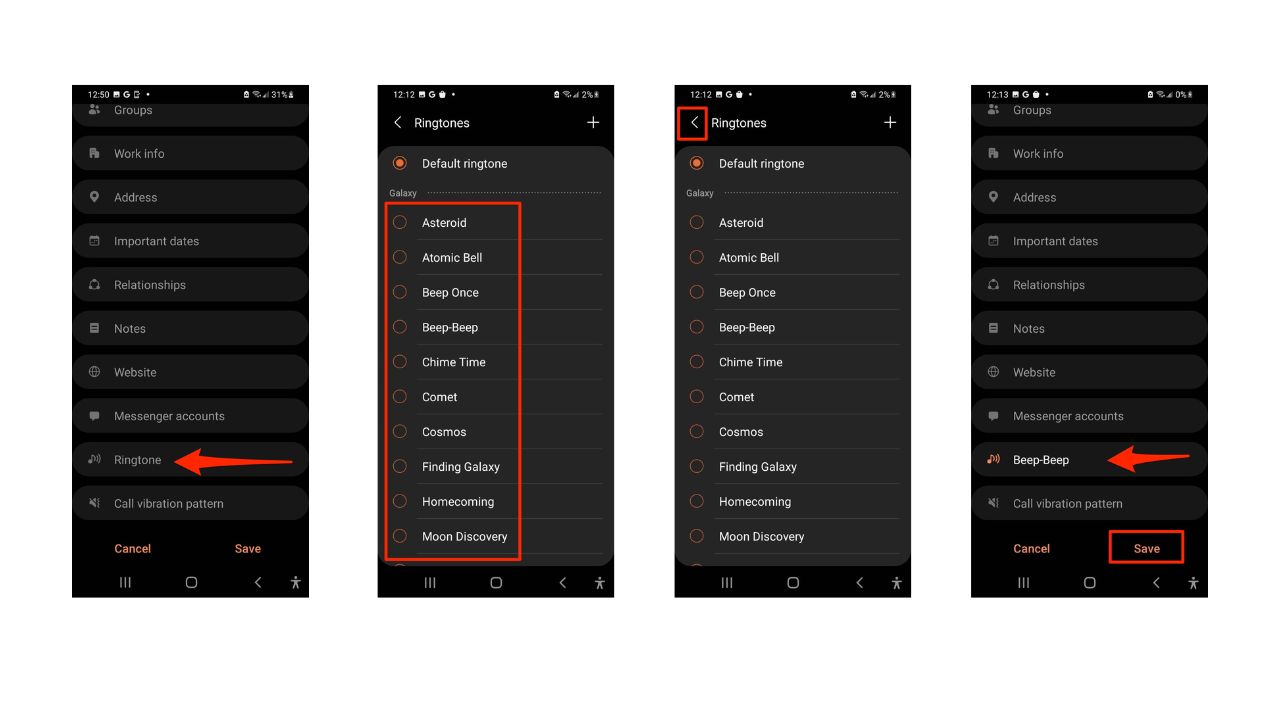
- Scroll down and tap Ringtone
- From here you can pick from a variety of sounds
- Then tap the in the top left of your screen
- Click Save
MORE: HOW TO QUICKLY SILENCE YOUR RINGER ON YOUR PHONE
How to buy ringtones from online stores
If you don’t want to use the default ringtones that come with your phone, or if you want to have more variety and options, you can also buy ringtones from online stores. Depending on the type of your phone, you can access different online stores that offer a wide range of ringtones for different prices.
For iPhone users, the most convenient way to buy ringtones is through the iTunes Store. To buy ringtones from the iTunes Store, you need to have an Apple ID and a valid payment method. Frankly, with all the new ringtones in the latest iOS 17 and later software, you shouldn’t need to spend a dime unless you are looking to go big on customizing what you hear when certain people call.
To buy ringtones from the iTunes Store on your iPhone
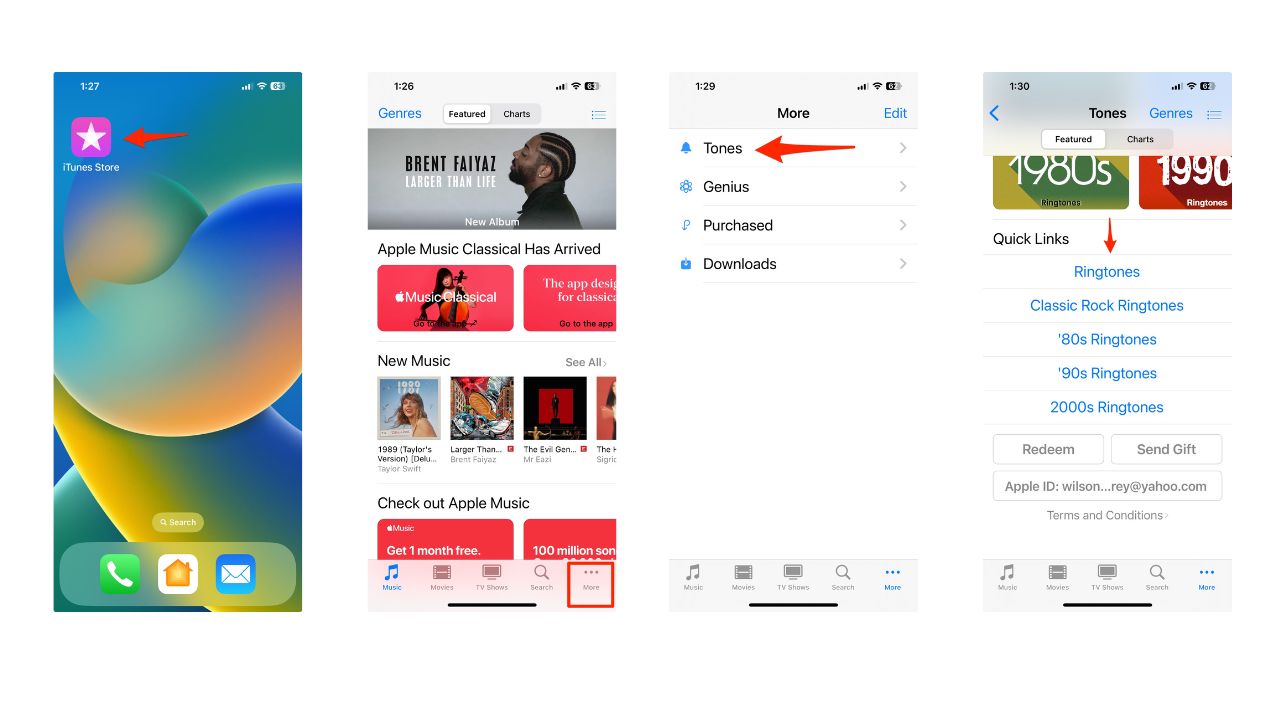
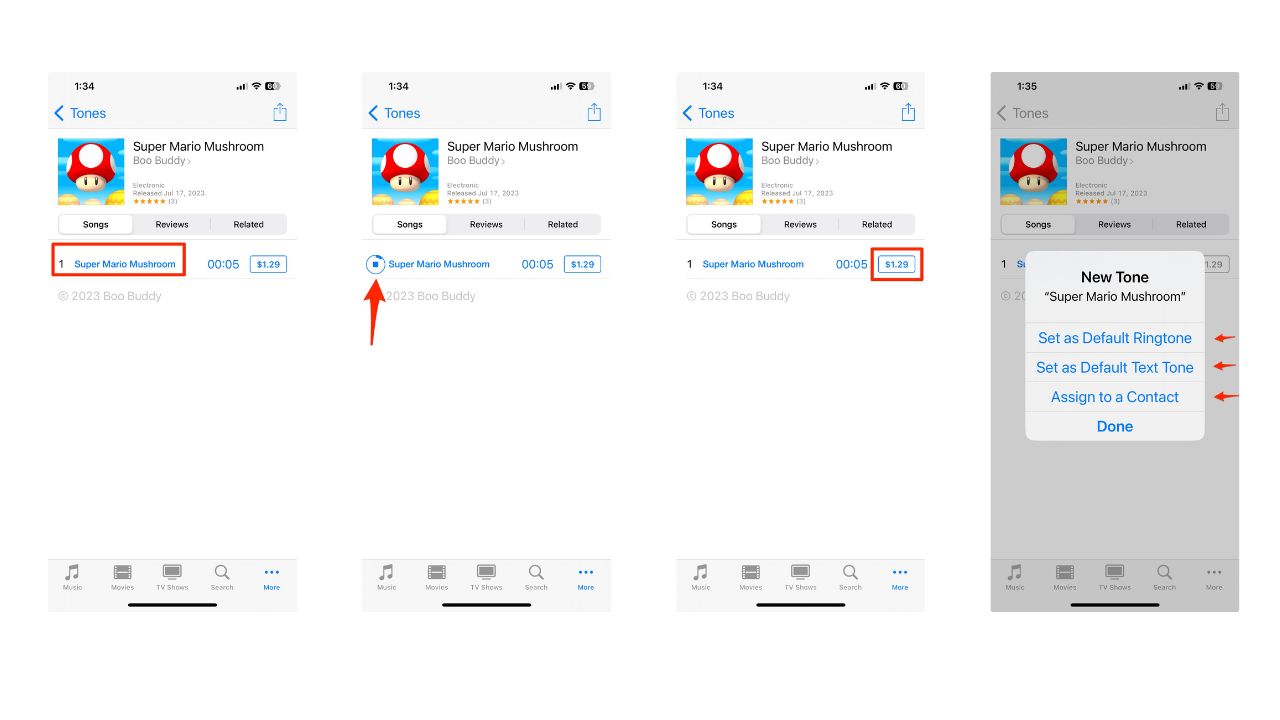
- Open the iTunes Store app on your iPhone
- Tap More at the bottom right corner of the screen
- Tap Tones
- Browse or search for the ringtone that you want to buy
- You can preview the ringtone by tapping the Ringtone, then click the name of the Ringtone and it will play
- Tap the price of the ringtone to buy it. You will be asked to either Set as Default Ringtone, Set as Default Text Tone, or Assign to Contact
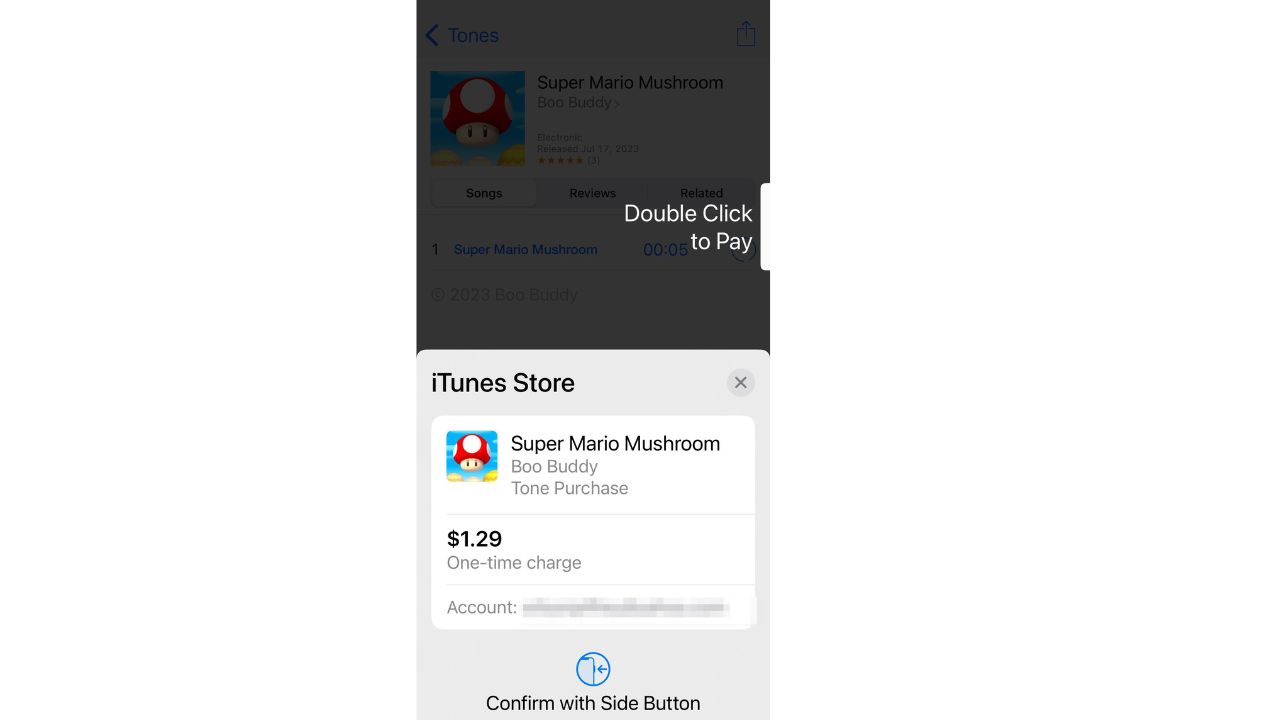
- Then you will be asked to confirm your purchase
For Android users, there are several online stores that offer ringtones for Android devices. Some of the most popular ones are Google Play Store, Zedge, and Verizon Tones. You can access these online stores from your Android phone or tablet or from your web browser on your computer.
To buy ringtones from these online stores, you need to have a Google account and a valid payment method for the Google Play Store, or a Zedge account and a valid payment method for Zedge, or a Verizon account and a valid payment method for Verizon Tones.
MORE: HOW TO ADD A CUSTOM RINGTONE TO YOUR PHONE
To buy ringtones from online stores on your Android
Settings may vary depending on your Android phone’s manufacturer
- Open the online store app on your Android phone. If you don’t have the app installed, you can download it from the Google Play Store.
- Browse or search for the ringtone that you want to buy. You can preview the ringtone by tapping the play button next to it
- Tap the price of the ringtone to buy it. You may be asked to sign in with your account and password or use biometric authentication to confirm your purchase
- The ringtone will be downloaded to your Android phone and added to your library
Buying ringtones from online stores is a quick and easy way to get new sounds for your phone. However, you should be aware that some online stores may charge you extra fees or subscriptions for using their services. You should also check the compatibility and quality of the ringtones before buying them.
MORE: BEST WEBSITES TO DOWNLOAD FREE RINGTONES
Kurt’s key takeaways
Now when someone you never want to miss calls, you’ll know immediately, even when your phone is across the room. Setting custom ringtones for your contacts is a simple way to personalize your phone. You can also have fun with it and choose ringtones that match the personality or mood of each person.
What are some of the ringtones that you have assigned to your contacts and why? Let us know by commenting below.
FOR MORE OF MY TECH TIPS & SECURITY ALERTS, SUBSCRIBE TO MY FREE CYBERGUY REPORT NEWSLETTER HERE