Categories
Android Android 15 funtouch os 15 News vivo

iQOO Z7s 5G receives Android 15-based Funtouch OS 15 Update

Vivo is doing a great job rolling out the Android 15-based Funtouch OS 15 for its devices. Over the past two months, the brand has rolled out the update for a bunch of phones, including the Z9s lineup and more. Now, the major Funtouch OS 15 update is rolling out to the iQOO Z7s 5G with a long list of changes.

A user has confirmed receiving the Funtouch OS 15 on the iQOO Z7s 5G. The update weighs over 6GB, which is common for a major update. The update is rolling out with the build number PD2251JF_EX_A_15.2.10.1.W30. It has been confirmed to be rolling out in India, but it may also be available in other regions.

Funtouch OS 15 for iQOO Z7s

As the Funtouch OS 15 is a major update, it brings a bunch of new features. Although the user shared a screenshot, it doesn’t reveal the full changelog. Nevertheless, the changes will be largely similar to those in the update for other devices. Therefore, we’ve compiled a changelog based on the Z9s update.

System

  • Added memory enhancement technology, which accurately classifies and manages memory, compresses memory to save space, improves memory usage efficiency, and enables smooth multitasking
  • Added a Link to Windows feature, which supports seamless access to notifications, calls, photos, and more on your computer, enhancing the synergy between your phone and your computer. You can use it by tapping Settings and going to More connections > Link to Windows.
  • Optimized system dynamic effects with the new Origin animation that incorporates principles from human factors research and integrates the natural laws of the physical world into the dynamic effects design.
  • Optimized the system’s public control and kit library and system icon library by establishing a systematic order for public controls within the system to create an intuitive and comfortable user experience.

Wallpapers

  • Added multiple sets of static wallpapers with a variety of styles for you to choose from, enriching your screen with vibrant colours
  • Added multiple sets of live immersive wallpapers, bringing vibrant and dynamic visuals to your home screen in every moment
  • Added a feature to set local videos as live home screen and lock screen wallpapers, allowing you to bring a precious moment or an interesting clip to life on your home screen. When viewing a local video, you can go to More > Set as wallpaper, to configure settings

Home screen

  • Added new icon styles and rounded corner styles and added support for hiding app names, allowing icon styles and the home screen to blend in seamlessly
  • Added Large folder to facilitate home screen app organisation while providing quick access to apps, enhancing efficiency

Widgets

  • Added styles for 1 clock kit and 2 world clock kits, enriching the styles of clock kits on the home screen

Ultra Game Mode

  • Added a quick entry to the small window app list, enabling one-tap access to small windows, allowing for seamless multitasking between gaming and social activities

S-capture

  • Added a three-finger gesture for area screenshot to enhance screenshot efficiency
  • Optimised the screen recording panel, supporting simultaneous writing while recording and quick settings
  • Optimised the screenshot editing page, adding support for more efficient tools to enhance editing efficiency
  • Fixed the issue where in multi-audio recording scenarios such as video conferences, the screen recording was unable to capture both the user’s voice and the other party’s voice simultaneously

Smart sidebar

  • Added Screen translation, allowing you to quickly access Google Lens for translation via Smart sidebar, enabling quick translation of on-screen content

Notes

  • Added more text editing tools, making it easier and more enjoyable to record ideas
  • Added a feature to export notes in Word format for easy sharing

Settings

  • Enhanced the search scope and fuzzy search capability, making it easier to search for features within Settings
  • Optimised menu categorisation and hierarchy, providing clearer and more logical layouts that make it easier to locate settings

Multitasking

  • Added switching gestures for split-screen and small window modes, allowing you to drag a split-screen to the middle of the screen to switch to a small window, and drag a small window to the edge of an app supporting split-screen to switch to split-screen mode
  • Optimised the startup gestures for split-screen and small window modes. You can swipe up from the bottom of the screen to the upper left or upper right corner to quickly enter split-screen or small window mode more easily when Full screen gesture navigation is used

Security & Privacy

  • Added Passkey, which offers a simpler and more secure authentication method compared to passwords. It also supports cross-device sign-in by scanning a code
  • Optimised screen sharing notification privacy protection by hiding notification details when using a third-party app for screen mirroring or screen recording to protect privacy
  • Optimised partial screen sharing, allowing you to select a single app for screen sharing when using a third-party app for screen mirroring or screen recording to protect privacy
  • Optimised permission settings with restricted settings for apps downloaded through unofficial channels. This restricts the use of some important permissions to reduce the risk of harmful apps engaging in invasive behaviour. To lift the restricted settings for an app, you can go to “App info” and tap the icon in the upper right corner and “Allow restricted settings” to configure the settings
  • Optimised the fingerprint verification pop-up box to support the presentation of more information, enhancing usability

Accessibility

  • Added Live Transcribe, which displays speech content in text format on the screen
  • Added sound notifications to remind users of important sounds in their surroundings

Dynamic Effects

  • Added 4 fingerprint recognition animations, providing a rich selection for those seeking personalisation, while also enhancing animation smoothness

Albums

  • Added Shadow removal for documents, which enables easy removal of annoying shadows and restoration of the original appearance of the document. When viewing a photo, you can go to More > Super Documents > Shadow removal to configure settings
  • Added Memory Film, enabling the browsing of memories in the form of films. The feature intelligently pairs different music, effects, styles and more based on the memory theme, allowing easy creation of personalised memory films for you
  • Added Cleanup suggestions to help you clean up unnecessary photos on your phone, such as duplicate photos, similar photos, and old screenshots and screen recordings. This helps you keep your albums well-organised
  • Optimised the Al tagging system with improved algorithm capabilities, supporting the tagging of various image categories such as people, pets, architecture, sports, art and technology. It can accurately identify photos and intelligently classify them

The Funtouch OS 15 OTA update for iQOO Z7s is rolling out in batches, so it may take a few weeks for the complete rollout. If you haven’t received the update yet, it will be available soon. You can check for the update in the Settings. Before installing the update, make sure to back up important data as a precautionary measure.

Also Check:

Categories
Android android 16 News pixel

Android 16 Beta 2.1 update fixes choppy animations

Google has released a hotfix for Android 16 Beta 2, which was released on February 13. The minor update, Android 16 Beta 2.1 is now available to all eligible models running on Android 16 beta, including the Pixel 6 and newer models.

The latest beta update comes with build number BP22.250124.010 and is based on the same security patch as the second beta update. Since this is a minor update focused only on fixes, it also weighs less.

Android 16 Beta 2.1 fixes various issues such as choppy animation while configuring live wallpapers, accidental reboot, connectivity, and more. Here is the complete changelog available with the latest small fix update.

  • Fixed an issue that sometimes prevented devices from entering Doze mode.
  • Fixed issues that caused some animations to appear choppy while configuring live wallpapers.
  • Fixed an issue that sometimes caused devices to reboot unexpectedly.
  • Fixed various other issues that were impacting system stability, connectivity, and performance.

If you have an eligible Pixel device and opted for the beta program, you’ll receive Android 16 Beta 2.1 as an OTA update. In case you haven’t joined the beta program yet but still want to test the Android 16, you can also sideload the factory image on your device.

Before switching from the stable to beta, make sure to back up important data.

Also Check:

Categories
Gadget Gadgets News

You WON’T BELIEVE These 10 Android Apps (February 2025)

Android Apps

Looking to maximize the potential of your Android device? These 10 apps featured in a new video from Mr Android FHD are designed to simplify your daily tasks, boost productivity, and inspire creativity. Whether you want to organize your digital life, customize your phone’s appearance, or enhance your privacy, these tools provide practical solutions for common challenges. Explore how each app can elevate your smartphone experience.

1. Declutter Your Photo Gallery with Sponge

Managing a growing photo gallery can be daunting, but Sponge simplifies the process. This app allows you to swipe through your photos, quickly deciding which to keep or delete. You can even set up reminders for regular decluttering sessions, making sure your storage remains optimized. Whether you’re organizing personal memories or work-related images, Sponge helps you maintain a clean and clutter-free gallery. Its intuitive interface makes it easy to stay on top of your photo collection without feeling overwhelmed.

2. Organize Saved Links with Later Links

If you often save articles, videos, or other online resources, Later Links is an essential tool. This app enables you to organize saved links using tags, notes, and collections, making it simple to retrieve content when you need it. It also syncs seamlessly with Google Drive, making sure your saved items are accessible across all your devices. With Later Links, you can say goodbye to endless browser history scrolling and enjoy a more efficient way to manage your digital bookmarks.

3. Upgrade Your Wallpaper with Wall Spot

Bored with your current wallpaper? Wall Spot offers a collection of over 900 high-quality 4K wallpapers across categories like nature, abstract art, and more. Whether you prefer free or premium options, you’ll find designs that suit your style. Many wallpapers are also compatible with desktop screens, allowing you to create a cohesive aesthetic across all your devices. With Wall Spot, refreshing your phone’s look has never been easier or more enjoyable.

4. Personalize Widgets with One7 KWGT

Customization enthusiasts will love One7 KWGT, which features over 150 widgets inspired by One UI 7. From weather updates to time displays, these widgets let you design a home screen that reflects your personality and preferences. The app’s user-friendly interface ensures that even beginners can create a polished, professional-looking layout. With One7 KWGT, you can transform your home screen into a functional and visually appealing space.

5. Manage Files Ad-Free with Right Files

For a streamlined file management experience, Right Files is a standout choice. Its clean, iOS-inspired interface makes organizing your files straightforward, while its ad-free design ensures a distraction-free environment. The app also offers customization options, allowing you to tailor your file organization to suit your needs. Whether you’re managing work documents or personal files, Right Files provides a reliable and efficient solution.

6. Convert Audio to Text with Brain Dump

If you rely on voice notes, Brain Dump is a must-have app. It converts audio into text in over 50 languages, making it ideal for students, professionals, and multilingual users. The app also offers AI-generated summaries, helping you quickly review key points from lengthy recordings. Additionally, it securely backs up your data to Google Drive, making sure your notes are always accessible and well-organized. With Brain Dump, you can streamline your note-taking process and focus on what matters most.

7. Browse Privately with Quetta Browser

Privacy-conscious users will appreciate the features of Quetta Browser, which prioritizes secure browsing. With built-in ad blocking and video download capabilities, it provides a clean and distraction-free experience. The app’s user-friendly design ensures smooth navigation while protecting your data. Whether you’re researching sensitive topics or simply want a more private browsing experience, Quetta Browser delivers the tools you need to stay secure online.

8. Create Stunning Edits with Text Behind Photo Editor

Elevate your photo editing skills with Text Behind Photo Editor. This app allows you to place text behind objects in your images, creating eye-catching and professional-grade visuals. Advanced tools like background removal and layering make it easy to achieve complex effects, whether for social media posts or personal projects. With Text Behind Photo Editor, you can turn ordinary photos into stunning works of art.

9. Turn Tweets into Shareable Images with Tweet e Pic

Tweet ePic is a simple yet powerful app for transforming tweets into visually appealing images. You can customize fonts, colors, and layouts to create clean, shareable graphics. Whether you’re a content creator, marketer, or casual user, this app makes it easy to preserve and share tweets in a polished format. With Tweet e Pic, you can highlight important messages and engage your audience more effectively.

10. Organize Screenshots with Pixel Shot

If your screenshots are disorganized, Pixel Shot offers a practical solution. Using AI, it automatically tags and categorizes your screenshots based on their content, making it easy to locate specific images. Whether you’re referencing work materials or personal notes, this app streamlines the process of managing and retrieving screenshots. For anyone who frequently captures and uses screenshots, Pixel Shot is an invaluable tool.

Summary

These 10 Android apps showcase how technology can simplify and enrich your smartphone usage. From decluttering your photo gallery with Sponge to organizing your screenshots with Pixel Short, each app addresses a specific need with practical and user-friendly solutions. Whether your focus is on productivity, creativity, or privacy, these tools are designed to help you get the most out of your Android device. Explore these apps today and discover new ways to enhance your smartphone experience.

Here are more detailed guides and articles that you may find helpful on Android productivity apps.

Source & Image Credit: Mr Android FHD

Filed Under: Gadgets News

Latest Geeky Gadgets Deals

Disclosure: Some of our articles include affiliate links. If you buy something through one of these links, Geeky Gadgets may earn an affiliate commission. Learn about our Disclosure Policy.

Categories
Android How To Quick Tips Tech Tips & Tricks

How to unlock clearer sound on an Android with these amazing audio enhancing features

If you have a Samsung phone, you are definitely going to want to adjust some of these settings. It’s possible that your settings aren’t optimized for your specific needs and the frequencies you can hear, plus your phone just isn’t set up for the best listening experience when it comes to watching movies, TV shows, or listening to your favorite tunes.


How to adjust Samsung settings for the best quality sound

Note: These settings may vary depending on your Android model. The steps below were done on a Samsung Galaxy Z Flip4 phone.

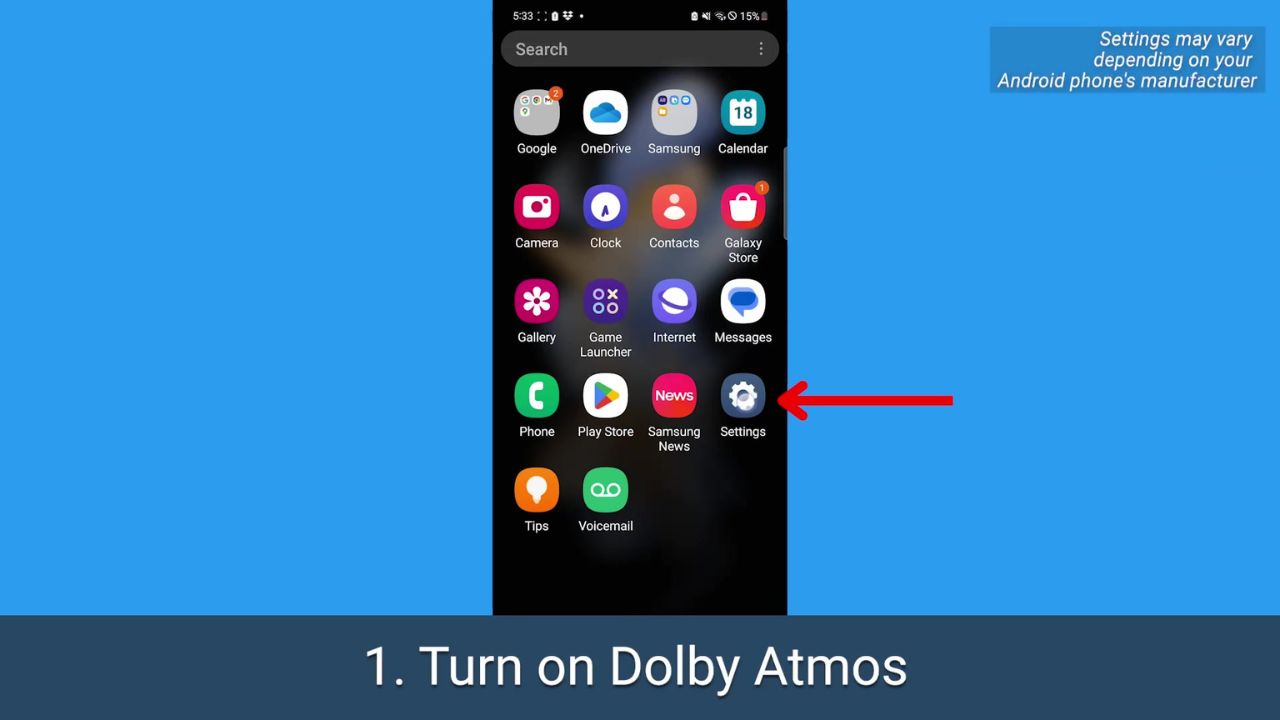
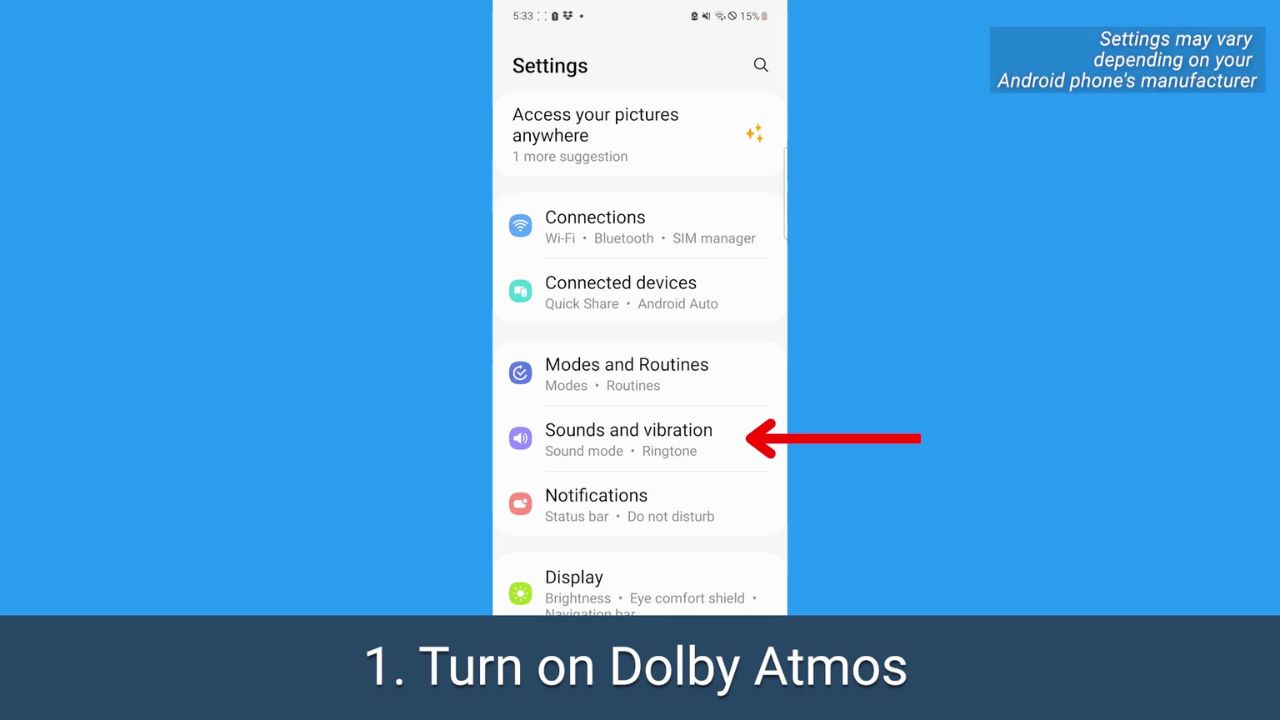
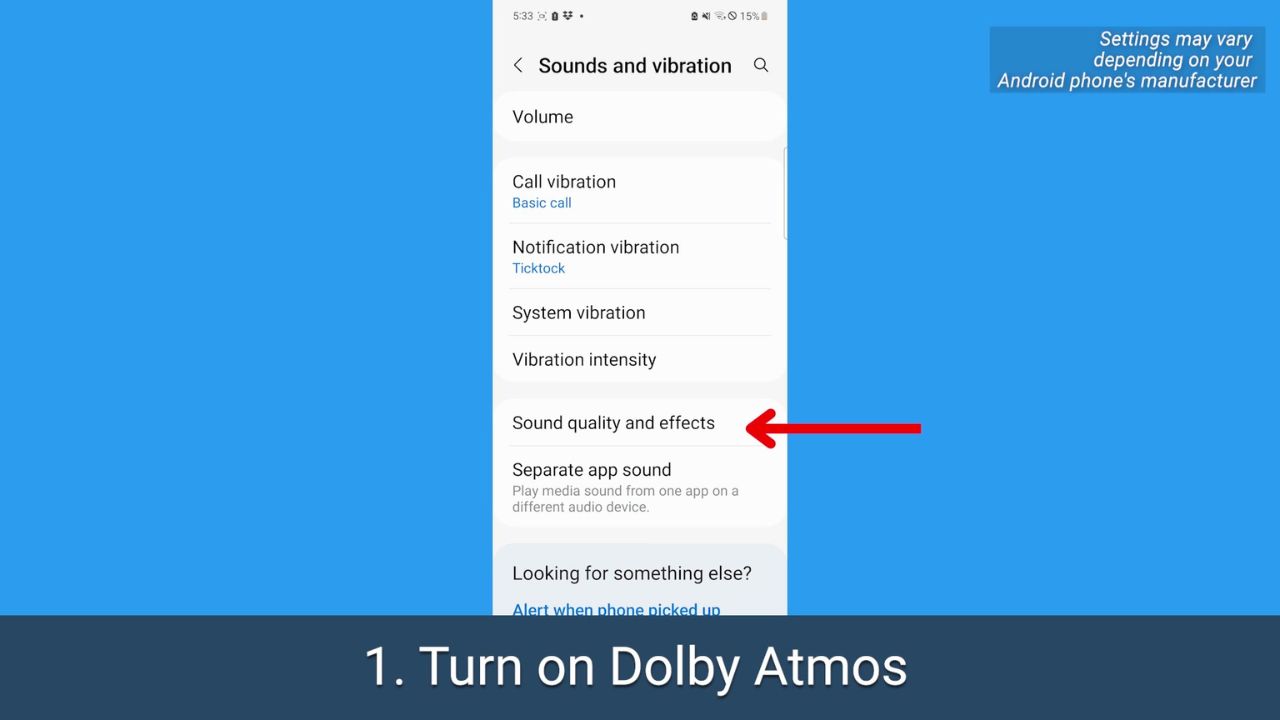
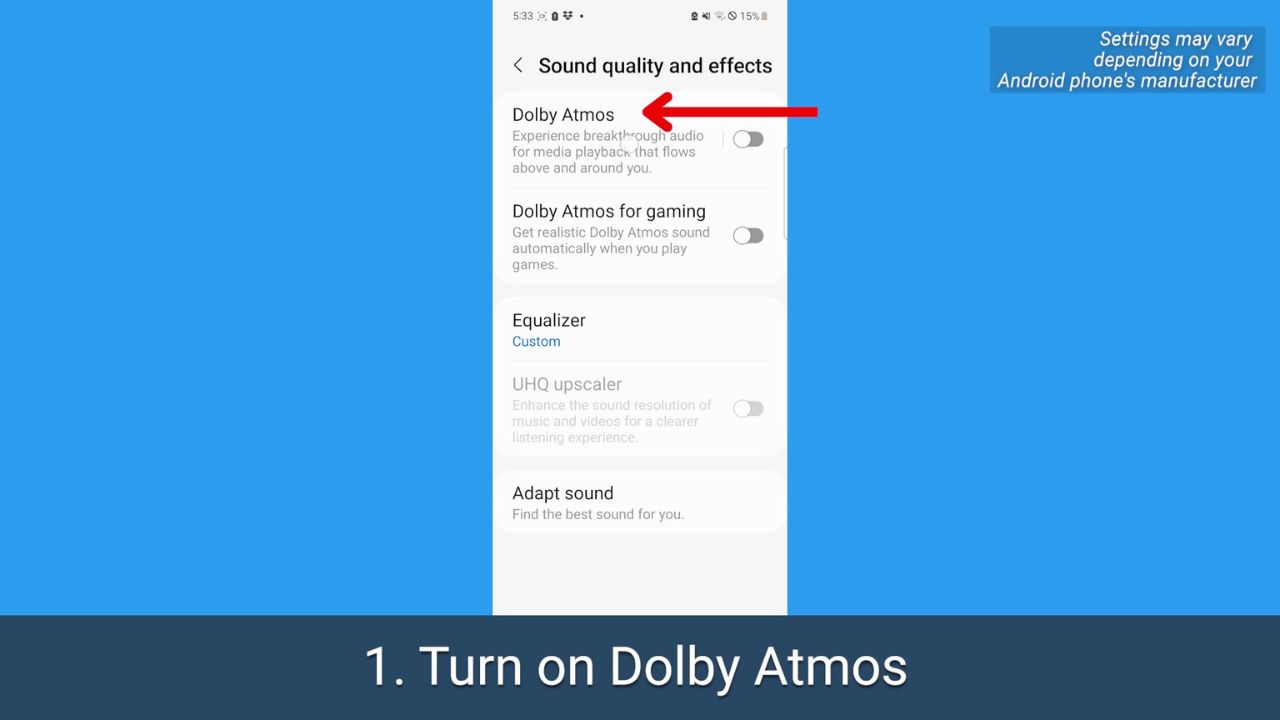
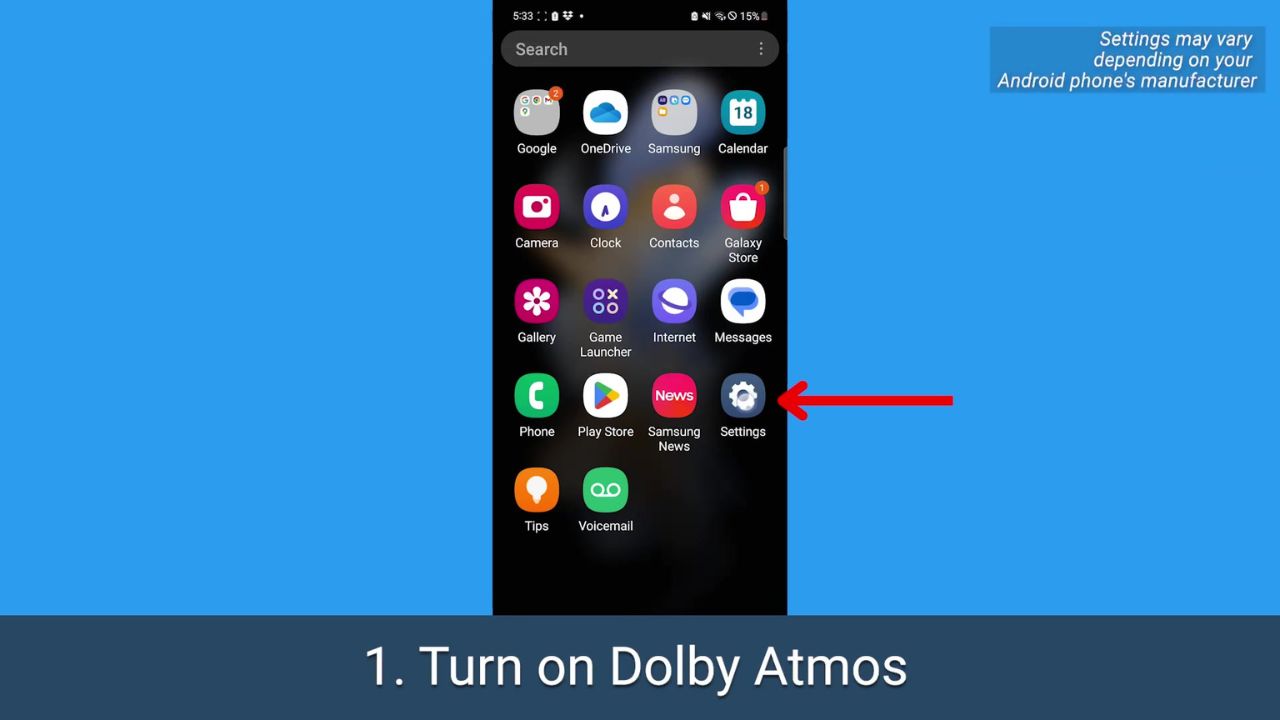
1. Turn on Dolby Atmos

This is a sound setting available on many Android phones that offers a “surround sound” effect. You can adjust it depending on what you’re watching or listening to.

How to turn on Dolby Atmos

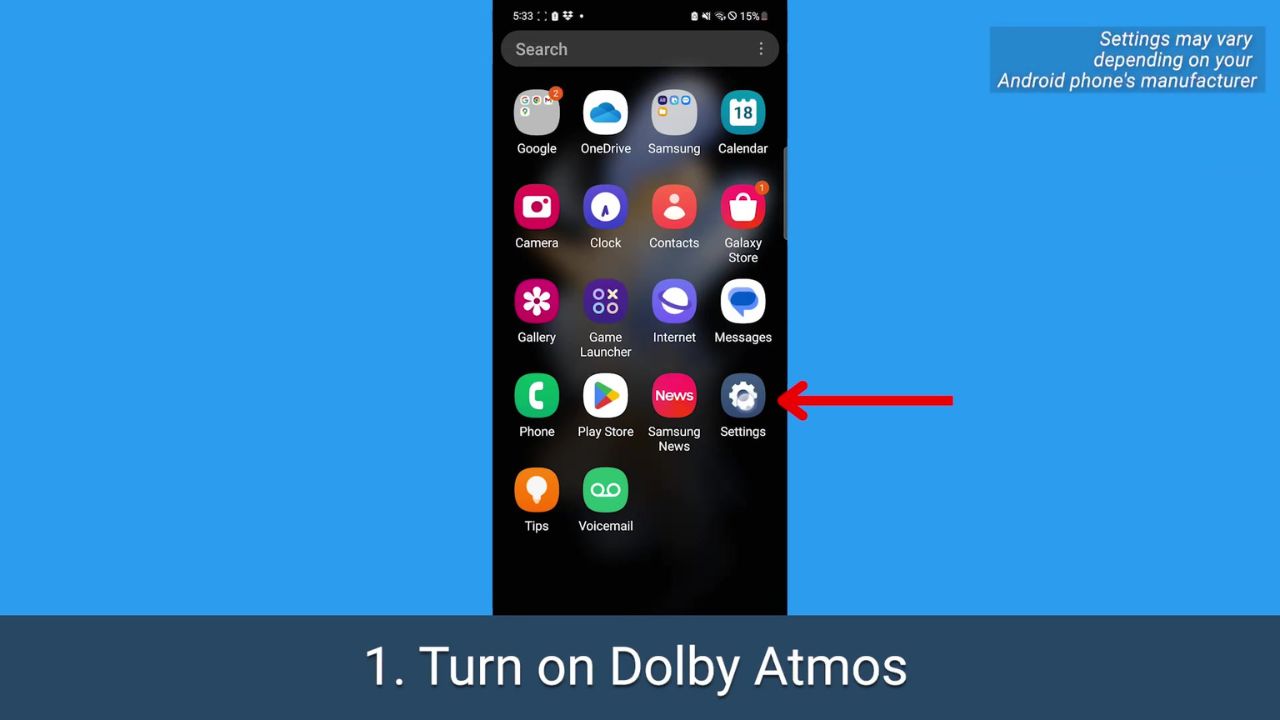
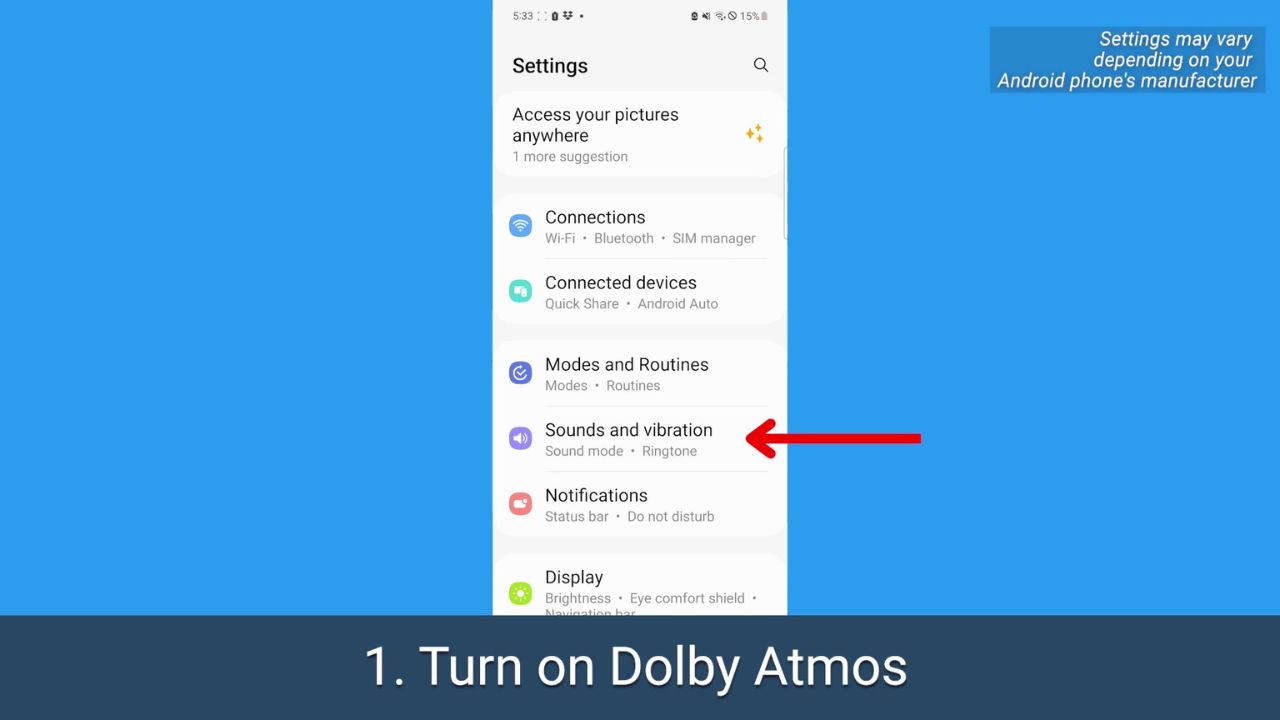
  • Open your Android’s Settings

1

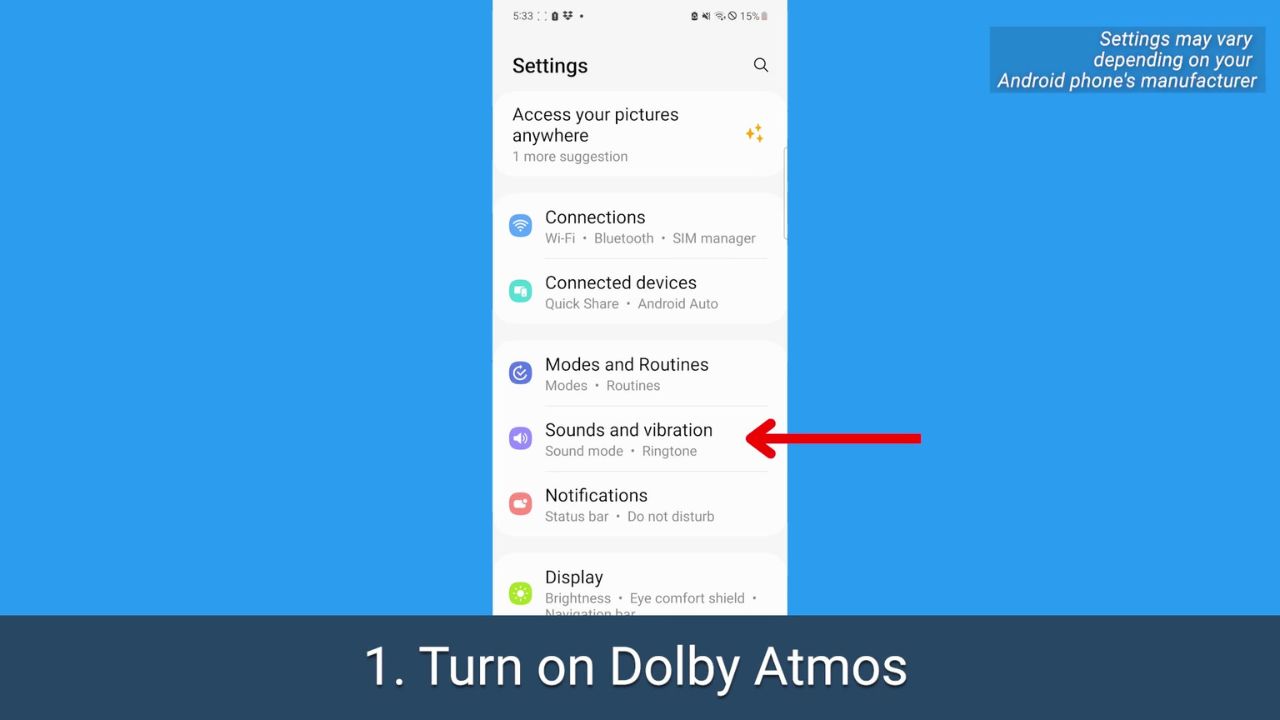
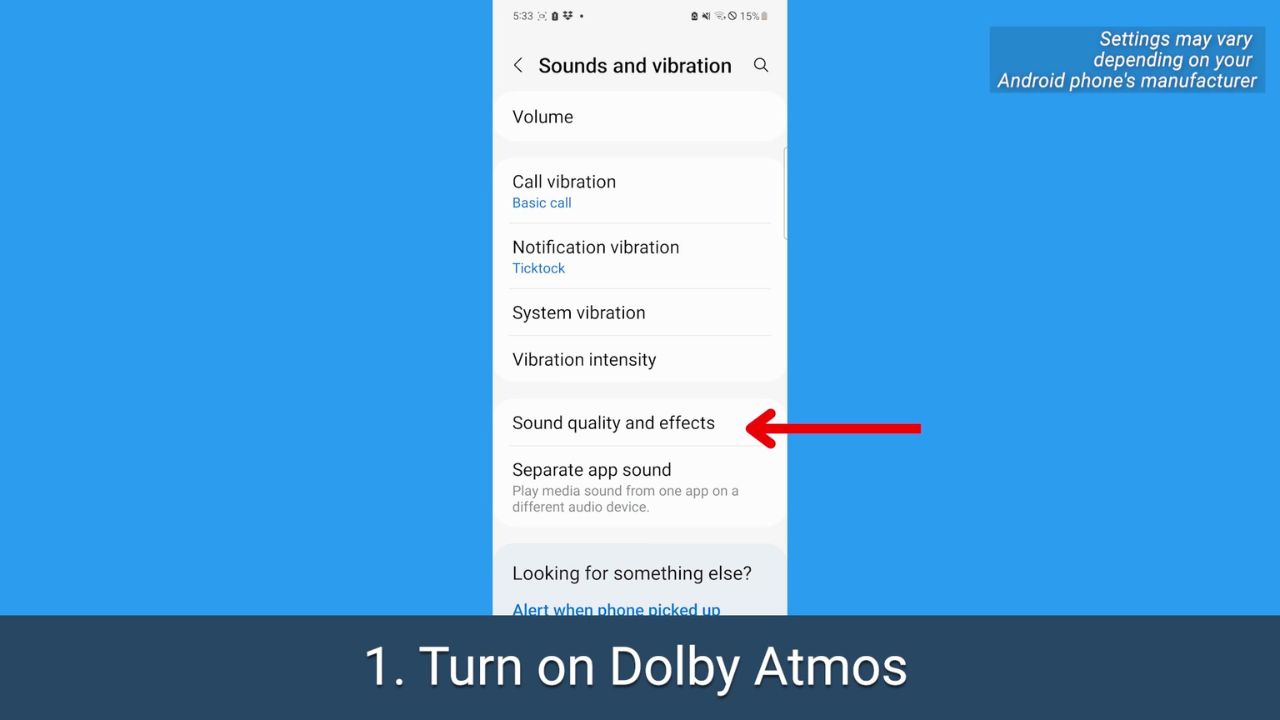
  • Tap Sounds and vibration. 

2

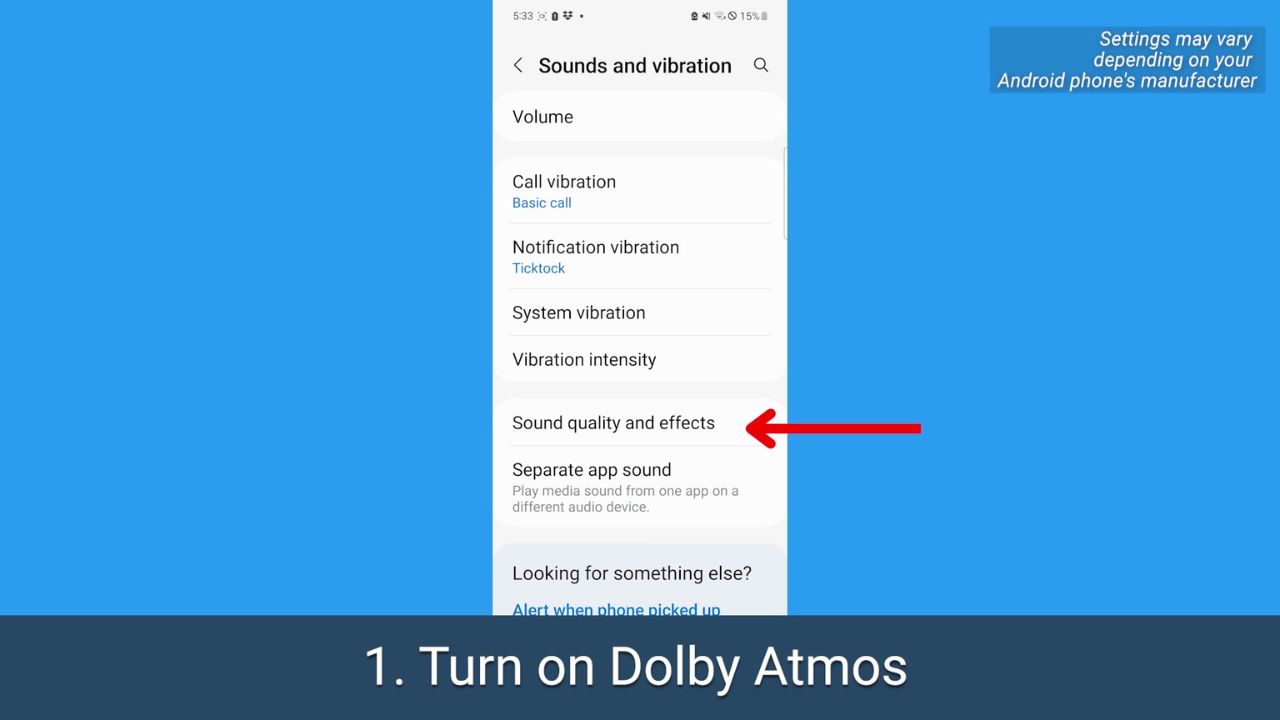
  • Tap Sound quality and effects

3

  • Before just toggling it on, tap Dolby Atmos

4

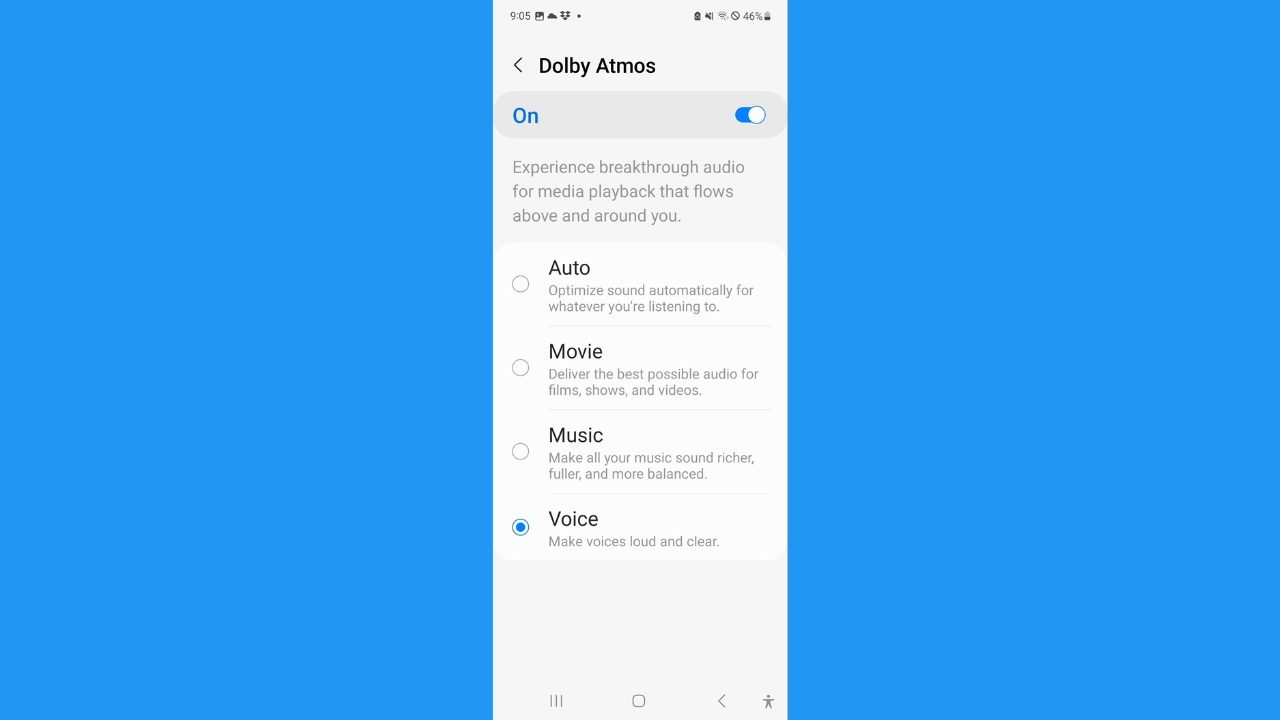
  • On the Dolby Atmos page, toggle it on

5

Depending on your operating system, you may be presented with these options: Select Movie to get better sound for movies and TV shows, tap Music if you want a richer, more balanced listening experience, or tap Voice if you want voices to come through louder while watching any video.

MORE: 5 THINGS YOU DIDN’T KNOW YOU CAN DO ON AN ANDROID


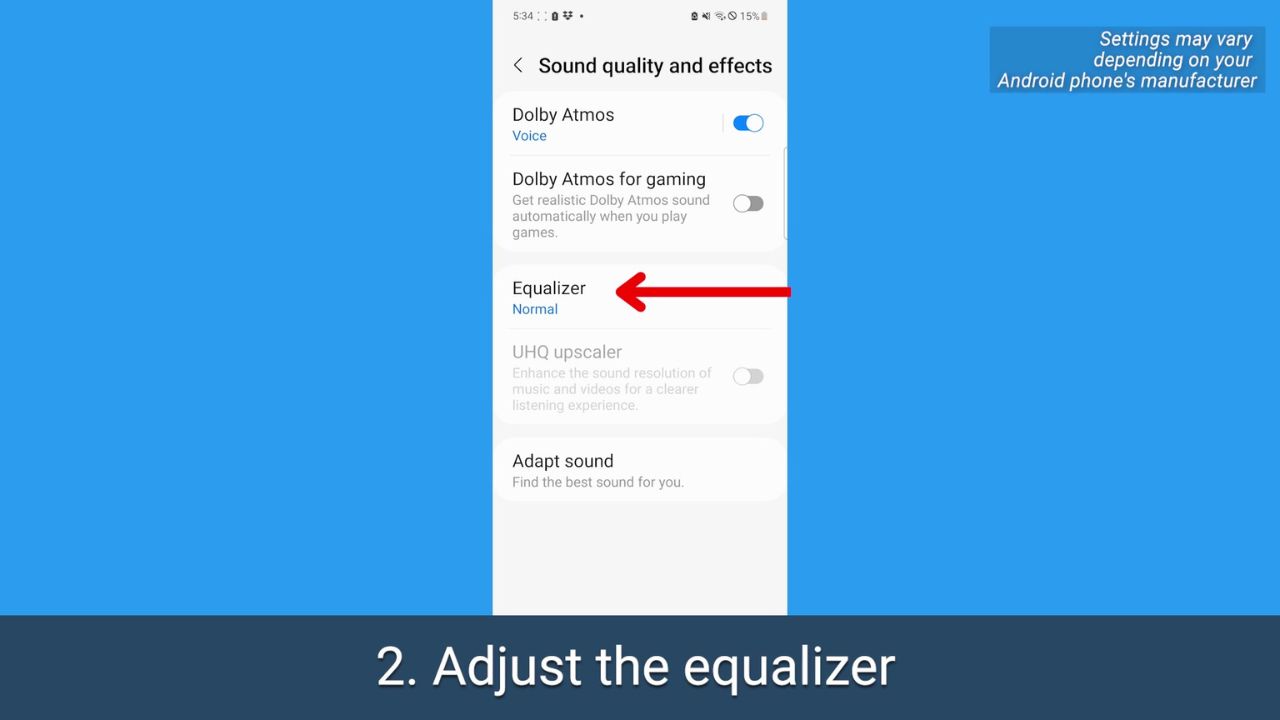
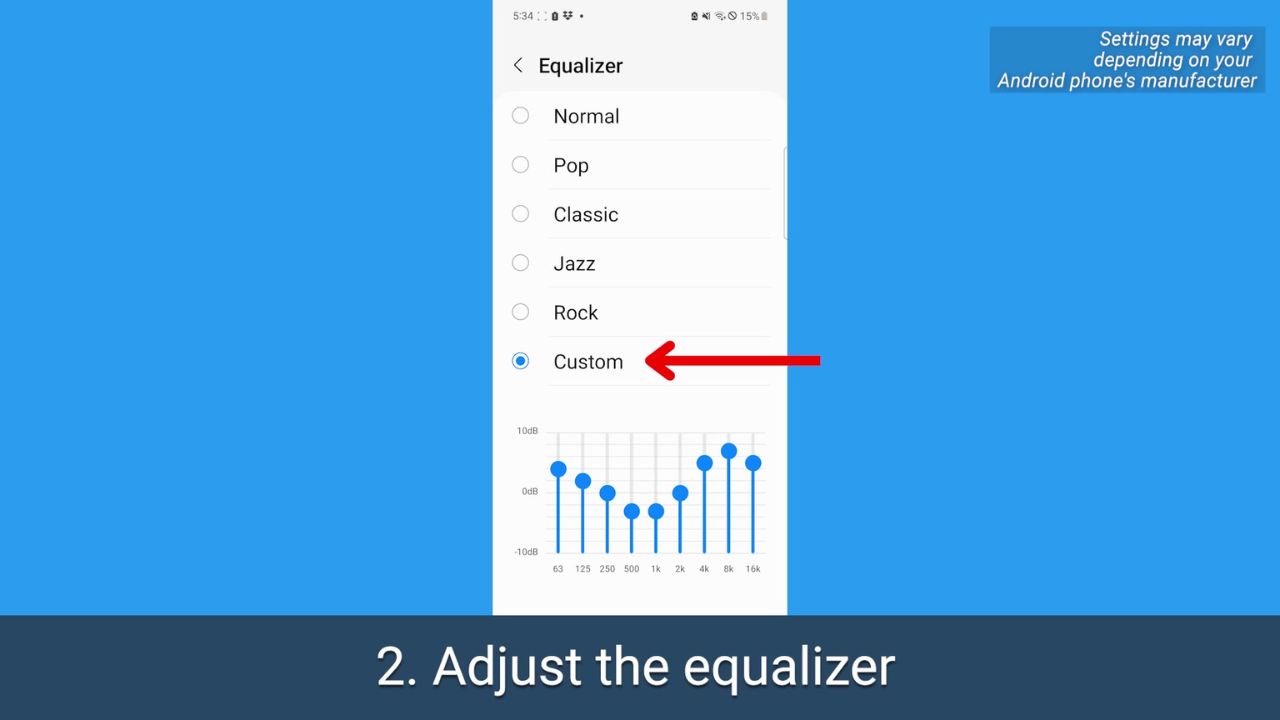
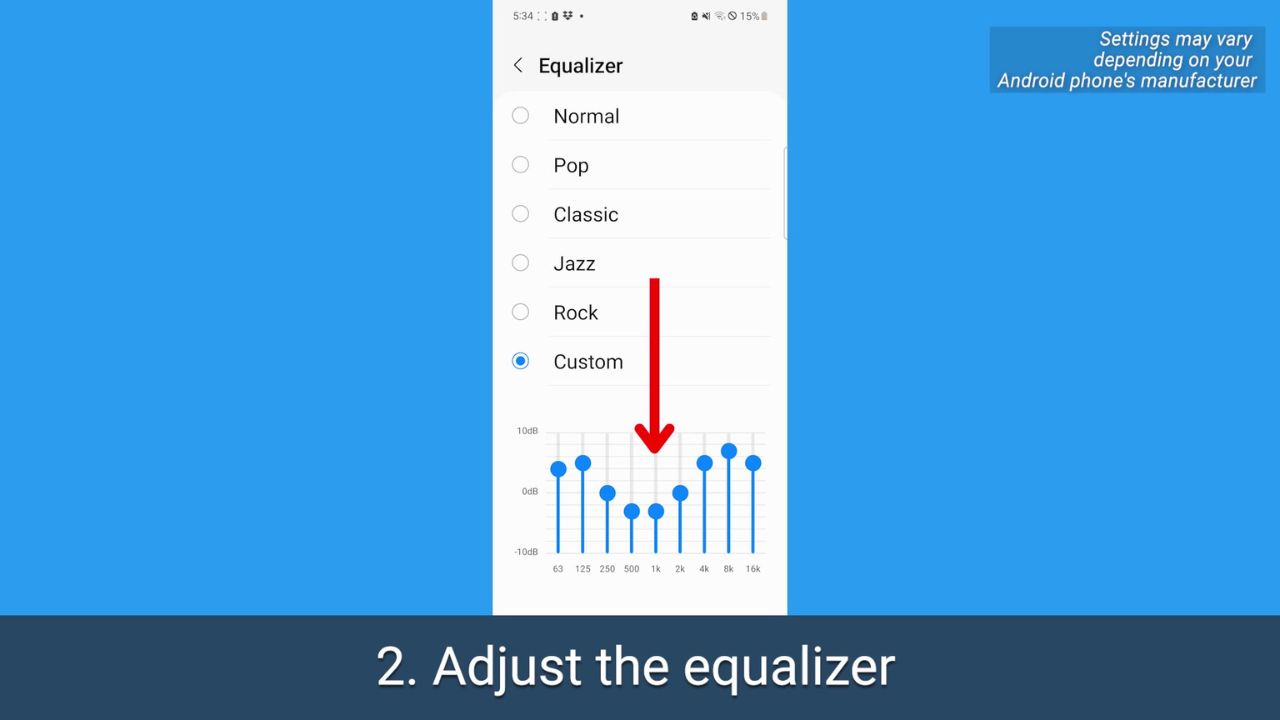
2. Adjust the equalizer

This setting lets you balance out sound depending on what you’re listening to or want to hear.

How to adjust the equalizer

  • Open your Android’s Settings

7

  • Tap Sounds and vibration

8

  • Tap Sound quality and effects

9


10

11

  • Play around with these sound levels – you can even do it while you have something already playing in the background. You may want to up the ones on the left for a higher bass, or the opposite if the bass is already too loud.

12

FOR MORE OF MY TECH TIPS & SECURITY ALERTS, SUBSCRIBE TO MY FREE CYBERGUY REPORT NEWSLETTER HERE  


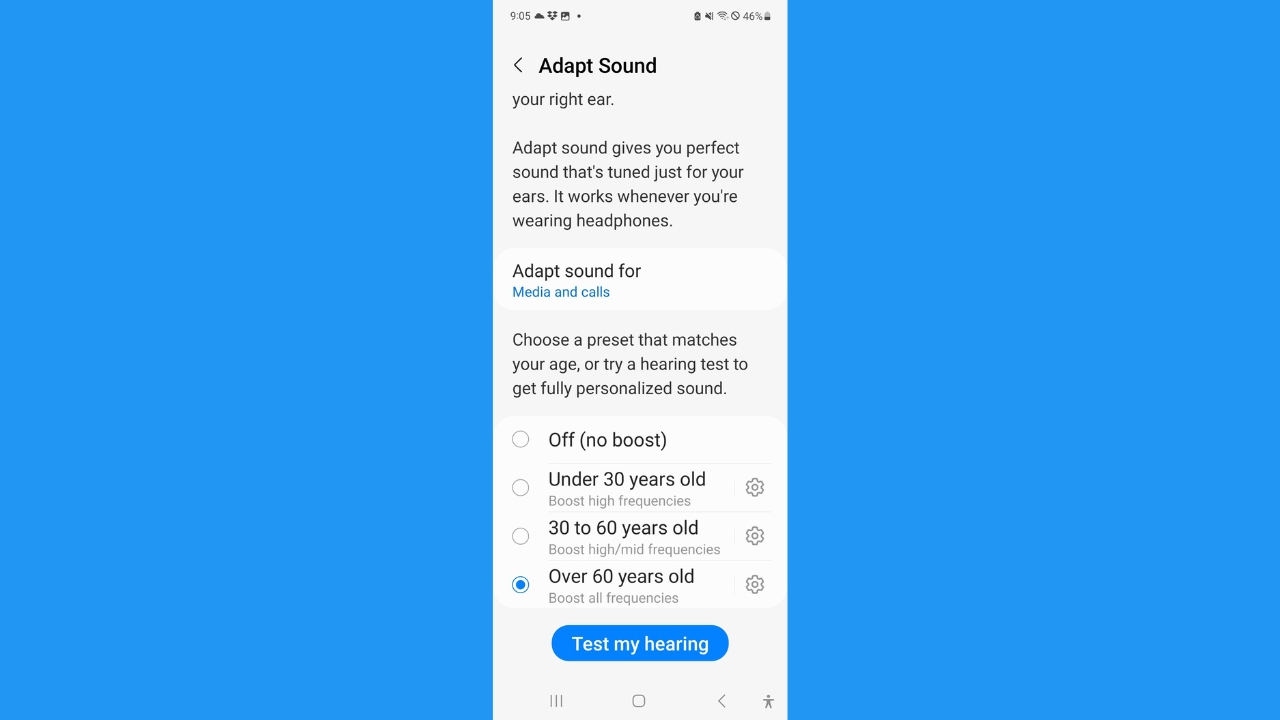
3. Adapt your phone’s sound for your age

We all hear sounds differently, and higher frequencies also become harder to hear as we age. Android lets you take a hearing test targeted for different age ranges, which will make listening through your headphones a completely personalized experience.

How to adapt your phone’s sound for your age

  • Open your Android’s Settings

  • Tap Sounds and vibration

14

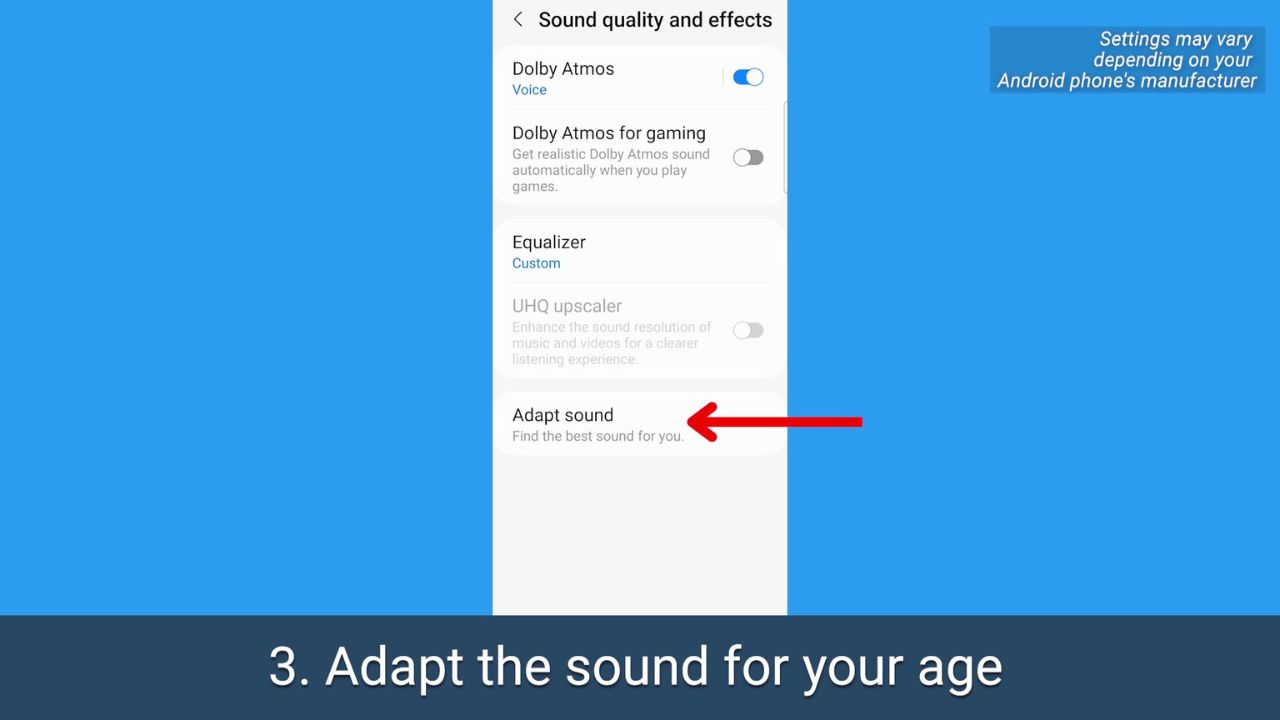
  • Tap Sound quality and effects

15

16

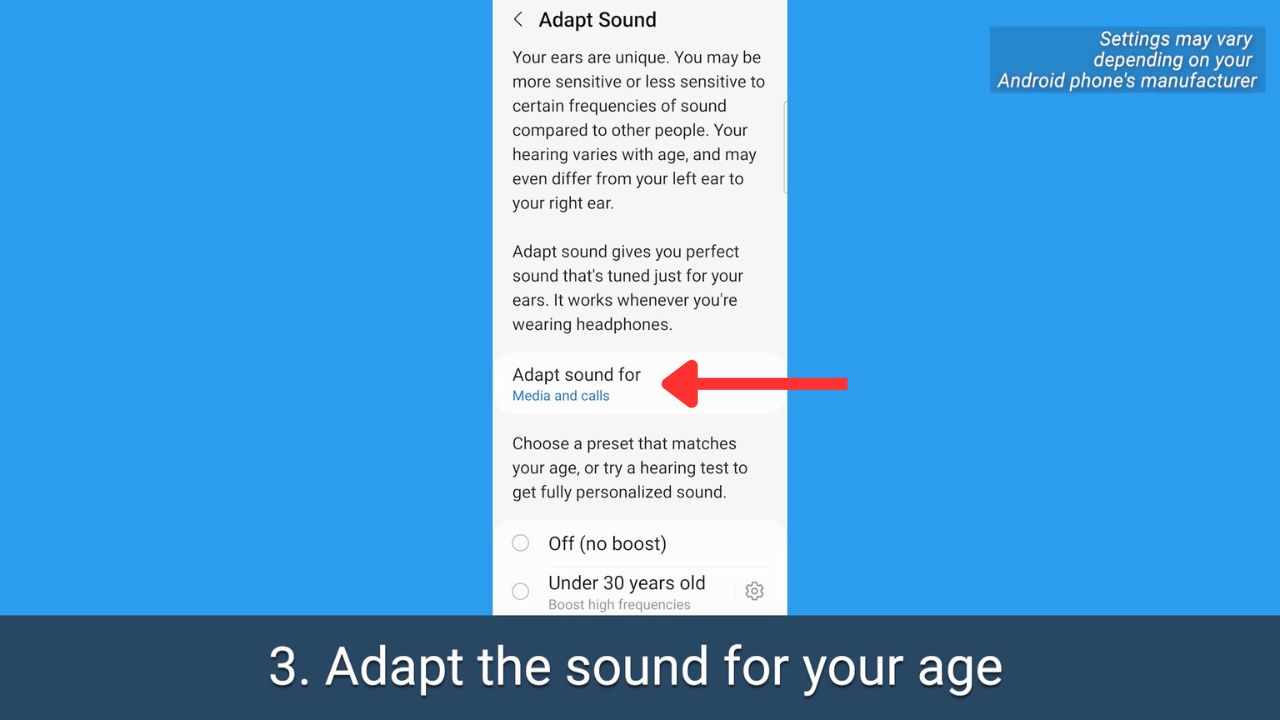
  • Where it says Adapt Sound for be sure to select Media and calls

17-adapt sound android

  • Then scroll and select the age range that applies to you
  • Tap Test my hearing

18-android adapt sound

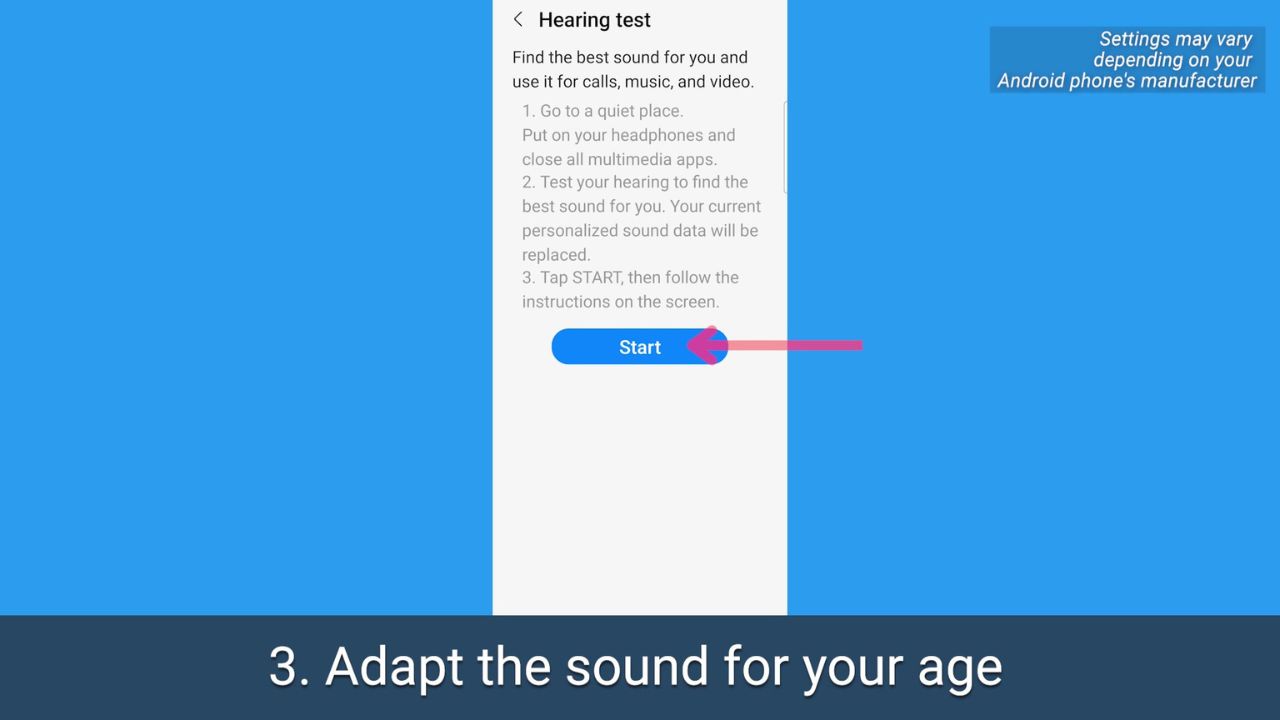
  • Be sure you’re wearing headphones, and you’re in a quiet place
  • Tap Start and follow the prompts to test your hearing and adjust your phone’s sound properly

MORE: HOW TO PICK WHICH WIRELESS EARBUDS ARE BEST FOR YOU 

19-start hearing test

MORE: 5 BEST NOISE-CANCELLING HEADPHONES TO BOOST YOUR LISTENING FOR 2023


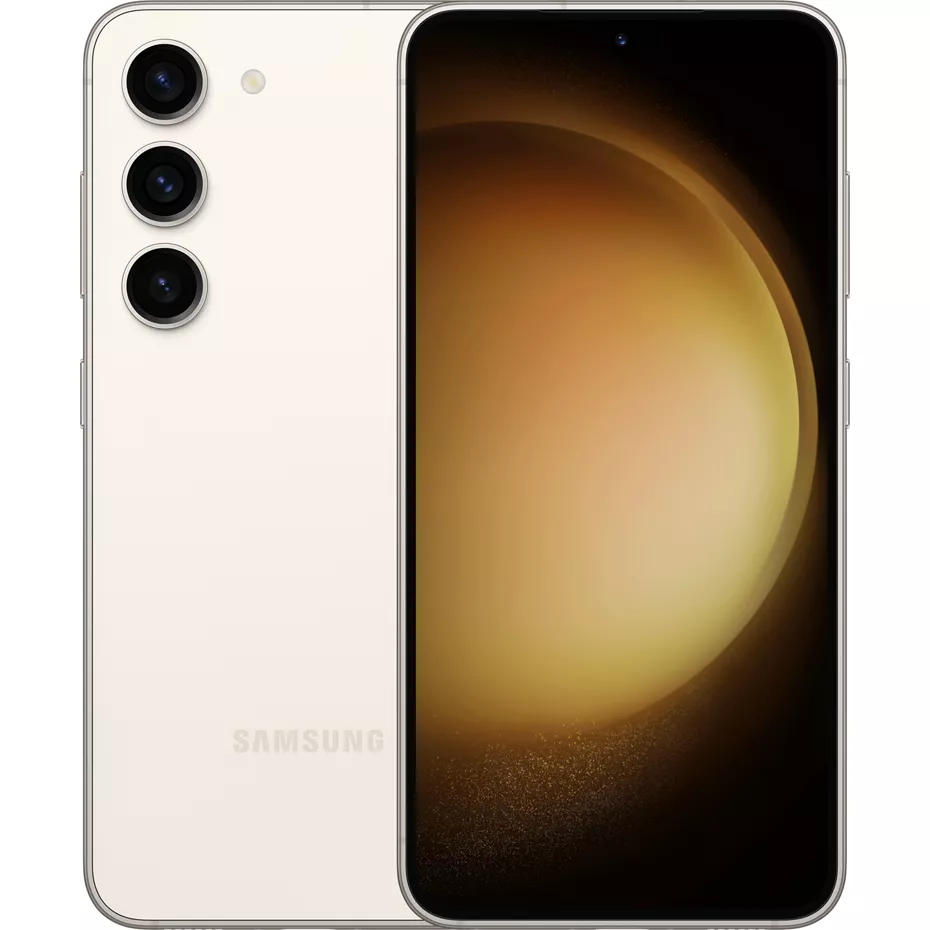
Get Galaxy S23 free with select plan & new line

Get Samsung Galaxy S23 free with select plan & new line


Kurt’s key takeaways

Our hearing changes as we age, and at the end of the day,  we’re all looking for different outcomes when it comes to sound on our devices. It’s great to know the options that are available in case you do find watching videos or listening to certain podcasts to be a little iffy because of the sound quality. After all, as our ears gracefully age, it’s comforting to know that we can still savor the symphony of life with the right tune-up for our tech. 

What are some other ways you personalize your sound experience on your devices? We would love to hear your tips and tricks for optimizing sound quality. Let us know by commenting below.

FOR MORE OF MY TIPS, SUBSCRIBE TO MY FREE CYBERGUY REPORT NEWSLETTER HERE


More:

Categories
Android android 16 Google News

Download Android 16 Factory and OTA Images [Updated]

Google has kicked off Android 16 journey much earlier than usual compared to the typical first-quarter launch for previous versions. Usually, the tech giant starts the developer preview in the first quarter, but this time they’ve started Android 16 developer preview nearly four months ahead of usual schedule.

Update: Android 16 Beta 2 is now available. Google has released the first Android 16 beta on January 23rd. Factory and OTA images are now available for download.

Users who have eligible Pixel devices can now install the Android 16 beta using the Android Flash tool or by manually flashing the Factory or OTA images.

If you choose the manual method, you can download Android 16 factory and OTA images for your Pixel phone. Here you will find factory images and OTA images for every DP and Beta that Google will release before the stable Android 16. This repository will be continuously updated.

Google took the decision of starting testing Android 16 early to align the release with its flagship phones. This year, the Pixel 9 was launched running Android 14 even though Android 15 was available in AOSP. So with Android 16 set to release early next year, the Pixel 10 will launch with Android 16.

Before we move on to the download section, let’s take a look at the list of supported models.

  • Pixel 6 and 6 Pro
  • Pixel 6a
  • Pixel 7 and 7 Pro
  • Pixel 7a
  • Pixel Fold
  • Pixel Tablet
  • Pixel 8 and 8 Pro
  • Pixel 8a
  • Pixel 9, 9 Pro, 9 Pro XL, and 9 Pro Fold

These Pixel phones are eligible for the Android 16 update. If you have any of the eligible models and want to join the Android 16 ride, you can download the required files from links below.

Download Android 16 Factory Images and OTA Images

Before downloading, it’s important to know if you want a Factory image or an OTA image. A Factory Image is a full system image that requires a clean install and erases all your data. On the other hand, an OTA image is an incremental file that can be installed over your current version (must be latest) and does not require clean installation. Check out the installation process.

Android 16 Beta 2 (BP22.250124.009)

Android 16 Beta 1 (BP22.250103.008)

Android 16 Developer Preview 2 (BP21.241121.009)

Android 16 Developer Preview 1 (BP21.241018.009)

Note: To ensure you are downloading the right files, check the build number and your device codename. Both of these will be part of the link. So if both things match in URL, then you are downloading the correct file.

Before flashing these files on your Pixel, make sure to backup your data so that you can restore it in case something goes wrong.

Once you install the first Android 16 developer preview, you’ll start receiving upcoming builds directly on your device, which means you won’t need to manually flash the files every time.

As mentioned above, we will keep updating this page when a new DP or beta build release.

Also Check:

Categories
Android android 16 Google News pixel

Android 16 Beta 2 rolls out with new features and improvements

Google concluded the Android 16 developer preview last month and released the first public beta. Now, the search giant releases the second public beta of Android 16, bringing even more changes and new features for both users and developers.

The Android 16 Beta 2 is available for all eligible Pixel models listed below.

  • Pixel 6 and 6 Pro
  • Pixel 6a
  • Pixel 7 and 7 Pro
  • Pixel 7a
  • Pixel Fold
  • Pixel Tablet
  • Pixel 8 and 8 Pro
  • Pixel 8a
  • Pixel 9, 9 Pro, 9 Pro XL, and 9 Pro Fold

The Android 16 Beta 2 is also available in GSI, which can be installed on emulators and other devices. Additionally, it can be used for ROMs.

The Android 16 Beta 2 is available with build number BP22.250124.009 for all devices. It brings the February 2025 Android Security patch.

Now coming to the interesting part, which is the new features and changes available in the Android 16 Beta 2. The new beta lets you set preferred measurement system and region irrespective of the system language, manually control specific aspects of exposure while letting the auto-exposure algorithm handle the rest, camera support for fine color temperature and tint adjustments to better support professional video recording, Motion photo capture intent actions, UltraHDR image enhancements, and more.

Updating…………

If you’ve an eligible Pixel phone and have opted for the Android 16 beta, you’ll receive the second beta over-the-air on your phone. You can check for the update manually in Settings. Once the update is available, you can download and install it on your phone.

If you haven’t opted for the beta program but still want to try the second beta, you have two options: join the beta program or manually install the factory image. You can refer to this guide.

Also Check:

Categories
Android Android 15 Motorola News

Think twice before updating your Motorola phone to Android 15

In the past few days, you may have come across numerous reports suggesting not to update Motorola phones to Android 15, particularly the Motorola Razr 2023 models. This is because there are major issues affecting a substantial number of users.

Many users are complaining about the various issues they’re encountering on their Motorola devices after the Android 15 update and are now regretting their decision. Although the update is fine for many users on various Motorola devices, Motorola Razr 2023 users are particularly frustrated with the numerous problems it’s causing.

Users are experiencing various random issues rather than a single specific problem. Based on feedback from various users, they are encountering issues like boot loop, apps crashing, third party launchers not working, eSIM network issues and more.

The major problem observed across various devices, including the Razr+ (2023), Edge 50 Fusion, Edge 50 Neo, and ThinkPhone 25, is the stock launcher crashing abruptly, preventing users from doing anything on their phones. While some users were able to change to third-party launchers, it automatically revert to the stock launcher for some users. Basically, these devices became essentially unusable after the update.

Some Motorola users are also enjoying the Android update without any issues. However, it’s not worth trying to update your Motorola device, especially the Motorola Razr 2023. The Android 15 update doesn’t bring any significant improvements to the Razr 2023 lineup, so its not worth updating given the risks. So, it’s best to wait a few weeks and let the updates fix these issues first and then update your phone.

There are some fixes that users have shared with those who have encountered issues after the Android 15 update on their Motorola device. A full factory reset is said to be effective in fixing the bugs listed above for most users.

Since a Factory Reset wipes all data from your device, it’s important to take a backup of your phone before updating to Android 15. If you’ve missed this step, make sure to backup your phone before performing a Factory Reset.

Despite paying a premium price, users are facing issues that leave their devices unresponsive, making them hesitant to update. First it was display issues like the green line, and now these major software problems are causing frustration. If you have a Motorola phone and see the Android 15 update, it might be wise to wait a few weeks and monitor user feedback before updating.

Also Check:

Source 1 | Source 2 | Source 3