Categories
Gadget Gadgets News

You WON’T BELIEVE These 10 Android Apps (February 2025)

Android Apps

Looking to maximize the potential of your Android device? These 10 apps featured in a new video from Mr Android FHD are designed to simplify your daily tasks, boost productivity, and inspire creativity. Whether you want to organize your digital life, customize your phone’s appearance, or enhance your privacy, these tools provide practical solutions for common challenges. Explore how each app can elevate your smartphone experience.

1. Declutter Your Photo Gallery with Sponge

Managing a growing photo gallery can be daunting, but Sponge simplifies the process. This app allows you to swipe through your photos, quickly deciding which to keep or delete. You can even set up reminders for regular decluttering sessions, making sure your storage remains optimized. Whether you’re organizing personal memories or work-related images, Sponge helps you maintain a clean and clutter-free gallery. Its intuitive interface makes it easy to stay on top of your photo collection without feeling overwhelmed.

2. Organize Saved Links with Later Links

If you often save articles, videos, or other online resources, Later Links is an essential tool. This app enables you to organize saved links using tags, notes, and collections, making it simple to retrieve content when you need it. It also syncs seamlessly with Google Drive, making sure your saved items are accessible across all your devices. With Later Links, you can say goodbye to endless browser history scrolling and enjoy a more efficient way to manage your digital bookmarks.

3. Upgrade Your Wallpaper with Wall Spot

Bored with your current wallpaper? Wall Spot offers a collection of over 900 high-quality 4K wallpapers across categories like nature, abstract art, and more. Whether you prefer free or premium options, you’ll find designs that suit your style. Many wallpapers are also compatible with desktop screens, allowing you to create a cohesive aesthetic across all your devices. With Wall Spot, refreshing your phone’s look has never been easier or more enjoyable.

4. Personalize Widgets with One7 KWGT

Customization enthusiasts will love One7 KWGT, which features over 150 widgets inspired by One UI 7. From weather updates to time displays, these widgets let you design a home screen that reflects your personality and preferences. The app’s user-friendly interface ensures that even beginners can create a polished, professional-looking layout. With One7 KWGT, you can transform your home screen into a functional and visually appealing space.

5. Manage Files Ad-Free with Right Files

For a streamlined file management experience, Right Files is a standout choice. Its clean, iOS-inspired interface makes organizing your files straightforward, while its ad-free design ensures a distraction-free environment. The app also offers customization options, allowing you to tailor your file organization to suit your needs. Whether you’re managing work documents or personal files, Right Files provides a reliable and efficient solution.

6. Convert Audio to Text with Brain Dump

If you rely on voice notes, Brain Dump is a must-have app. It converts audio into text in over 50 languages, making it ideal for students, professionals, and multilingual users. The app also offers AI-generated summaries, helping you quickly review key points from lengthy recordings. Additionally, it securely backs up your data to Google Drive, making sure your notes are always accessible and well-organized. With Brain Dump, you can streamline your note-taking process and focus on what matters most.

7. Browse Privately with Quetta Browser

Privacy-conscious users will appreciate the features of Quetta Browser, which prioritizes secure browsing. With built-in ad blocking and video download capabilities, it provides a clean and distraction-free experience. The app’s user-friendly design ensures smooth navigation while protecting your data. Whether you’re researching sensitive topics or simply want a more private browsing experience, Quetta Browser delivers the tools you need to stay secure online.

8. Create Stunning Edits with Text Behind Photo Editor

Elevate your photo editing skills with Text Behind Photo Editor. This app allows you to place text behind objects in your images, creating eye-catching and professional-grade visuals. Advanced tools like background removal and layering make it easy to achieve complex effects, whether for social media posts or personal projects. With Text Behind Photo Editor, you can turn ordinary photos into stunning works of art.

9. Turn Tweets into Shareable Images with Tweet e Pic

Tweet ePic is a simple yet powerful app for transforming tweets into visually appealing images. You can customize fonts, colors, and layouts to create clean, shareable graphics. Whether you’re a content creator, marketer, or casual user, this app makes it easy to preserve and share tweets in a polished format. With Tweet e Pic, you can highlight important messages and engage your audience more effectively.

10. Organize Screenshots with Pixel Shot

If your screenshots are disorganized, Pixel Shot offers a practical solution. Using AI, it automatically tags and categorizes your screenshots based on their content, making it easy to locate specific images. Whether you’re referencing work materials or personal notes, this app streamlines the process of managing and retrieving screenshots. For anyone who frequently captures and uses screenshots, Pixel Shot is an invaluable tool.

Summary

These 10 Android apps showcase how technology can simplify and enrich your smartphone usage. From decluttering your photo gallery with Sponge to organizing your screenshots with Pixel Short, each app addresses a specific need with practical and user-friendly solutions. Whether your focus is on productivity, creativity, or privacy, these tools are designed to help you get the most out of your Android device. Explore these apps today and discover new ways to enhance your smartphone experience.

Here are more detailed guides and articles that you may find helpful on Android productivity apps.

Source & Image Credit: Mr Android FHD

Filed Under: Gadgets News

Latest Geeky Gadgets Deals

Disclosure: Some of our articles include affiliate links. If you buy something through one of these links, Geeky Gadgets may earn an affiliate commission. Learn about our Disclosure Policy.

Categories
Crypto News

Will Solana Reclaim $180, Price Retraces Below $176 Support Level

A Solana (SOL) whale has been stacking up from Binance, recently withdrawing 174,767 SOL, as price descended.

Based on current market prices, this is worth approximately $30.37 million. The whale then staked the withdrawn funds. 

Solana’s market price reached $178 amid this new accumulation, with its market value rising 3%.

However, as per more recent data, Solana price has retrace to $173.68, with a 2.34% drop in 24 hours.

Source: @lookonchain | X

Whale Activity and Its Impact on Solana Price

CoinMarketCap data shows a rising trend as $SOL prices have climbed from their previous value of $175.21 to $179.10 in recent times.

Solana and the broader market show an upward trend because investors believe in its technological enhancements and increasing use in decentralized finance (DeFi) and other sectors.

– Advertisement –

Solana’s market cap exceeds $84.86 billion, while its 24-hour trading activity reached $4.03 billion, marking a 9.48% growth above earlier periods.

According to the presented statistics, trade volume and investor participation in the asset remain positive.

The current market engagement appears strong because Solana’s 24-hour volume-to-market cap ratio reaches 4.78%.

Analysts now believe Solana price is trying to bounce midway. The experts predicted a bounce from the 133 level if it formed a strong base near it.

The scenario now seems to be unfolding.

Source: X

Solana’s Bouncing Back Towards $180?

Solana has displayed upward price actions across the last few days, even though its value has experienced sporadic changes.

The price of Solana experienced an upward trajectory precisely when whales started making their market transactions.

The price maintained a consolidated state following a preceding adjustment that took it from $180.15 to $178.83 and now at $173.63.

This shows high volatility as the assets look to retract before repeating their attempts at breaking relevant price levels.

This is seen from a downward market movement that occurred within the principal bullish price trend, as shown in the red price movement in the chart.

1-hour SOL/USD Chart | Source: TradingView

The ADX (Average Directional Index) measures 41.52, indicating a powerful market trend.

The present bearish momentum reached almost 90% strength, as noted in the ADX, reaching above 25 before last week’s price increase.

The ADX value decline signals that current trend strength is weakening, which indicates a short-term reversal or consolidation is possible.

The market has set its resistance at the $180 mark because it represents the previous high preceding the decline.

Additional price growth may slow down since another rise to this level will encounter strong resisting forces.

Solana’s previous market behavior showed that the $176 price area maintains strong support, which indicates that this region could act as a stable basis if prices start decreasing.

Categories
Android Apple Apps Home Tech How To Privacy Protect Your Devices Quick Tips Security Software Tech Tips & Tricks

How to update all of your devices and keep them safe

The New Year is a great time to ensure that all your devices are operating on the most up-to-date software and that your privacy is being protected.

With all this in mind, here’s a step-by-step guide to help you with these top priorities.


WINDOWS

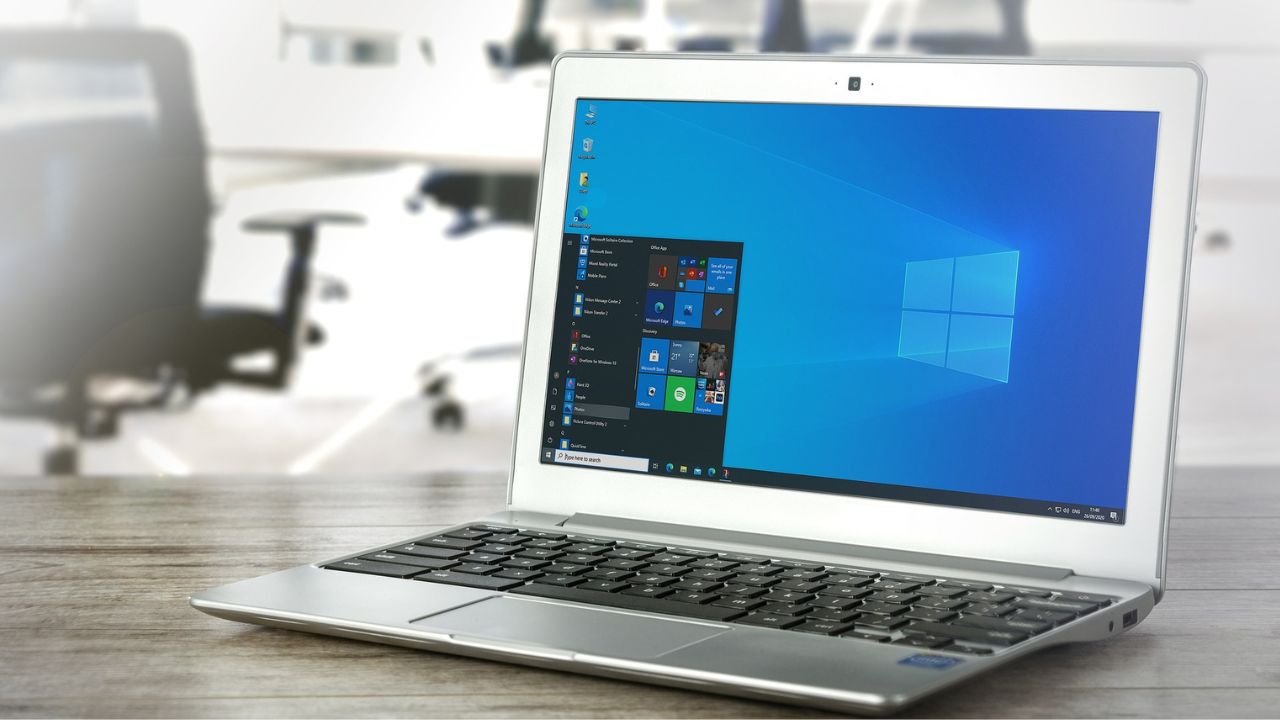
https://pixabay.com/photos/laptop-computer-windows-screen-5603790/

How to keep your Windows devices up-to-date

  • Select Start
  • Click Settings
  • Click Windows Update
  • Click Check For Updates
  • If a feature update is available for your device, it will appear separately on the windows update page.
  • To install it, click Download and install now

You can also set your Windows to automatically update… But should you?

If you’re an individual who never remembers to update your computer, you may choose to set this option.  But sometimes automatic updates don’t play nicely with old programs.  So if you do decide to set this feature, be sure to always have your computer backed up as described here so you can restore if need be.


MAC

Macbook

How to keep your Mac devices up-to-date

  • Click The Apple menu
  • Click System Preferences
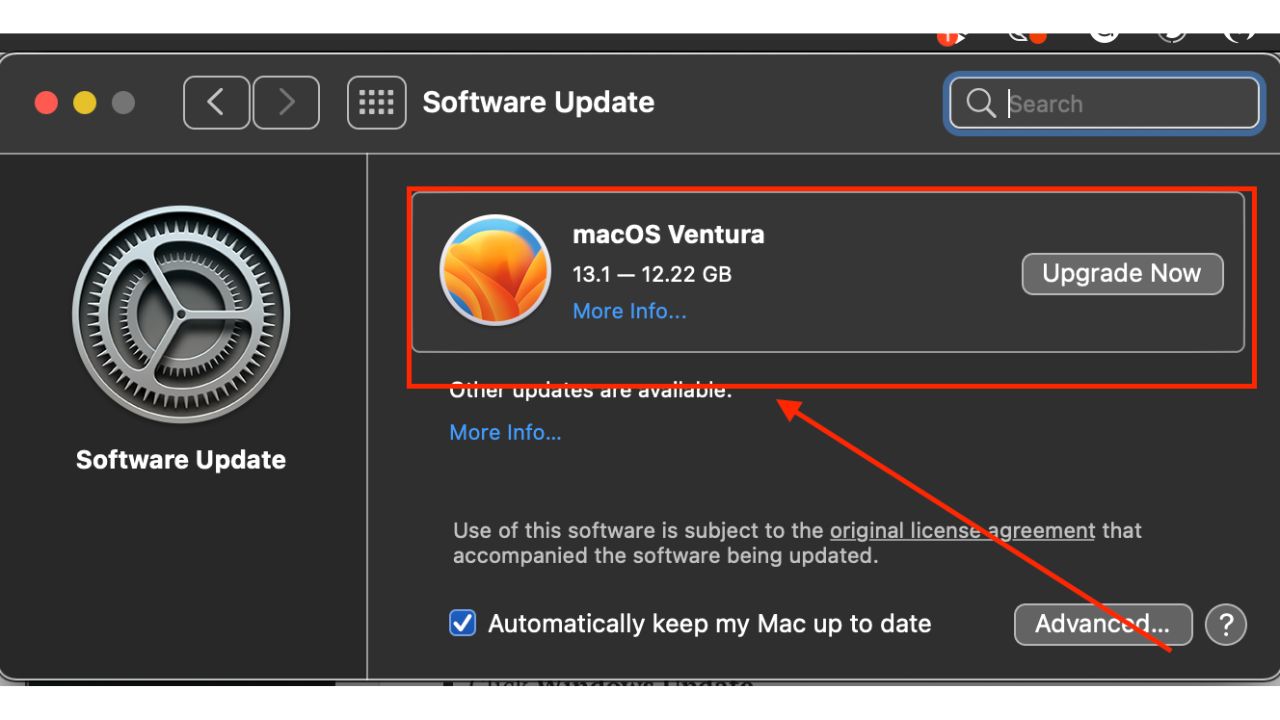
  • Click Software Update
  • If a Software update is available, it will give you the option to update. You can do this by clicking the Upgrade Now button.

Mac screenshot

A word of caution: Often new operating systems offer new slicker interfaces and functionality.  If you have older programs on your computer, sometimes newer operating systems don’t always play nice with older programs.  That said, when it comes to installing new operating systems like you see below, be sure to always back up your computer just in case.  More about backing up your computer here.


You can also set your Mac to automatically download any relevant updates by… But should you?

If you’re an individual who never remembers to update your computer, you may choose to set this option.  But as mentioned above, sometimes automatic updates don’t play nicely with old programs.  So if you do decide to set this feature, be sure to always have your computer backed up as described here so you can restore it if need be.

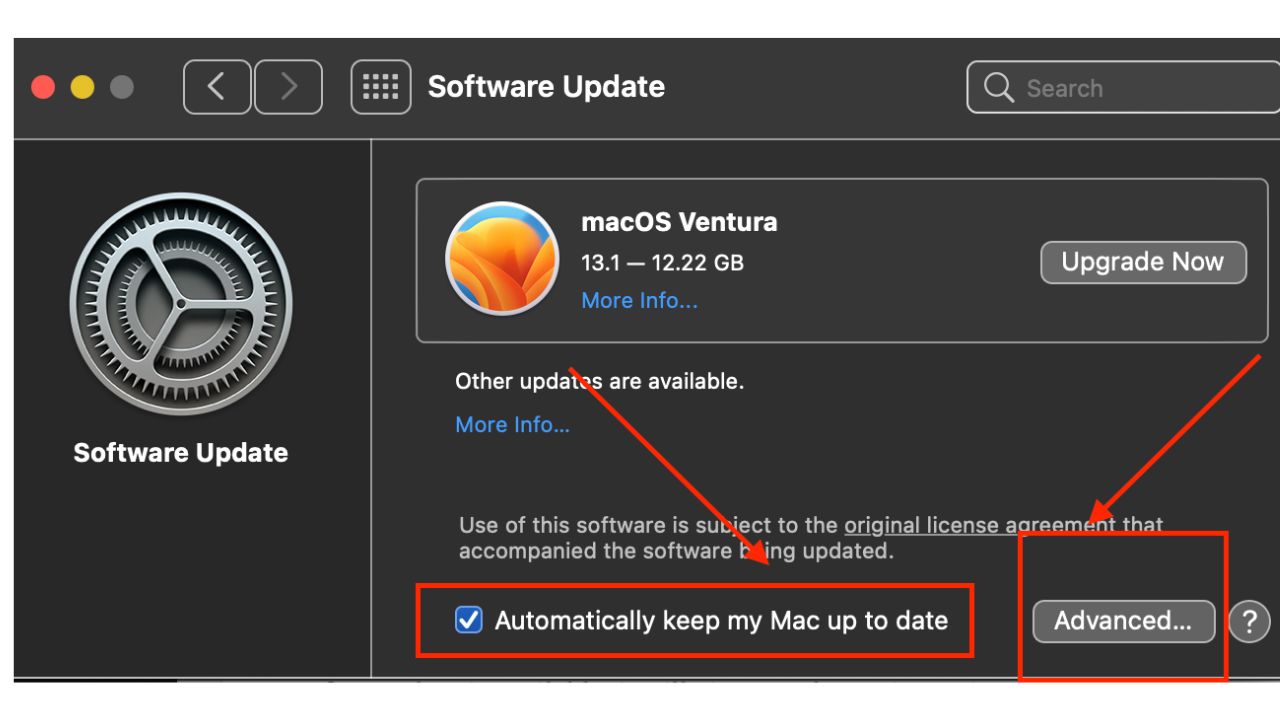
How to keep your Mac automatically updated

  • Click The Apple menu
  • Click System Preferences
  • Click Software Update
  • Check-off Automatically keep my Mac up to date
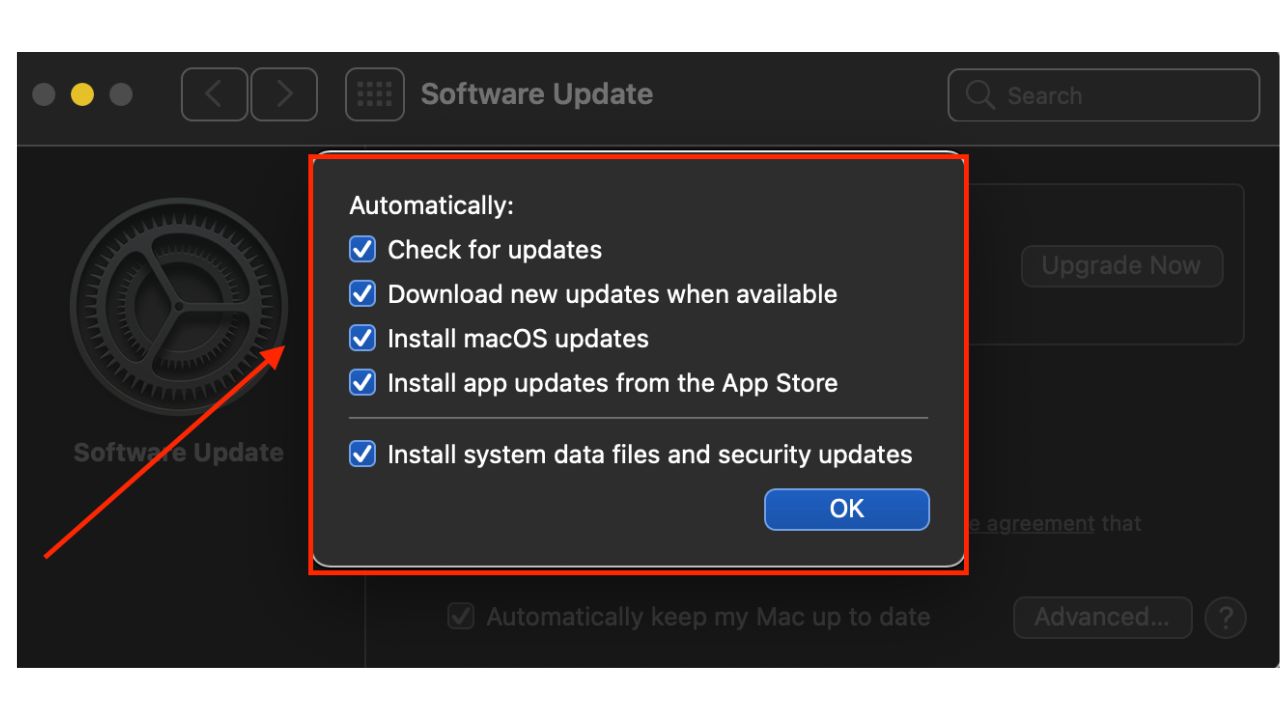
  • Click Advanced

Mac Screenshot

  • Check off all relevant services you wish to enable

Mac screenshot


ANDROID

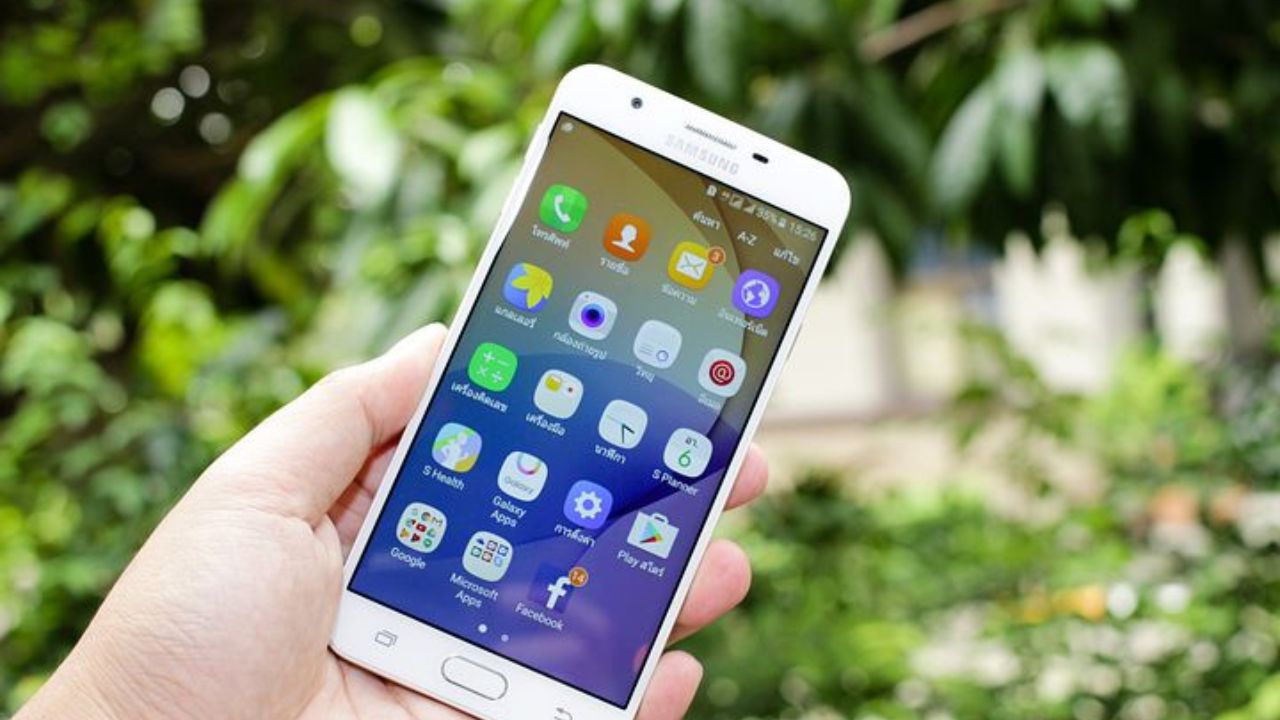
https://pixabay.com/photos/android-samsung-samsung-galaxy-1814556/

How to make sure your Samsung and Android phone and tablets are up-to-date

Samsung

  • Tap Settings
  • Near the bottom, tap Software Update
  • Then, tap Download and install
  • You’ll be shown if there are any updates available and will be given the option of whether or not to update

Other Androids

Please note settings may vary depending on your Android phone’s manufacturer.

  • Tap Settings
  • Near the bottom, tap System
  • Then, tap System Update
  • You’ll be shown if there are any updates available and will be given the option of whether or not to update


iOS DEVICES

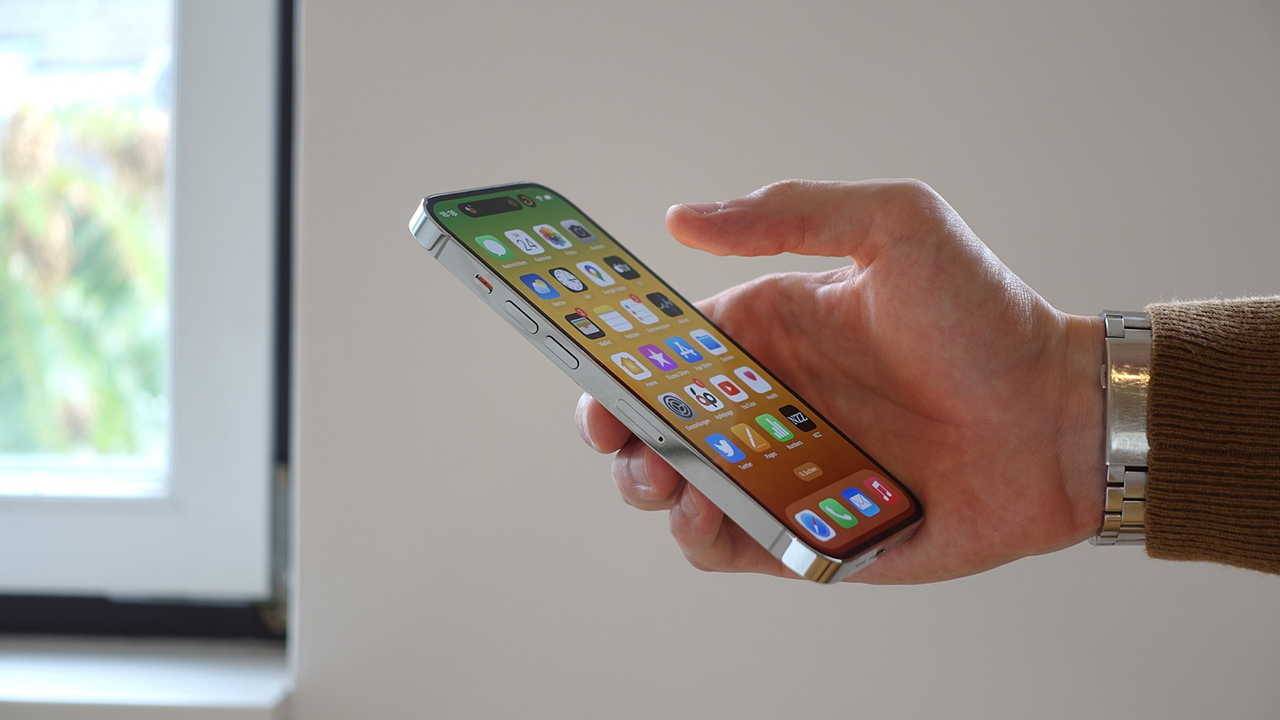
iPhone

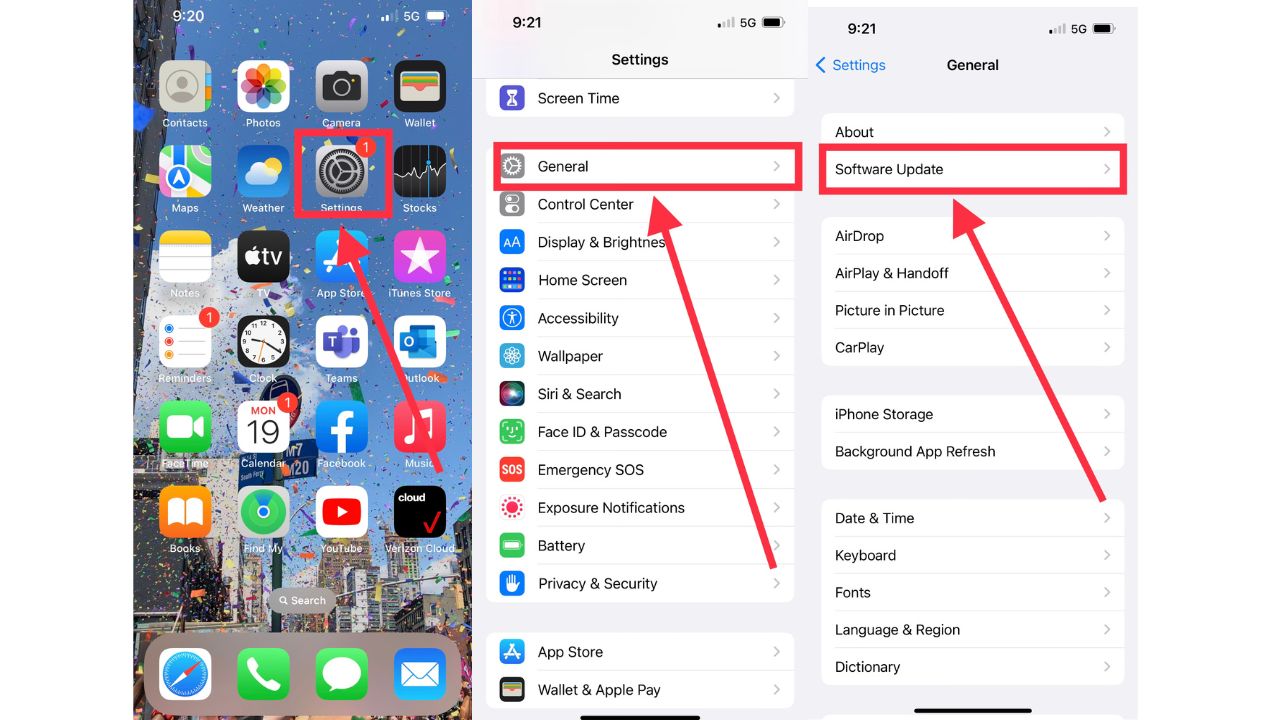
How to make sure your iPhone and iPads are up to date

  • Tap on Settings
  • Tap on General
  • Tap on Software Update
  • If an update is available, it will give you the option to download and install

Iphone screenshot

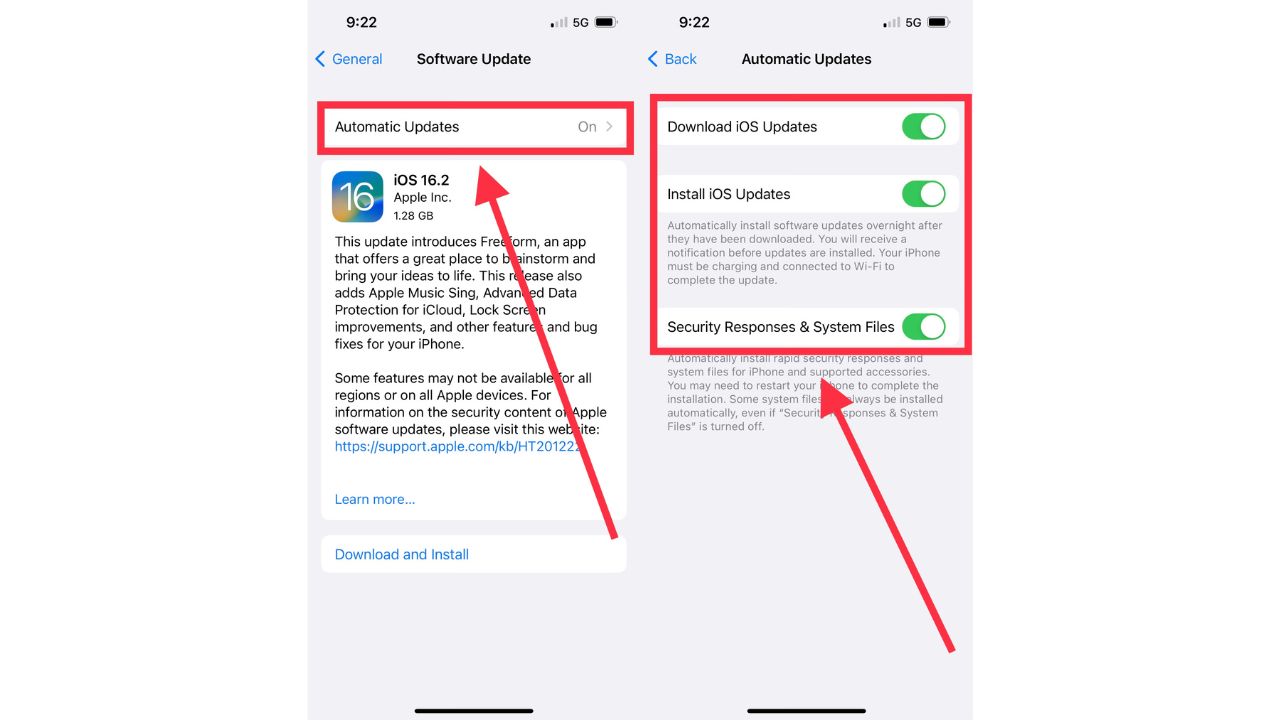
To keep your phone always up to date, you can turn on automatic updates by:

  • On the Software Update screen mentioned above, click the Automatic Updates row
  • Switching on all relevant services you wish to keep updated automatically

iPhone screenshot

A word of caution:  Always back up your phone just in case.  More about backing up and restoring your phone here.

How to make sure your Apple Watch is up to date

  1. Update Your iPhone:
    • Before updating your Apple Watch, update your iPhone to the latest version of iOS. Go to Settings > General > Software Update on your iPhone.
  2. Prepare Your Apple Watch:
    • Place your Apple Watch on its charger and ensure it has at least 50% battery.
    • Keep the Apple Watch in range of your iPhone.
  3. Start the Update from Your iPhone:
    • Open the Watch app on your iPhone.
    • Tap My Watch tab.
    • Go to General > Software Update.
    • If an update is available, tap Download and Install.
    • Enter your iPhone or Apple Watch passcode if prompted.
  4. Download and Install:
    • The download will start. It can take from a few minutes to an hour, depending on your internet speed.
    • After the download, the installation process will begin on your Apple Watch. This can also take some time. You’ll see a progress wheel on your Apple Watch.
  5. Wait for the Update to Complete:
    • Do not restart your Apple Watch or iPhone during the update.
    • Keep the Apple Watch on its charger until the update is complete.
  6. Completion:
    • Once the update is finished, your Apple Watch will restart.


BROWSER UPDATES

After you update your software, it’s also a good idea to ensure your web browser is up-to-date to fix any security issues which would help prevent hackers from getting into your computer, crashing programs and getting around your computer’s security systems.   While there are many browsers out there, below are a few of the more popular ones.


How to update your Chrome browser

Mac

  • Open Google Chrome browser
  • Select About Chrome from the Chrome menu
  • Allow it to scan from a most recent update
  • Click Relaunch to complete the update

Windows

  • Open
    Chrome browser
  • At the top right, click More 
  • Click Help, then About Google Chrome
  • Select Update Google Chrome
    Note: If you do not see the “Update Google Chrome” button, then your browser is already updated
  • Click Relaunch to complete

Android

  • From your phone or tablet, open the Google Play Store app
  • Tap the profile icon from the top right
  • Select Manage apps & device
  • Find Chrome located under “Updates available
  • Tap Update

iPhone & iPad

  • Launch Apple App Store
  • Tap Profile from the top right (it looks like you or a shape of a person)
  • Scroll down to “Available Updates” and search for Chrome
  • If you see Chrome on the list, tap Update
  • Enter your passcode or Apple ID password if prompted
  • Chrome will automatically update when finished downloading


How to update your Safari browser on a Mac

Safari is a built-in App on all Apple products and will automatically update alongside your device’s software.


How to update your Microsoft Edge browser

On Windows 

Microsoft Edge is programmed to update automatically every time you restart your browser.  You can, however, update Microsoft Edge manually:

  • Open the Microsoft Edge browser
  • Click Settings and More
  • Click Help and Feedback
  • Click About Microsoft Edge

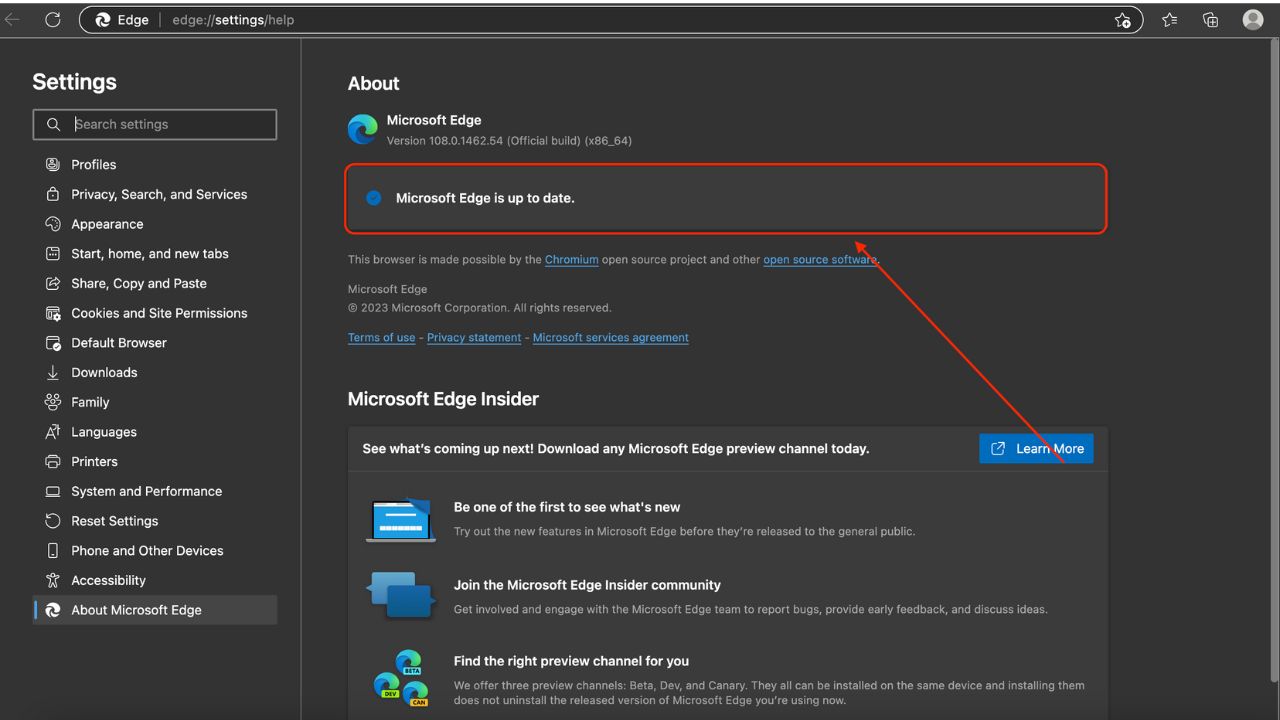
Here, it will tell you whether or not Microsoft Edge is up-to-date or if an update is available. If an update is available:

  • Click Download and Install
  • Click Restart


On a Mac

  • At Menu at top, click Microsoft Edge
  • Then click About Microsoft Edge 
  • Any available updates will be displayed

iPhone screenshot

Microsoft Edge is also available to download on iPhones, iPads, and Androids. To make sure it is up-to-date, follow the same steps above to update Microsoft Edge as you would to update Chrome on those devices


MICROSOFT PRODUCTS

On a PC

  • Open an Office App: Start by opening any Microsoft Office app, such as Word or Excel.
  • Go to File: Click on the “File” tab in the top-left corner.
  • Account: Select “Account” from the menu on the left.
  • Update Options: Click on “Update Options” and then select “Update Now”
  • Windows Update: Alternatively, you can update Office through Windows Update. Go to Settings > Update & Security > Windows Update and make sure the option “Receive updates for other Microsoft products when you update Windows” is turned on

On a Mac

  • Open an Office App: Start by opening any Microsoft Office app, such as Word or Excel.
  • Help Menu: Click on the “Help” menu at the top of the screen.
  • Check for Updates: Select “Check for Updates” to launch the Microsoft AutoUpdate tool
  • Update: Click “Update” to install any available updates. You can also check the box to “Automatically keep Microsoft Apps up to date”.
  • Mac App Store: If you downloaded Office from the Mac App Store, you can also update it by opening the App Store, clicking on “Updates” in the left sidebar, and then clicking “Update All” or the “Update” button next to individual apps


Be sure you’ve installed reliable antivirus software

While most devices come with free antivirus software installed, none of them are as effective at protecting your devices or preventing them from being infected with malware as they could be

It is important to make sure you have a reliable antivirus program installed and running on your devices. Our most recommended antivirus program is Total AV,  available for PC, Mac, Android and iPhone devices.  Their product is full of features to keep you safe from malware and protect you when browsing the internet, including ransomware protection, real-time antivirus protection, elimination of viruses and malware, a tool to free up your computer’s space, plus more.  Read our review here: Best Antivirus Protection.


Related: