3.7K
Typing with your voice – AKA dictating text – has become an extremely common way to communicate. Better yet, you don’t even need a stenographer. (Now I’m dating myself)
I recently watched a friend quietly mumbling into his iPhone while replying to email. He explained that its become incredibly accurate and far easier to speak his replies rather than reach for his glasses and fumble with the virtual keyboard.
Thanks to recent features on both phones and websites, you’re able to dictate your messages or documents. Whether you don’t have an extra free hand to type something, are on the run and need to quickly respond to a text, or find dictating helpful for a personal reason, check out the helpful ways to use the talk-to-text features on different devices below.
Plus, we do have one major warning if you use the dictating features on any tech now.
Dictating and Talk-to-text on devices
You can use this feature in most apps that allow you to type – including Messages, Email, Safari, Docs, Pages, Notes, and even dating apps and more. Before you get to dictating on any of your devices, be sure to follow this helpful tip to type the most accurate message.
How to use specific commands to include punctuation and formatting.
In the recent iOS 16 update, iPhone now supports automatic punctuation if you’ve got a more current model the A12 bionic chip onboard. Even though I’ve got the most current model, I find myself dictating the old-fashioned way since the new auto-punctuation option doesn’t seem to work all of the time.
Here’s the tried and true proven method to add punctuation on iPhone.
If you want to end your sentence with a period, exclamation point, or question mark, you’ll want to include that in your dictation. For example, if you wanted to type this in a message:
I am well. How are you?
You would dictate:
“I am well period how are you question mark”
You can also sometimes add formatting, including saying “new line” or “new paragraph.” I’ll give some additional command examples later on depending on the device at hand.
How to dictate on your iPhone
Setting aside the not-so-thrilling auto-punctation feature on newer iPhone, here’s what works really well. If you have an Apple iPhone or iPad, your on-screen keyboard will give you the option to dictate or “talk to text” with a simple tap. For iPhone 6s or later or iPad, you can even use this feature without the internet.
Here’s how to use your voice to type on iPhone or iPad:
Whenever you open an app and go type something, this keyboard will appear:
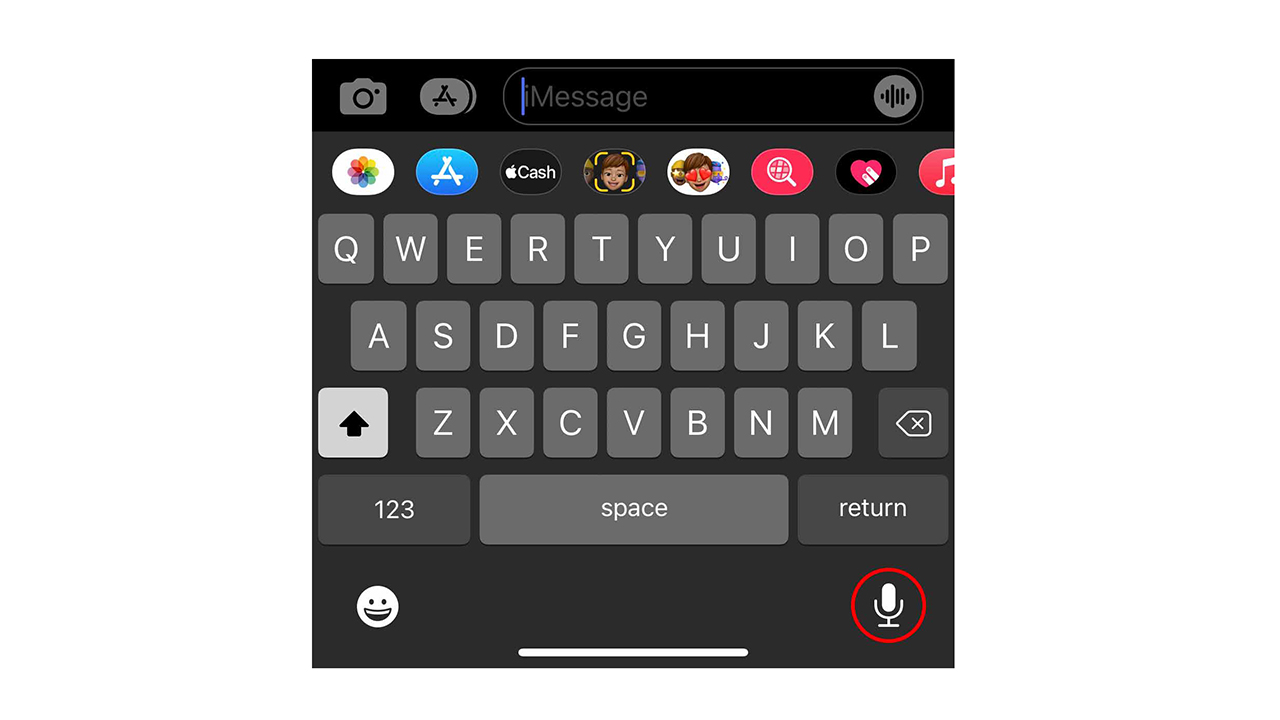
To dictate a message – skip the button with sound waves next to the text box. That will allow you to record your actual voice in a message.
Instead, tap the microphone button on the bottom right of your keyboard.

As soon as you tap the microphone button, you can begin dictating your message. You’ll see text appear momentarily as you speak, and it often corrects itself as you continue to speak.
To change the language you’re dictating in, hold down the microphone button and click another language if you have it set up in your keyboards. To add a new language keyboard, after holding down the microphone tap Dictation Settings, tap Keyboards, and click Add New Keyboard…
Extra iPhone commands for talking to text:
- “Quote” and “end quote” for when you want your text to appear between quotation marks
- “New paragraph”
- “New line”
- “Cap” to capitalize the next word
- “Caps on” and “Caps off” to capitalize the first letter of each word
- “Smiley” will insert a smiley face
- “Frowny” will insert a frowny face
- “Winky” will insert a winky face
- As with other dictations, always include punctuation like period, exclamation point, comma, question mark, etc.
How to dictate on your Android
Just like iPhone, your Android phone or tablet keyboard will provide the option to dictate instead of type in most apps where you’re able to type. If your phone doesn’t have this, another option is to download and install the Gboard app from the Google Play Store and you’ll have loads more typing capabilities (including the swipe text feature which is one of my 5 favorite Android tricks. You can learn more about other Android tips by typing in the web address CyberGuy.com and searching the word ‘Android’.
Here’s how to use your voice to type on an Android phone or tablet:
Whenever you open an app and go type something, a keyboard will appear typically on the top right of your keyboard:
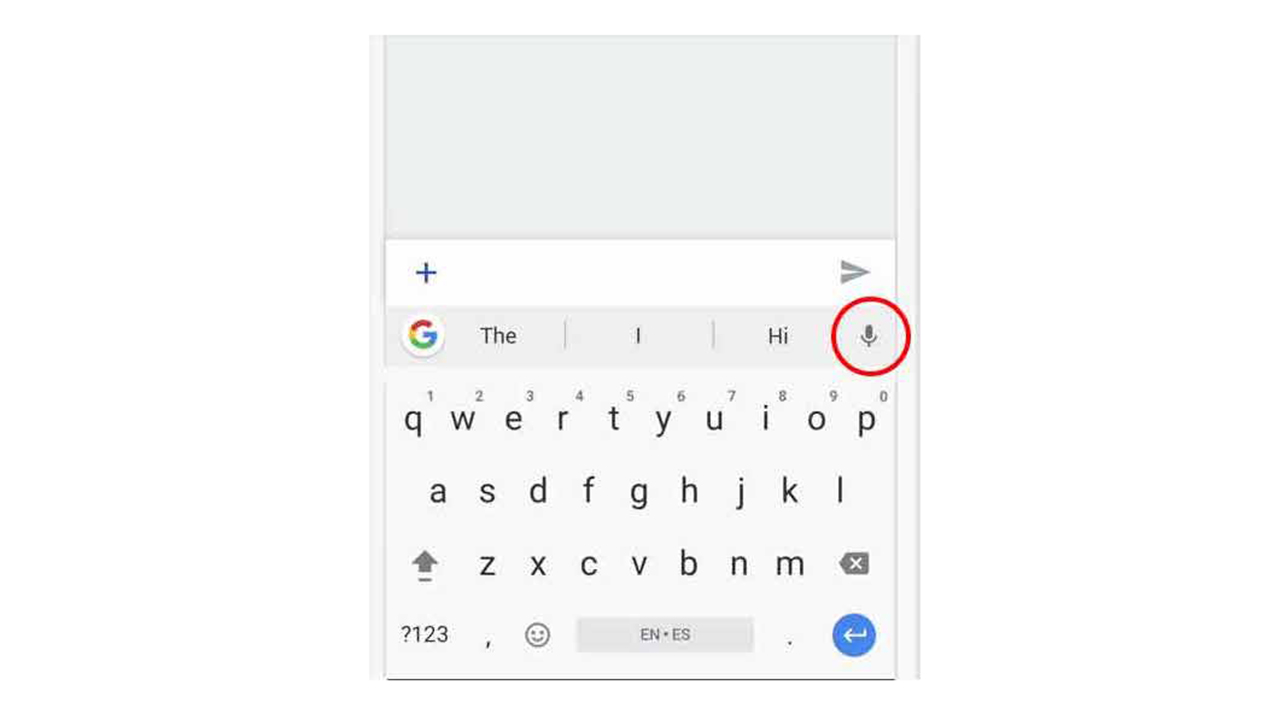
When the words “Speak now” appear, start dictating what you’d like to type. Your words will convert to text and appear as you continue your message.
Extra Android commands for talking to text:
- “Full stop” for period
- “Enter” for a line space
How to dictate on your computer or any device
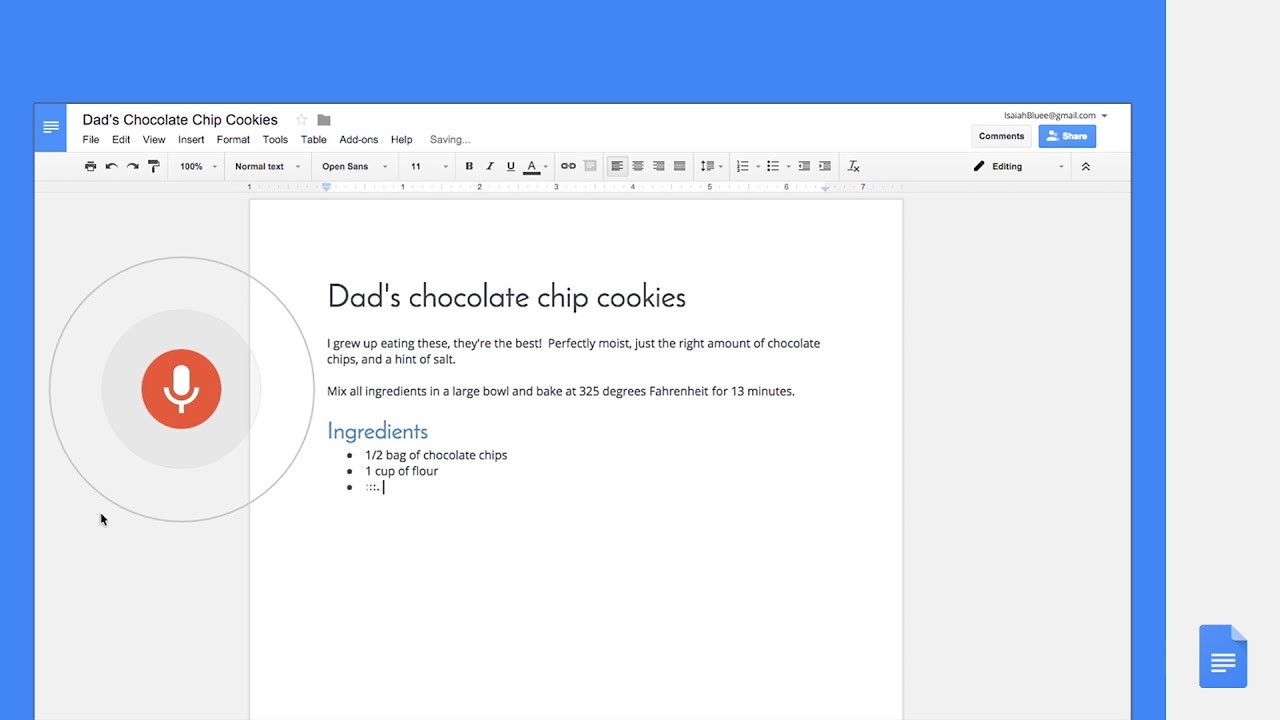
If you want to create a document and dictate into that document onto any device, including Macs, PCs, iPhones and Androids, we suggest you try Google Docs.
Google Docs is free to use with a Gmail or Google account. If you don’t use Gmail, you can use any email address to create a Google Account (which gives you access to not only Google Docs, but also other Google programs and Youtube).
Follow these steps to dictate using Google Docs.
How to use Google Docs to dictate text with Google Chrome
1. Before you use Google Docs on the Chrome browser, make sure your device’s microphone is turned on.
On a Mac, you’ll want to visit System Preferences and on a PC you’ll visit the Control Panel. When you first use this feature, you may need to make sure your computer has given Google Chrome access to your Microphone. Follow the pop-ups on your screen to allow your microphone to be used in the app.
2. Open Google Docs in your Chrome browser, and either open a document you’re working on or create a new Blank one.
3. Click Tools along the options on top, and tap Voice Typing.
4. A pop-up with a microphone button will appear over your document. Click it to use your voice to dictate.

5. When the microphone turns red, you can speak anything you want converted to text.
6. If you make a mistake, you can use your cursor to fix it without disabling the microphone. Then move the cursor back to where you’d like to continue to talk-to-text.
Extra commands for talking to text on Google Docs on Chrome:
Google Docs by far has the longest list of commands you can use to edit text as you speak. These commands are only available if you’re using English.
- “Select paragraph” to select an entire paragraph
- “Select _____” you can select a word, multiple words, phrase, list, line, and more
- “Italics” or “Italicize” to add italics to selected text
- “Bold” to add bold to selected text
- “Strikethrough,” “underline,” “subscript,” and “superscript” are some of the other formatting options
- “Titlecase” or “lowercase” to change your text case options
- “Text color” “Highlight” “Highlight [color],” “Remove highlight” are some of your color options
- “Increase font size” or “decrease font size” or even say what number font size you’d like between 6-400
- Format your paragraph with commands like “Increase indent” for an indented paragraph, “Line spacing double” or “center align” “align left” “align right”
- Create lists with “create bulleted list” or “create numbered list” and then update your list with “insert bullet” or “insert number”
How to dictate on Google Docs on other devices
If you’re using Google Docs on an internet browser that isn’t Google Chrome on a computer, you’ll need to turn your computer’s dictation function on.
On Mac
1. Open System Preferences
2. Click Keyboard
3. Tap the Dictation tab
4. Next to Dictation:, press On
5. Use the default shortcut setting or choose your own
6. Now when you’re typing elsewhere, you can use this shortcut
On PC
If you have Windows 10 or above, you can use this. In addition, Windows 11 introduced a dedicated Dictation toolbar you can access in your settings.
Windows 10
1. When you go to type, press the Windows logo key + H to open the dictation toolbar
2. This will start your dictating function automatically, so speak as you would normally
3. Say “Stop dictation” to disable the function
Windows 11
1. Press Windows logo key + H on a hardware keyboard. Press the microphone key next to the Spacebar on the touch keyboard
2. Either click the microphone button to stop, or say “stop listening” or “stop dictation” to turn off dictation. You can also pause dictation by saying “pause voice typing” or “pause dictation.”
On iPhone or Android
You can dictate in Google Docs just like any other app following the same steps as you would for both iPhone and Android. While in the Google Docs app, use the built-in microphone on your keyboard to dictate as you wish.
For more ways to dictate using Google Docs, check out this simple video:
Our major warning for dictating talk-to-text
The number one warning we can offer you if you use these features is to look over your text before sending any messages. Whether you’re dictating a text message, email, or even a list – glance over your text before sending it off or using it anywhere! There are plenty of texts we’ve all received where the message isn’t quite right!
The most common mistake with dictate features has to do with autocorrect. While talk-to-text tech is pretty accurate, mistakes happen. Autocorrect has been known to mishear words and replace them with humorous or sometimes inappropriate words. Checking your dictated text is always the safest way to ensure a correct message.
Have you ever used talk-to-text features on any of your devices and had it turn into a misunderstood train wreck? Keep it clean and comment below. : )
Related:
MORE:
Best transcription tools to easily convert audio to text
Best transcription tools to easily convert audio to text