Oppo has started rolling out the Android 15-based ColorOS 15 update for two more devices. Oppo F27 Pro+ and Oppo A79 are now the two latest Oppo devices to get the stable ColorOS 15 update. The rollout has started, but it may take a few weeks for the complete rollout.
Among Android phone brands, Oppo is making a remarkable progress in rolling out the major update for its devices. Despite having a vast library of devices, they have already successfully pushed the update for most of them.
ColorOS 15 is the latest custom skin based on Android 15 for Oppo devices, which brings a range of new features, including much awaited AI features and easier transfer between Oppo phone and iPhone.
Unfortunately, Oppo hasn’t shared an official changelog, but it should be similar to other devices. You can expect features and changes such as improved animations, new lock screen customization tools, private space, new AI features set, new app icons, new themes, and more. For more details, you can check out the dedicated article on ColorOS 15.
The stable ColorOS 15 update for Oppo F27 Pro+ and Oppo A79 is rolling out in batches. Since it’s a staged rollout, it may take some time to cover all devices. However, Oppo follows a release candidate process that let you experience the stable ColorOS 15 update before others by manually applying for it.
Currently, the update is rolling out to users in India. If you’re from India, you can follow the steps mentioned to apply for the official update.
Go to Settings > About device > Tap the top of the page > Tap icon on the top right > Trial versions > Official version > Apply Now.
Once you’ve applied for the update, you will receive it on your device soon. You can check for the update in Settings. Before installing the update, make sure to backup your device and charge it to at least 50%.
If you have a Samsung phone, you are definitely going to want to adjust some of these settings. It’s possible that your settings aren’t optimized for your specific needs and the frequencies you can hear, plus your phone just isn’t set up for the best listening experience when it comes to watching movies, TV shows, or listening to your favorite tunes.
How to adjust Samsung settings for the best quality sound
Note: These settings may vary depending on your Android model. The steps below were done on a Samsung Galaxy Z Flip4 phone.
1. Turn on Dolby Atmos
This is a sound setting available on many Android phones that offers a “surround sound” effect. You can adjust it depending on what you’re watching or listening to.
How to turn on Dolby Atmos
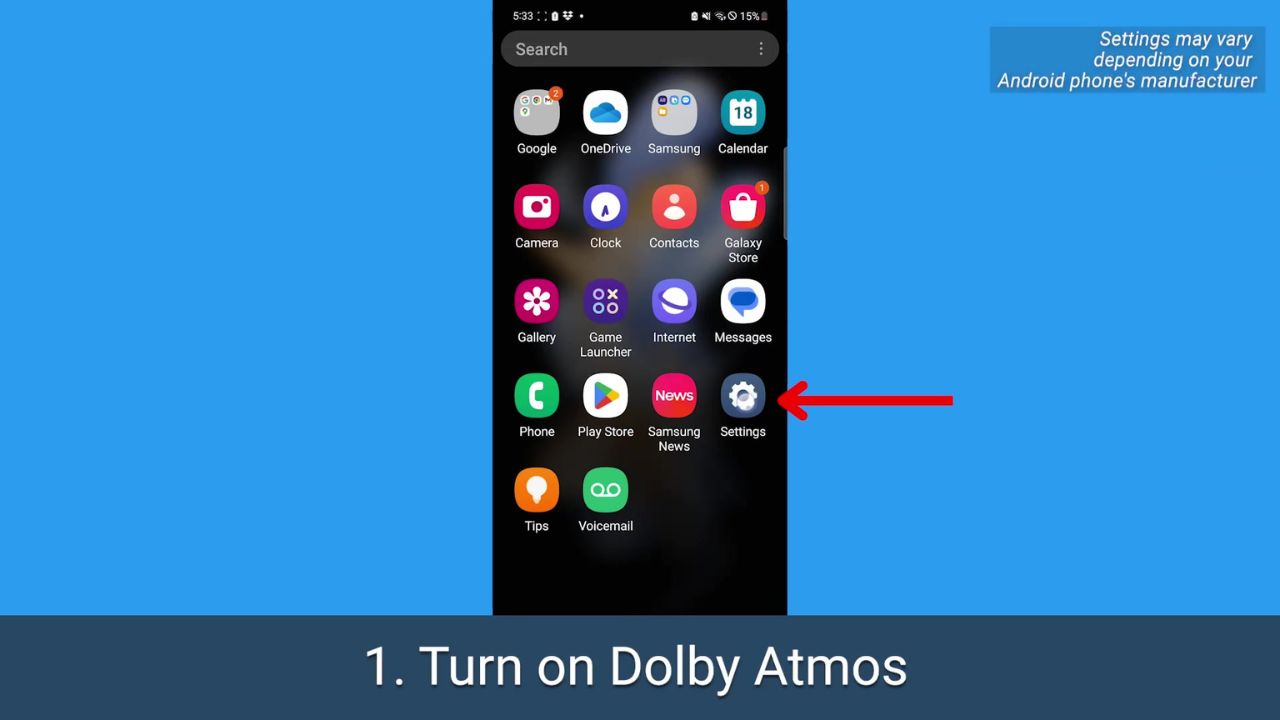
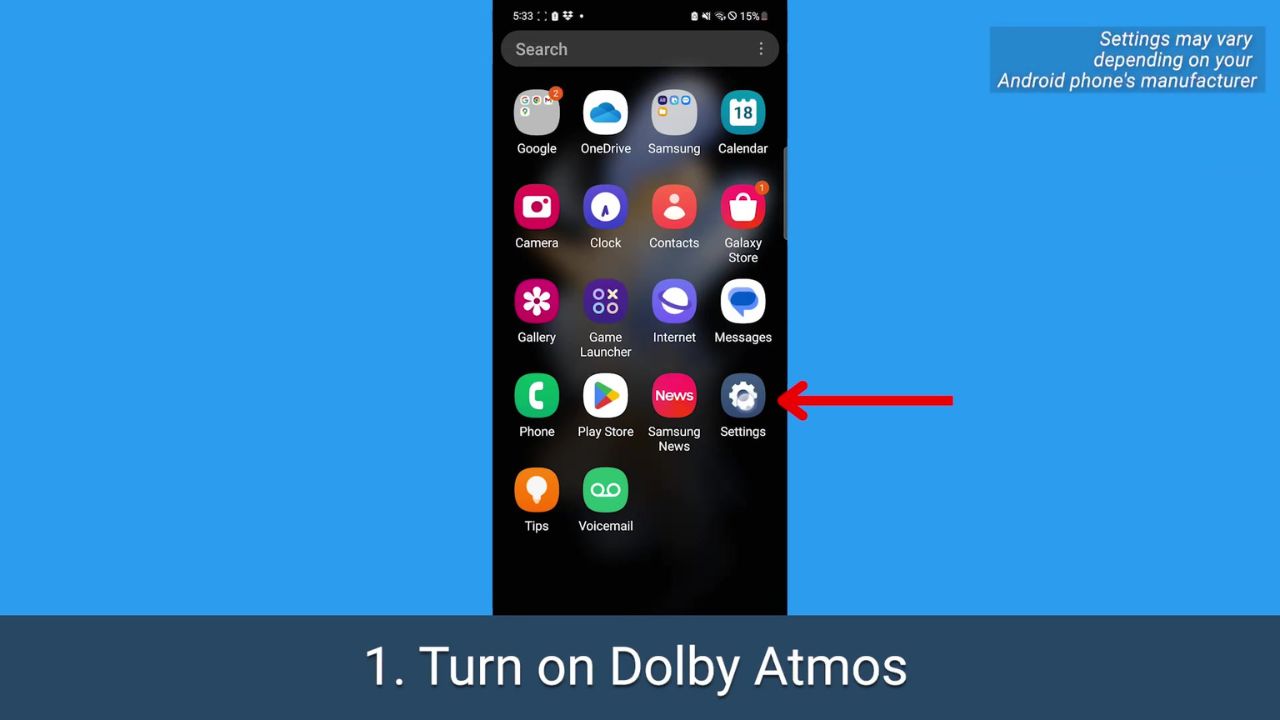
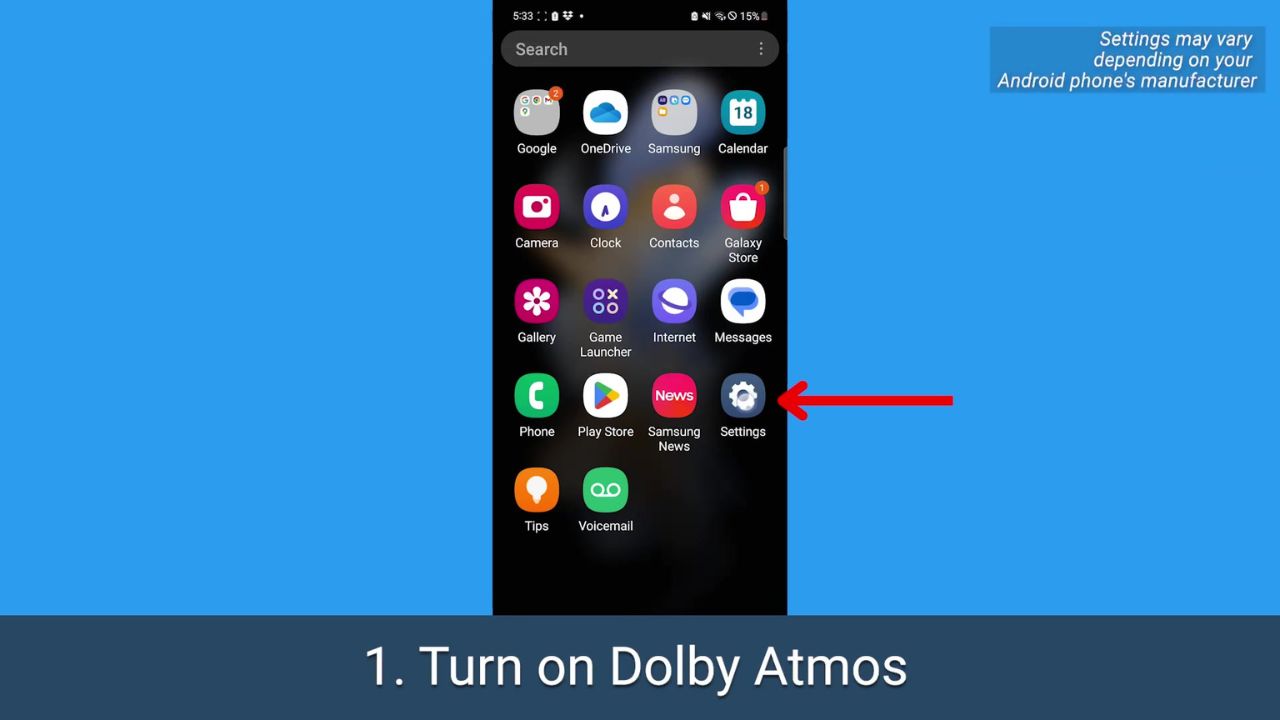
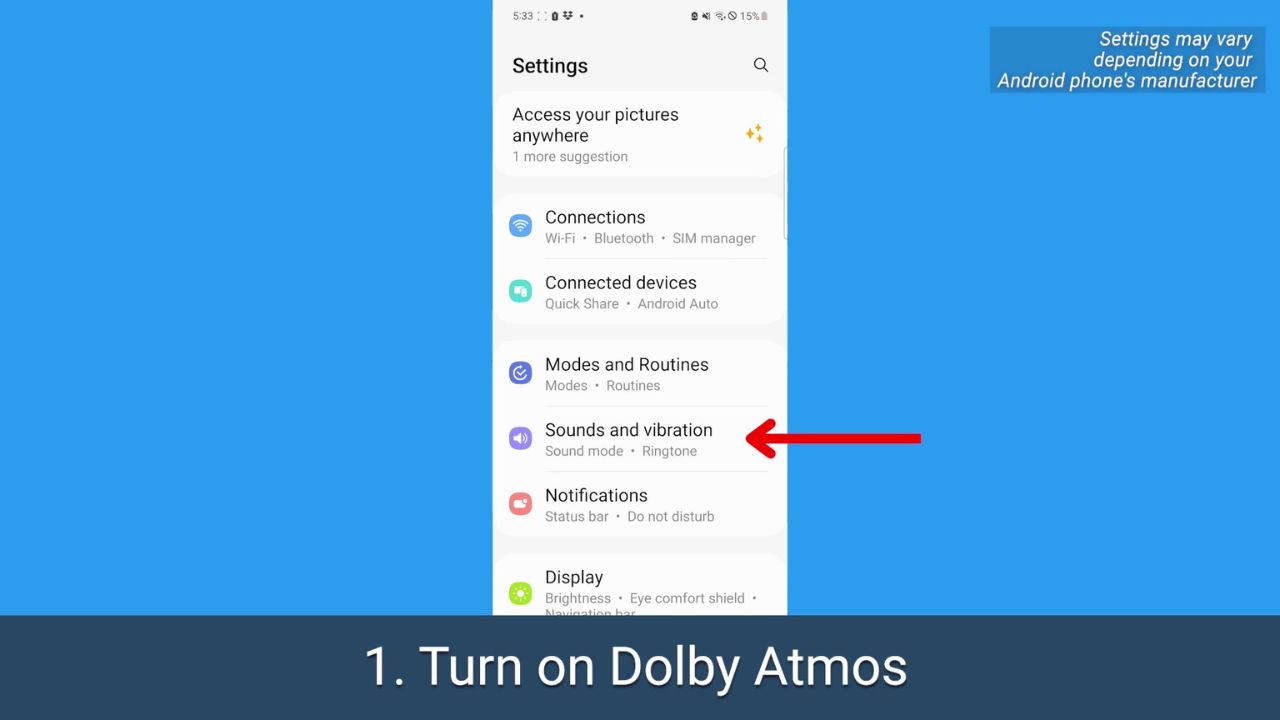
Open your Android’s Settings
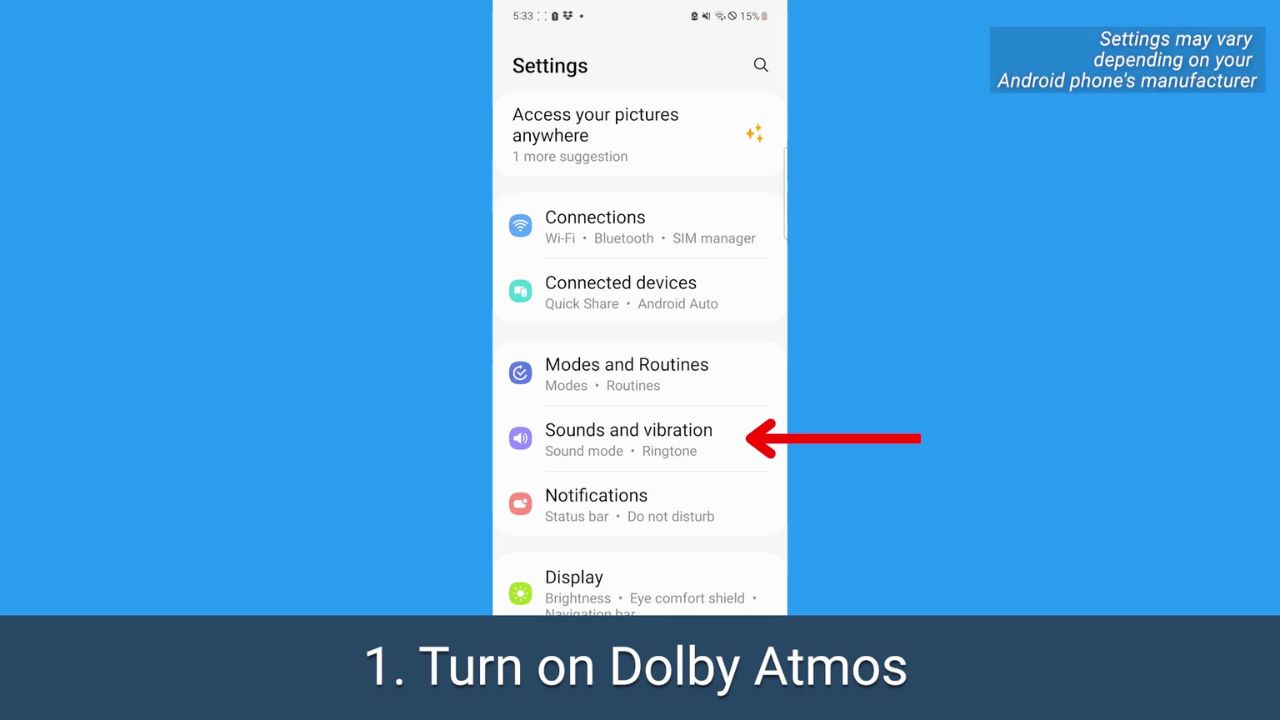
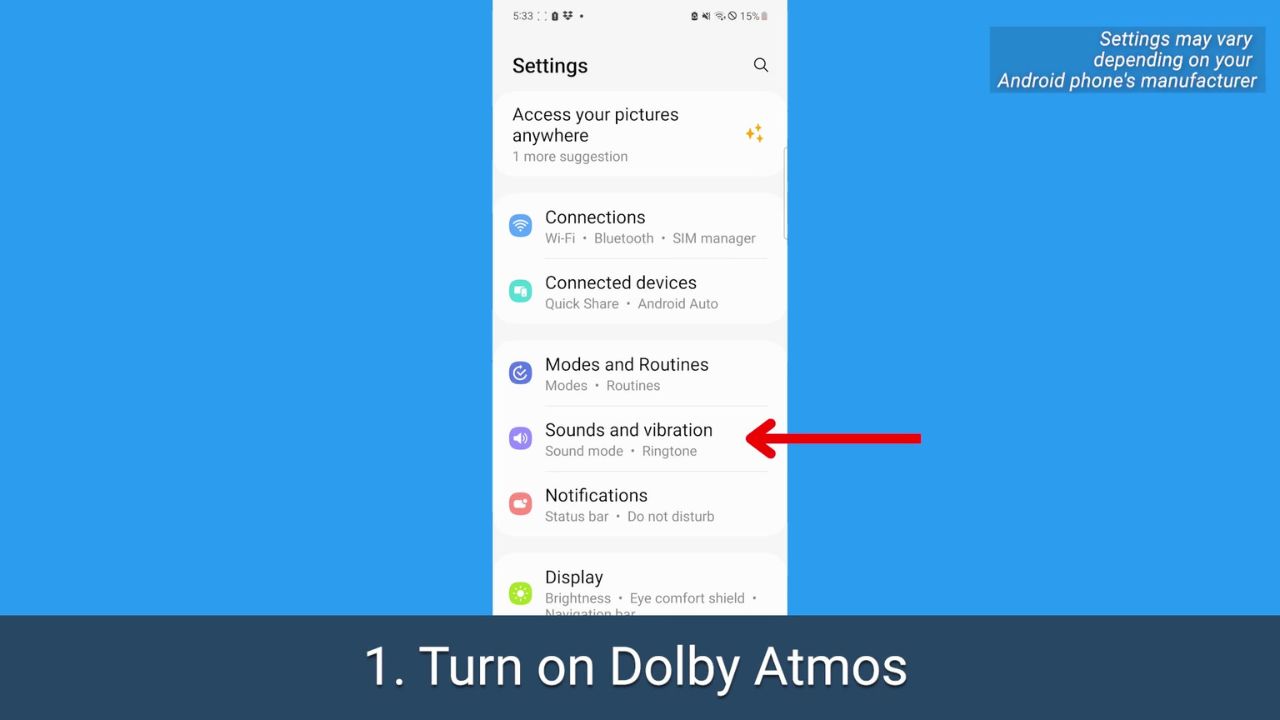
Tap Sounds and vibration.
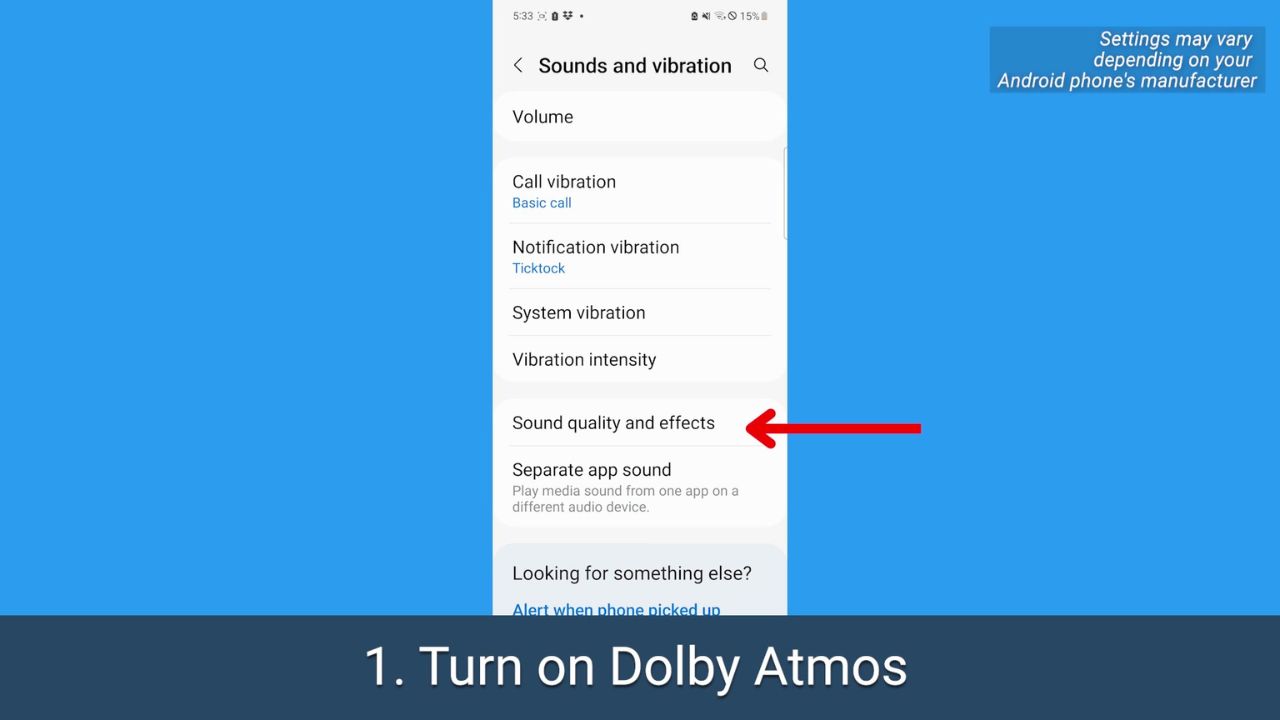
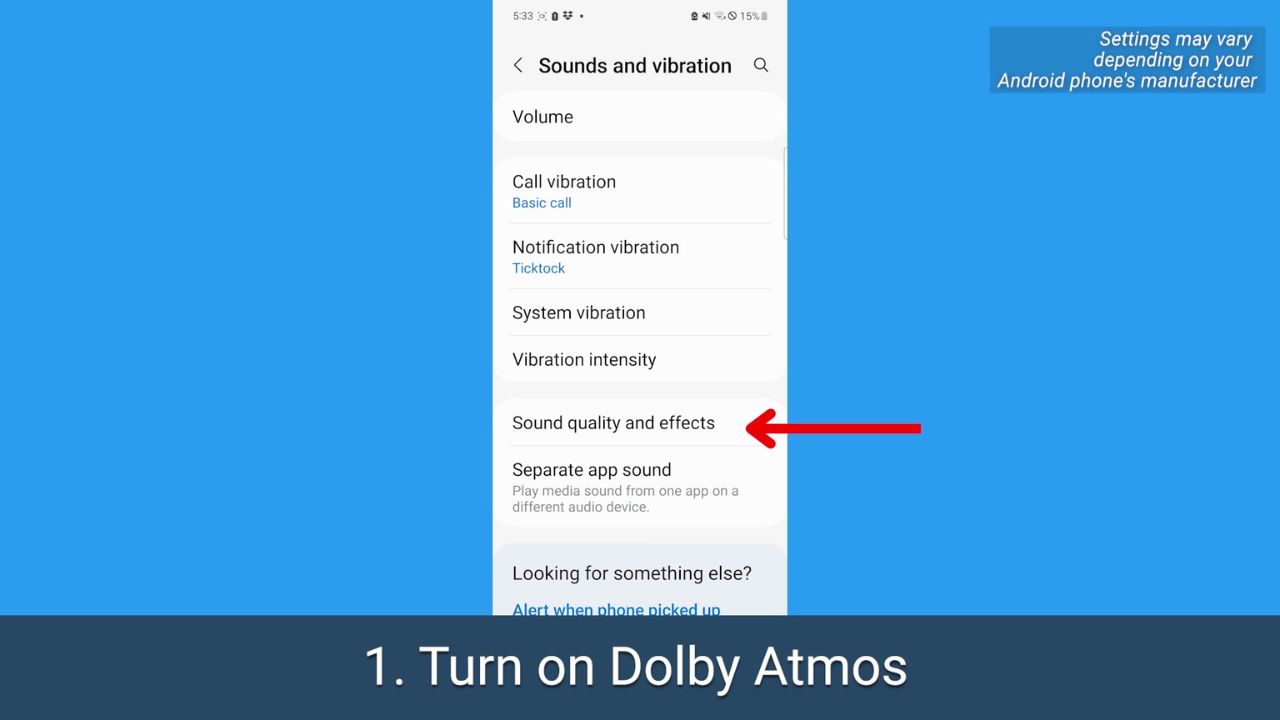
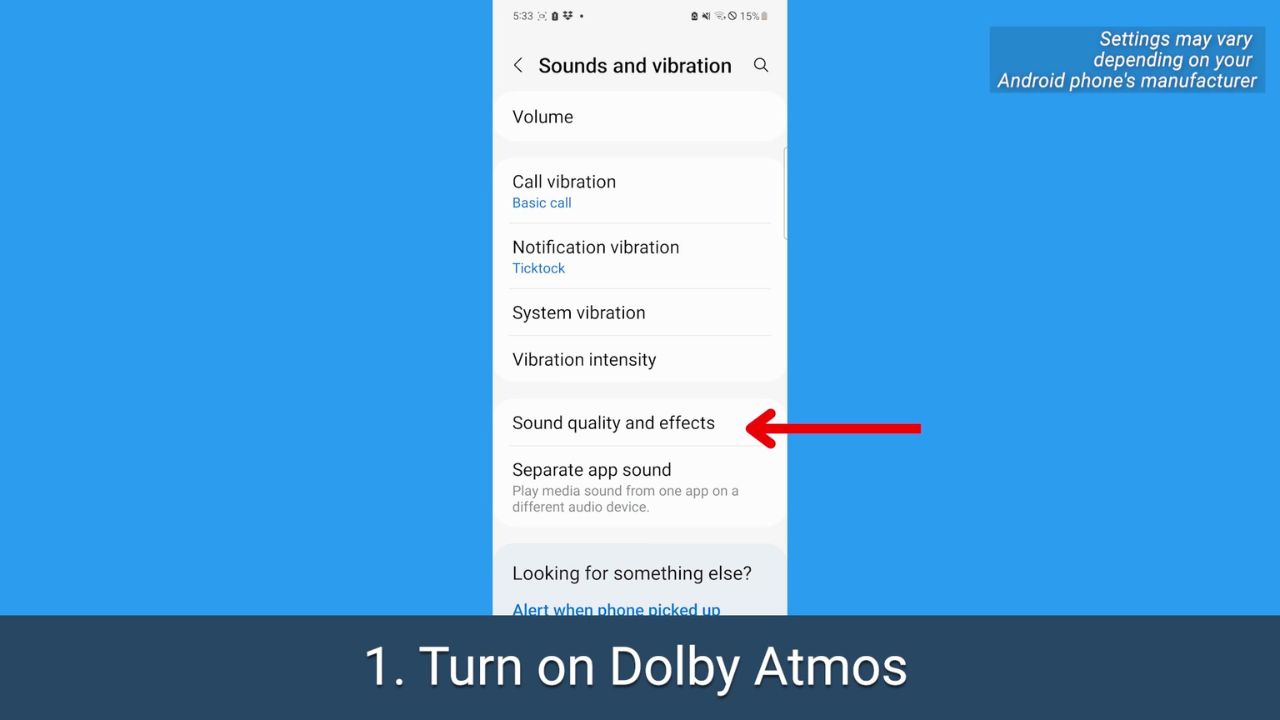
Tap Sound quality and effects
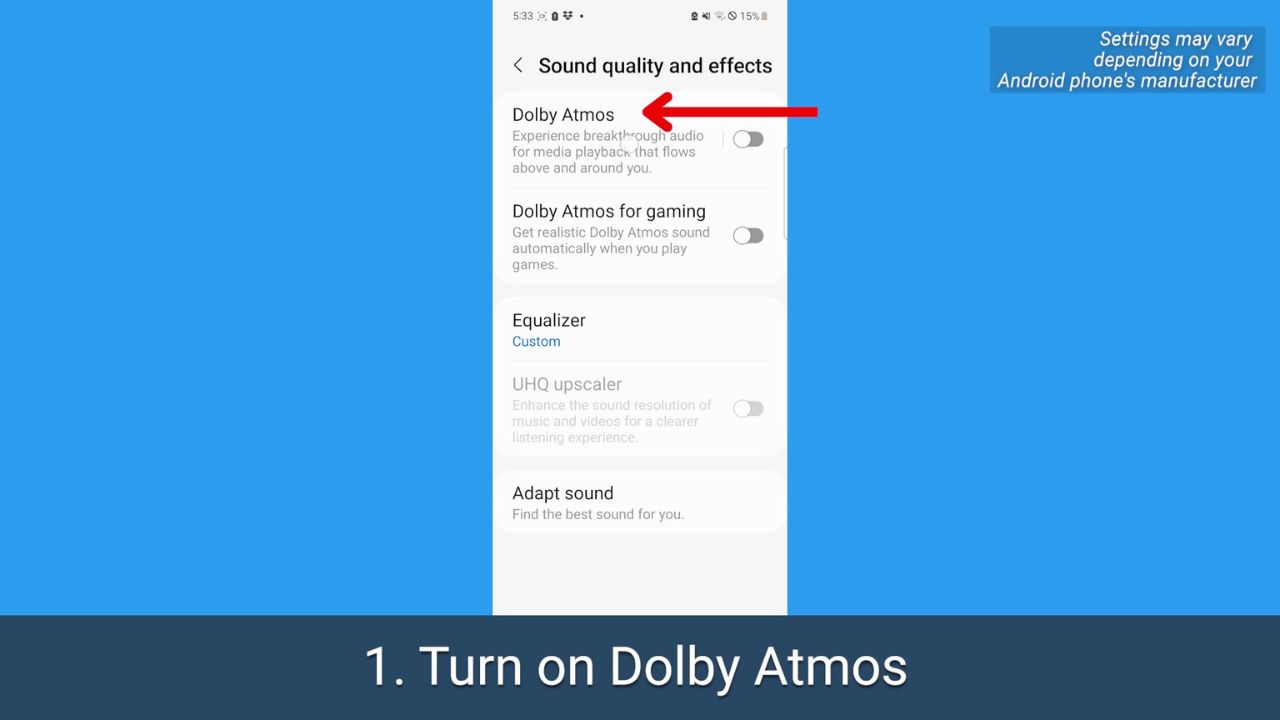
Before just toggling it on, tap Dolby Atmos
On the Dolby Atmos page, toggle it on
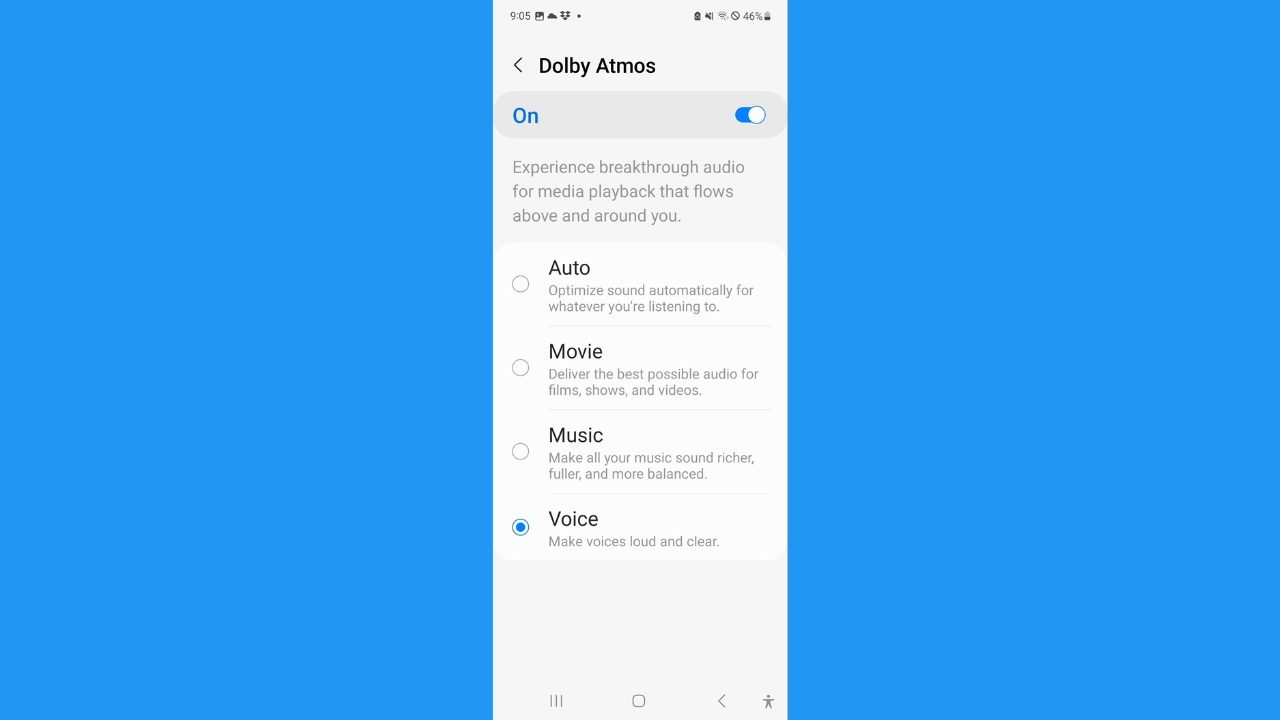
Depending on your operating system, you may be presented with these options: Select Movie to get better sound for movies and TV shows, tap Music if you want a richer, more balanced listening experience, or tap Voice if you want voices to come through louder while watching any video.
MORE: 5 THINGS YOU DIDN’T KNOW YOU CAN DO ON AN ANDROID
2. Adjust the equalizer
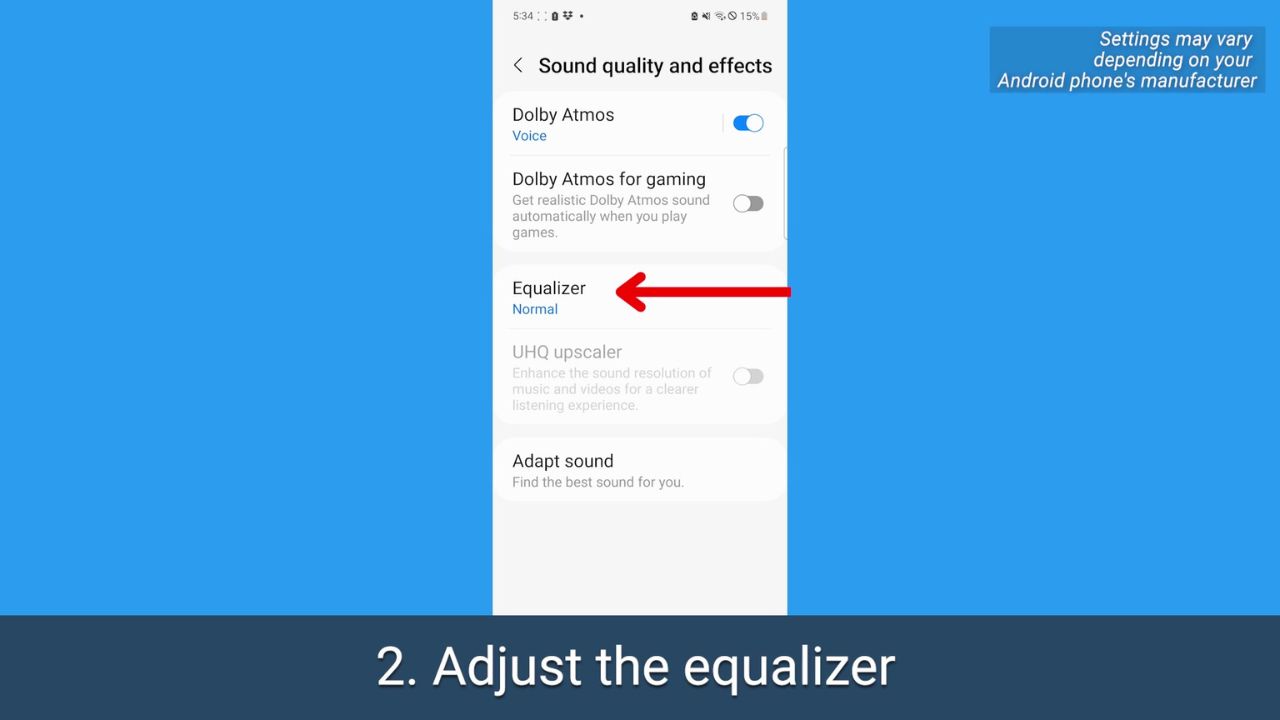
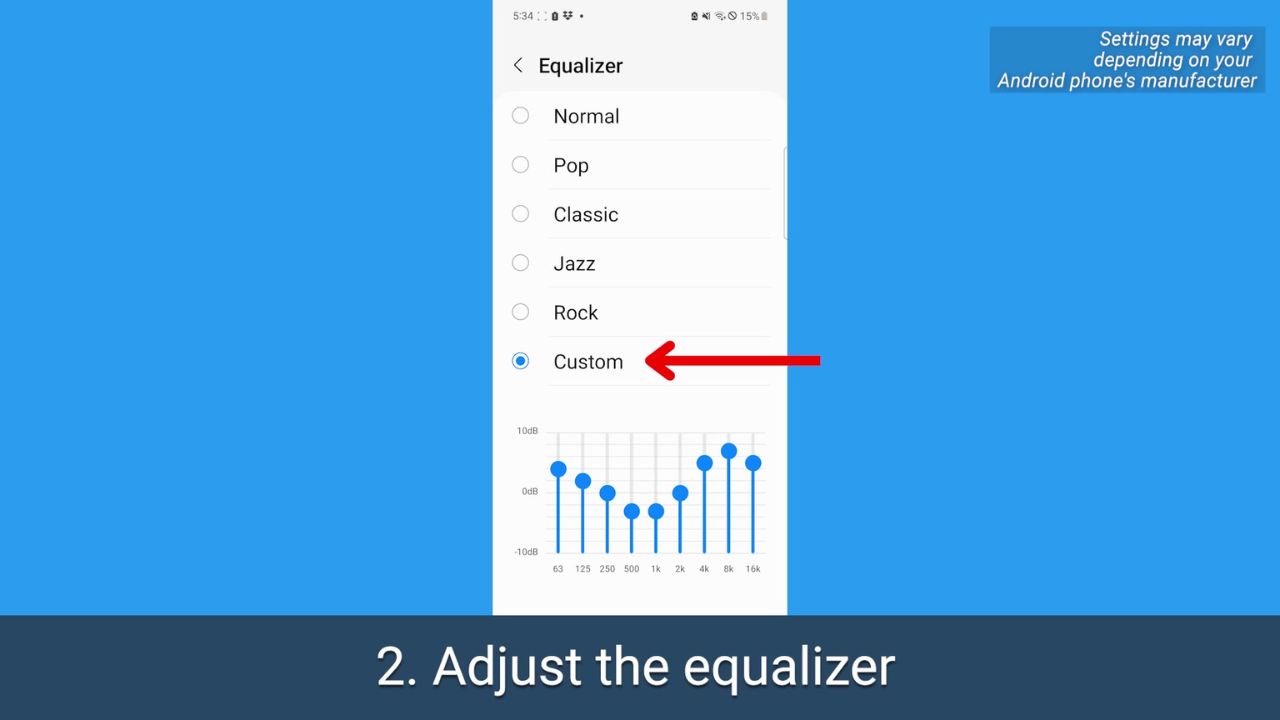
This setting lets you balance out sound depending on what you’re listening to or want to hear.
How to adjust the equalizer
Open your Android’s Settings
Tap Sounds and vibration
Tap Sound quality and effects
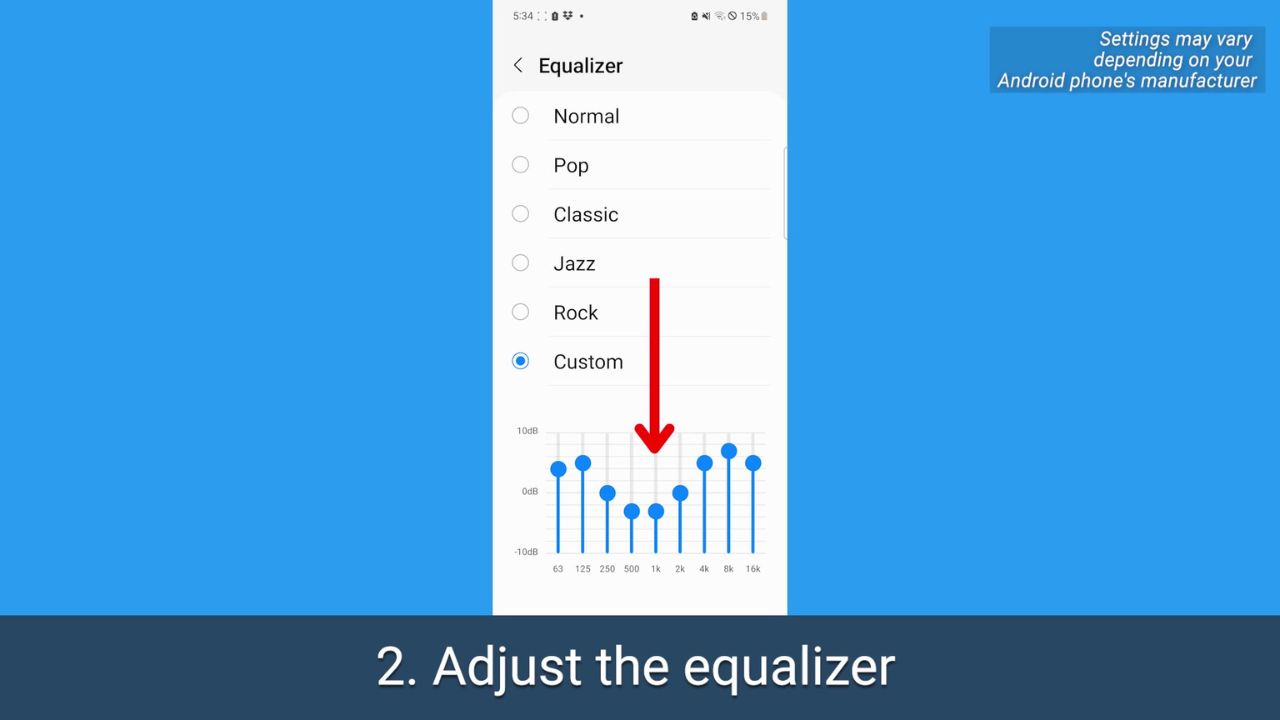
Play around with these sound levels – you can even do it while you have something already playing in the background. You may want to up the ones on the left for a higher bass, or the opposite if the bass is already too loud.
FOR MORE OF MY TECH TIPS & SECURITY ALERTS, SUBSCRIBE TO MY FREE CYBERGUY REPORT NEWSLETTER HERE
3. Adapt your phone’s sound for your age
We all hear sounds differently, and higher frequencies also become harder to hear as we age. Android lets you take a hearing test targeted for different age ranges, which will make listening through your headphones a completely personalized experience.
How to adapt your phone’s sound for your age
Open your Android’s Settings
Tap Sounds and vibration
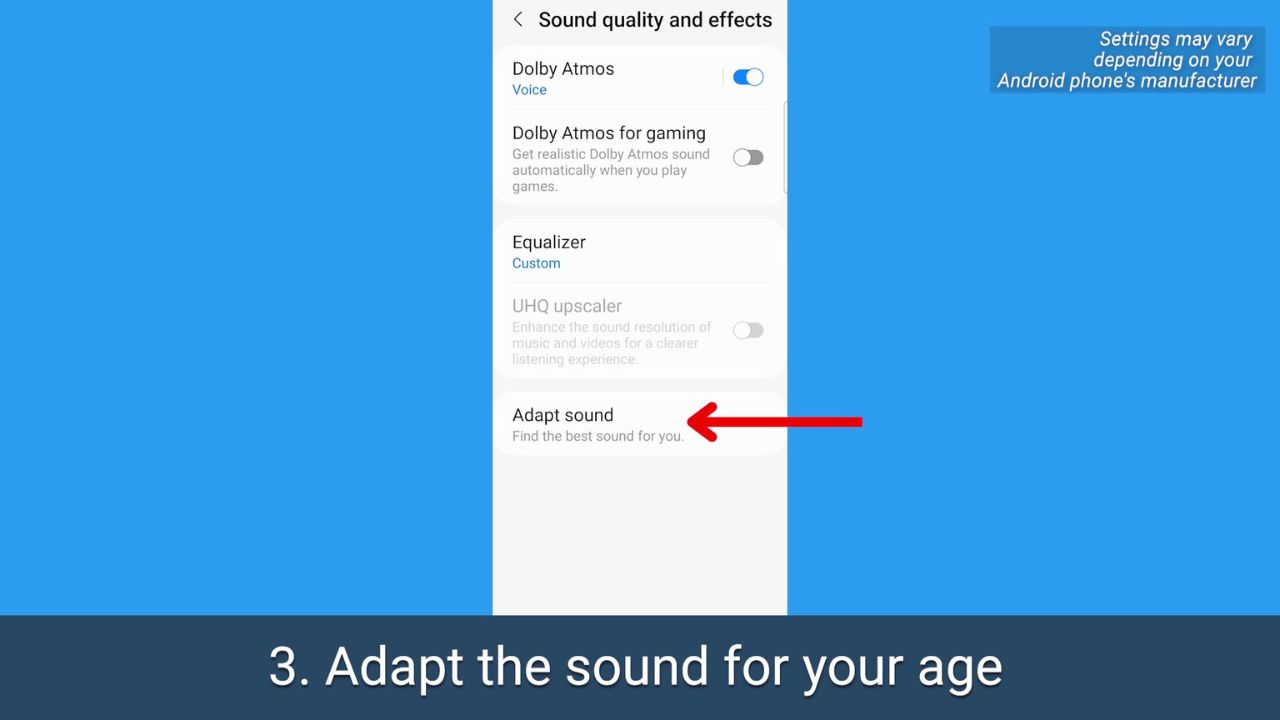
Tap Sound quality and effects
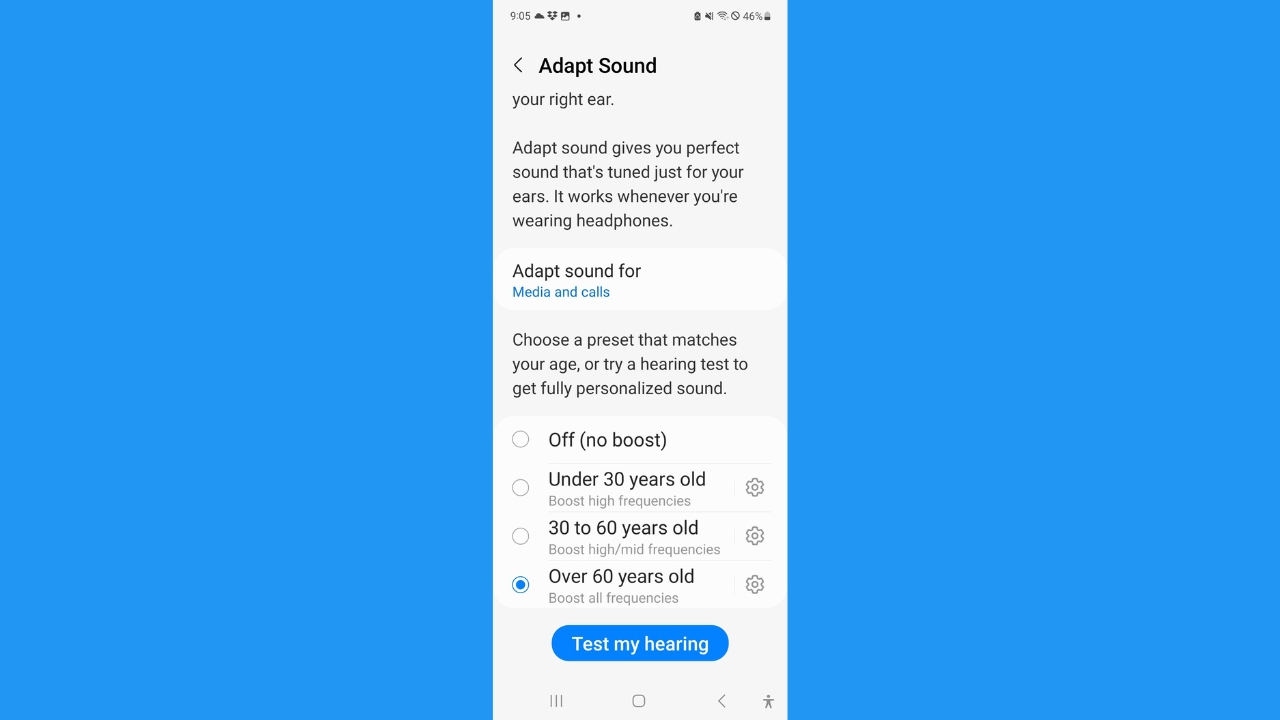
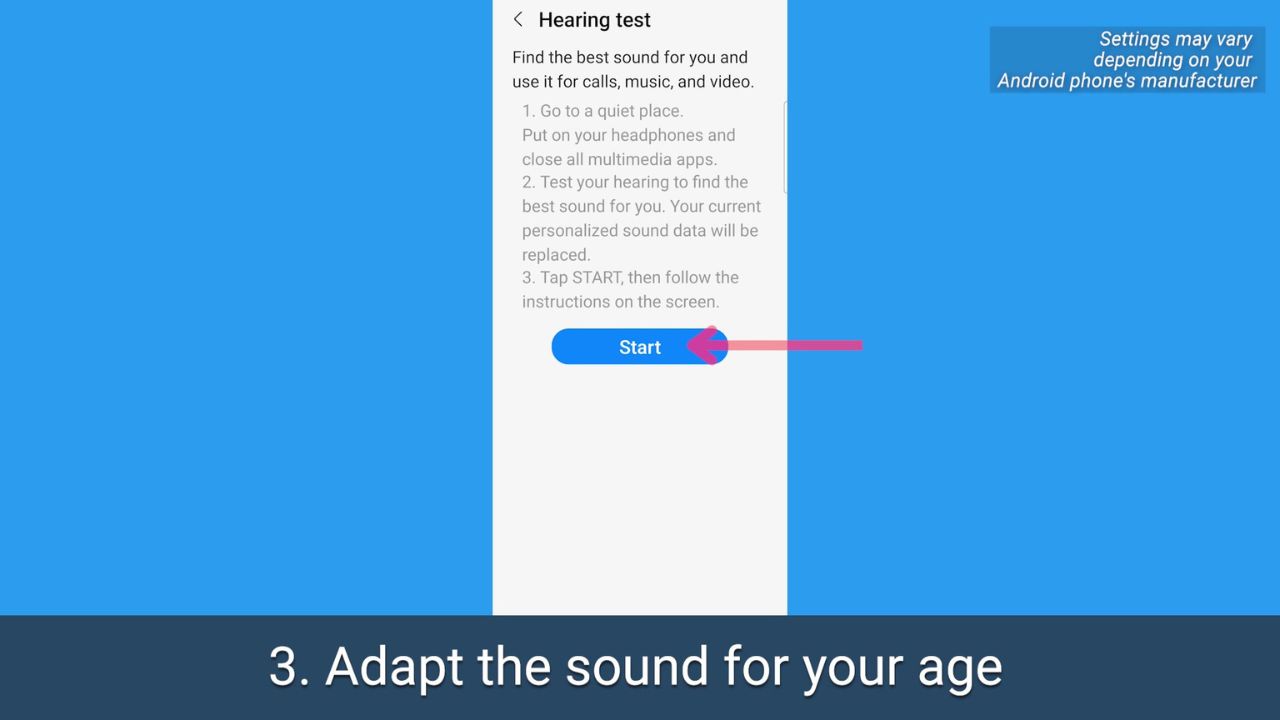
Where it says Adapt Sound for be sure to select Media and calls
Then scroll and select the age range that applies to you
Tap Test my hearing
Be sure you’re wearing headphones, and you’re in a quiet place
Tap Start and follow the prompts to test your hearing and adjust your phone’s sound properly
MORE: HOW TO PICK WHICH WIRELESS EARBUDS ARE BEST FOR YOU
MORE: 5 BEST NOISE-CANCELLING HEADPHONES TO BOOST YOUR LISTENING FOR 2023
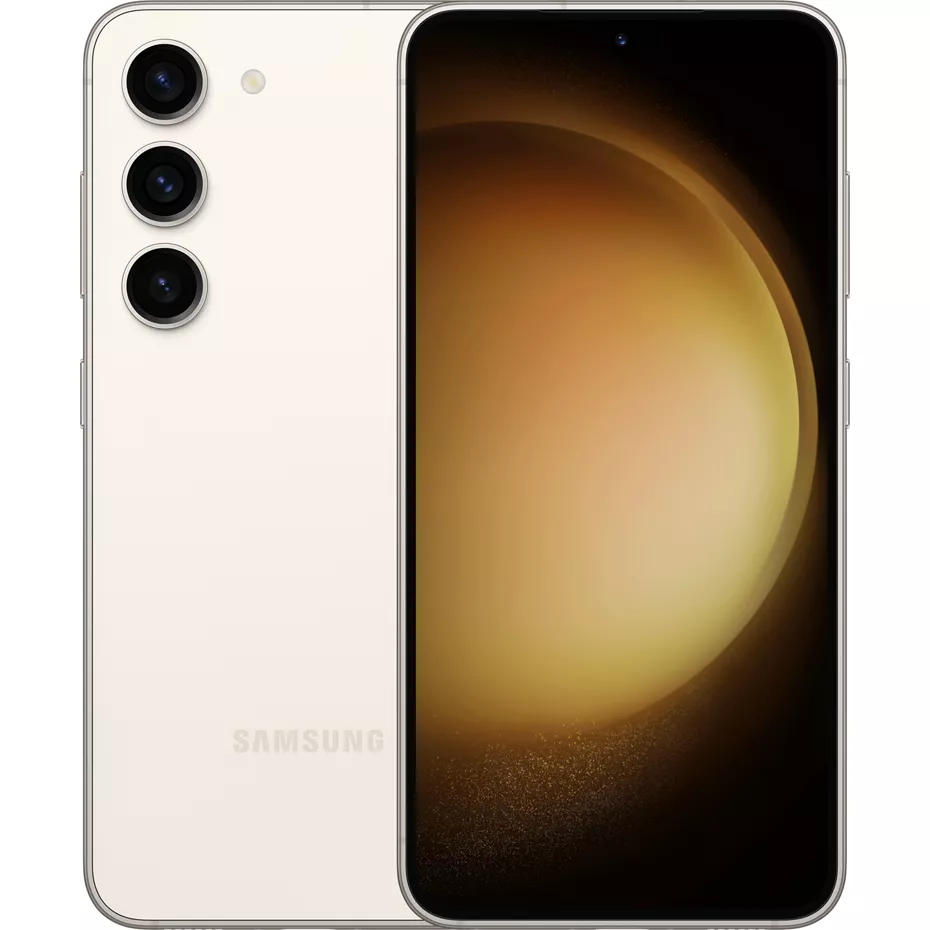
Get Samsung Galaxy S23 free with select plan & new line
Kurt’s key takeaways
Our hearing changes as we age, and at the end of the day, we’re all looking for different outcomes when it comes to sound on our devices. It’s great to know the options that are available in case you do find watching videos or listening to certain podcasts to be a little iffy because of the sound quality. After all, as our ears gracefully age, it’s comforting to know that we can still savor the symphony of life with the right tune-up for our tech.
What are some other ways you personalize your sound experience on your devices? We would love to hear your tips and tricks for optimizing sound quality. Let us know by commenting below.
FOR MORE OF MY TIPS, SUBSCRIBE TO MY FREE CYBERGUY REPORT NEWSLETTER HERE
We’ve all been there—scrambling to find an outlet at the airport, watching your laptop’s battery dwindle during an important meeting, or juggling multiple devices that all seem to run out of juice at the worst possible moment. In today’s fast-paced, tech-driven world, staying powered up isn’t just a convenience—it’s a necessity. But let’s face it: not all power banks are created equal. Some are bulky, slow, or simply not up to the task of handling high-demand devices like laptops or gaming consoles.
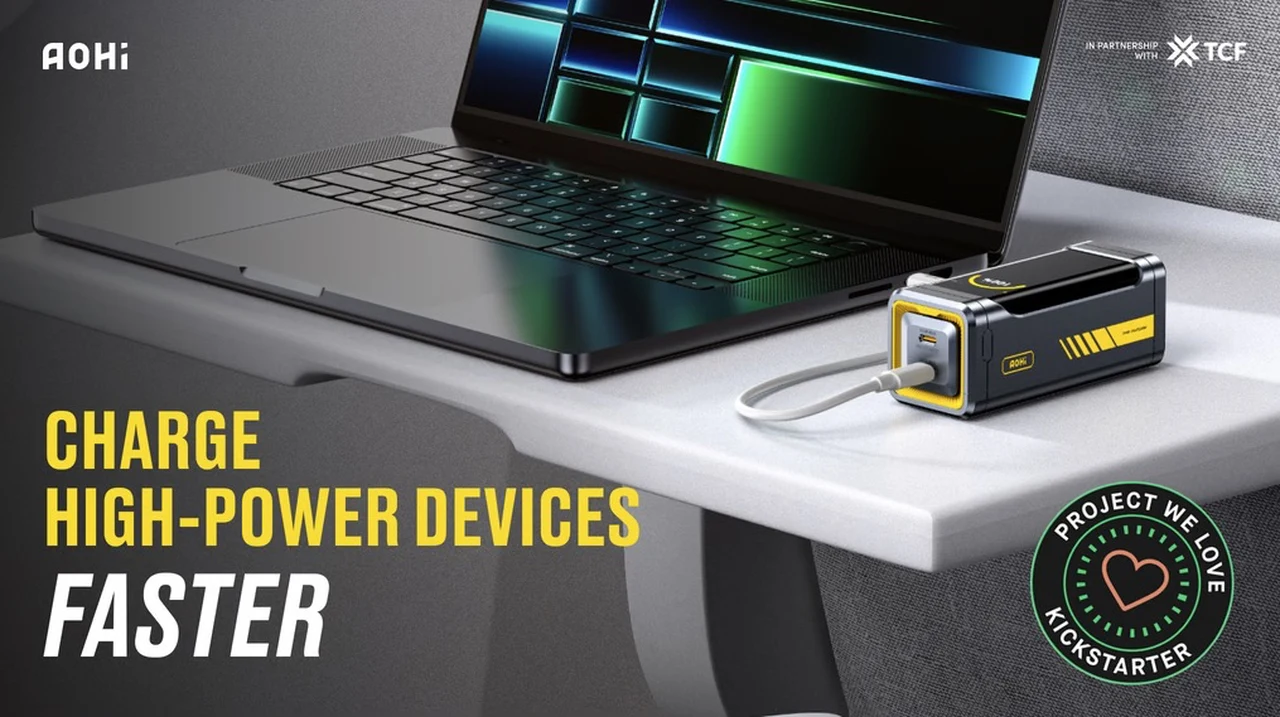
Enter the Starship Pro, a power bank that’s redefining what portable energy can do. Compact yet incredibly powerful, this 10,000mAh device delivers an impressive 210W output, making it a fantastic option for travelers, professionals, and tech enthusiasts alike. With features like dual 140W USB-C ports, rapid recharging, and a sleek, travel-friendly design, it’s more than just a power bank—it’s a lifeline for your devices. Whether you’re navigating a packed schedule or gearing up for an adventure, the Starship Pro promises to keep you connected without missing a beat.
High-Performance Portable Charging Solution
Backer early bird pledges are now available for the recently launched project from roughly $79 or £63 (depending on current exchange rates), offering a considerable discount of approximately % off the retail value, while the Kickstarter crowd funding is under way.
Key Specifications :
Maximum output of 210W with a 10,000mAh capacity, capable of charging high-demand devices like laptops, gaming consoles, and smartphones.
Dual 140W USB-C ports for simultaneous charging of two devices without efficiency loss.
Rapid recharging with a 90W input, reaching 60% charge in 15 minutes and full charge in under 30 minutes.
Compact, lightweight, and airline-compliant design for portability and convenience during travel.
Durable automotive-grade lithium-ion cells with 80% capacity retention after 3 years, plus global safety certifications (FCC, CE, CCC, PSE).
The Starship Pro power bank offers a compact yet powerful charging solution for users who require reliable, high-performance energy on the go. With a maximum output of 210W and a 10,000mAh capacity, it is designed to meet the needs of frequent travelers, busy professionals, and tech enthusiasts alike. Its blend of power, portability, and advanced features ensures your devices remain charged and ready, no matter where you are.
Starship Pro Power Bank
If and when the Starship Pro campaign successfully raises its required pledge goal and fulfillment progresses smoothly, worldwide shipping is expected to take place sometime around May 2025. To learn more about the Starship Pro compact power bank with 210W output project consider the promotional video below.
Exceptional Charging Capabilities
At the core of the Starship Pro is its impressive charging performance. It features dual 140W USB-C ports, allowing users to power two high-demand devices simultaneously without compromising efficiency. This makes it an excellent choice for charging laptops, gaming consoles, tablets, or smartphones. For instance, users can charge a laptop while simultaneously powering a smartphone, making sure uninterrupted productivity and connectivity. The 210W total output is particularly beneficial in environments where access to power outlets is limited, offering a fast and efficient solution for those who rely heavily on their devices throughout the day.
Rapid Recharging and Portability
One of the standout features of the Starship Pro is its rapid recharging capability. With a 90W input, the power bank can replenish up to 60% of its capacity in just 15 minutes and achieve a full charge in under 30 minutes when paired with a compatible charger. This speed minimizes downtime, making it ideal for users with demanding schedules or those preparing for extended trips. Whether gearing up for a long flight or a packed workday, the Starship Pro ensures users are never left waiting for power.
Despite its high capacity and performance, the Starship Pro maintains an impressively portable design. Its lightweight, pocket-sized form factor makes it easy to carry, while its compliance with airline safety regulations allows users to bring it on flights without concern. This combination of power and portability makes it a versatile companion for both daily use and international travel.
Smart Features and Durability
The Starship Pro incorporates smart features that enhance its usability. A built-in digital display provides real-time power monitoring, allowing users to track the remaining charge at a glance. Dynamic animations and an intuitive interface add a touch of sophistication, appealing to tech-savvy users who value both functionality and aesthetics.
Durability and safety are also key strengths of the Starship Pro. It uses automotive-grade lithium-ion cells, making sure long-lasting performance and reliability. Even after three years of regular use, the battery retains 80% of its capacity, making it a dependable investment. Additionally, the device meets global safety certifications, including FCC, CE, CCC, and PSE, offering peace of mind when used across different regions. The inclusion of a 140W USB-C cable further enhances reliability, making sure optimal power transfer for connected devices.
A Reliable Portable Energy Solution
Whether charging a laptop during a meeting, powering a gaming console on the road, or keeping a smartphone ready for action, the Starship Pro delivers consistent, high-quality performance. Its combination of power, speed, portability, and safety makes it a standout choice for users seeking a dependable portable charging solution.
For a complete list of all available project pledges, stretch goals, extra media and feature breakdown for the compact power bank with 210W output, jump over to the official Starship Pro crowd funding campaign page by inspecting the link below.
Source : Kickstarter
Disclaimer: Participating in crowd funding campaigns such as those found on Kickstarter and Indiegogo, involves inherent risks. While many projects successfully meet their goals, others may fail to deliver due to numerous challenges. Always conduct thorough research and exercise caution when pledging your hard-earned money.
Filed Under: Gadgets News, Top News
Latest Geeky Gadgets Deals
Disclosure: Some of our articles include affiliate links. If you buy something through one of these links, Geeky Gadgets may earn an affiliate commission. Learn about our Disclosure Policy.
Chainlink (LINK) closed indecisively at $17.96, struggling to break resistance at $19.50.
The price remained inside the $16.00 – $19.50 range, signaling market hesitation.
A breakout above $19.50 could push LINK toward $30.00, with a long-term target of $37.00 if momentum sustained.
Intraday volatility kept LINK within a tight consolidation phase. Above $19.75, buying pressure could strengthen, leading to bullish continuation.
Failing to hold $16.00 might trigger a decline toward $12.80 and possibly $10.00.
LINK/USDT daily chart | Source: Trading View
A W-pattern breakout played out in October 2024, leading LINK from $9.50 to over $20.00 in weeks.
– Advertisement –
Exchange supply dropped to 0.147, indicating fewer tokens available for sale, a historically bullish sign.
LINK needed more daily candle confirmations before upward continuation. Long-term, increased DeFi adoption and reduced exchange supply supported bullish price action.
A move past $30.00 would confirm LINK’s recovery, with a strong probability of reaching $37.00.
What Plummeting Chainlink Supply on Exchanges Means?
Analysis of Chainlink’s exchange supply dropped to 0.147, marked a sharp decline. Historically, such trends signaled whale accumulation rather than sell-offs.
This pattern suggested a potential supply shock in the coming months. LINK’s price fell to $17.80, correlating with the declining exchange supply.
Despite short-term weakness, supply reduction often preceded strong price rebounds. The last major supply drop in late 2024 led to LINK rallying from $9.50 to $25.00.
Whales accumulated aggressively as retail panic-selling increased. OTC transactions likely influenced price suppression, ensuring accumulation at lower levels.
The market’s current manipulation phase suggested institutions were positioning for future price surges.
LINK exchange supply ratio | Source: CryptoQuant
LINK needed to reclaim $19.50 to confirm strength. A continued decline below $15.00 might trigger a test of $12.80.
Shrinking exchange supply, combined with increased DeFi adoption, positioned LINK for a potential breakout in the short-term which could ignite the long-term uptrend continuation.
Once demand outpaces supply, LINK could surge toward $30.00 and eventually $37.00.
DeFi Market Trends TVL Volume and Raises Growth
Chainlink’s also TVL surged past $20 Billion, showing increased capital flow into DeFi projects. Historically, rising TVL correlated with LINK’s price appreciation.
Trading volume peaked at $1.8 Billion, reflecting heightened market activity.
A previous spike in 2021 led LINK to all-time highs, making similar patterns at the current market conditions worth monitoring.
The rise that reached $3.5 Billion indicated significant funding within the DeFi space.
More investments suggested institutional confidence, which historically led to long-term price increases.
LINK TVL | Source: DefiLlama
Despite recent price consolidation at around $18, LINK held above this key support levels.
A breakout past the $20 psychological level could trigger a move toward $30.00 and $37.00.
LINK needed sustained TVL growth to confirm market confidence. If TVL declined, LINK might retest $16.00 or even $12.80.
Rising TVL and investments positioned LINK for a bullish cycle. If demand outpaced supply, LINK could reach $40.00, reinforcing its role in DeFi.
Windows 11 is fresh air and looks like a modern OS, even in 2025. But there are several changes, some intentional, and some only reserved for those who love prying into the OS.
If you are bored with the current features or find the new OS lacking performance, visual appeal, or power, these hidden settings will help you get more out of Windows 11. Without further ado, let’s jump into the post.
1. Push the Start button into the corner
The new centered Start button isn’t easy to get accustomed to. While new users might like the modern, middle look, Windows 8 or old users prefer the left-aligned start menu.
Earlier, you had to resort to registry tweaks to get this done, but now a simple Taskbar setting tweak can push the Start button to its original location.
Right-click on the Taskbar and select the Taskbar settings option. Expand the Taskbar behavior and choose the Left option.
2. Bring back the old desktop context menu
The shortened desktop context menu wasn’t good for daily use. It is too small and lacks useful options like the GPU app access. Microsoft tried to adapt it to daily use, but some prefer the old one more.
To do this trick, you need to modify the registry. We advise you to manually backup the registry to a USB drive and make a system restore point. It ensures you can return to a working state if you wreck your PC.
Launch the command prompt with admin rights and paste the following command to restore the old context menu:
Close the Command Prompt window and restart to apply the registry changes.
3. Align your Priorities with Focus Mode
Focus Mode can help you not deviate from your track and stop all the disturbance in the background. Search for Focus settings in the Start menu, and you can start a timer for a short duration where your OS activity and notifications won’t bother you.
There are a few options, but we suggest using the default settings for maximum productivity.
4. Restore File Explorer Windows
We all use the hidden files feature in File Explorer but ignore this small yet useful setting. As someone who works with files scattered across multiple locations, I use a lot of tabs and windows. However, manually reopening each one the next day is a chore.
Here’s where the Restore File Explorer windows at logon can save you. Click on the three-dots button in the File Explorer and select Options.
Switch to the View tab and enable the Restore previous folder windows at logon option to skip reopening folders again.
5. Access Phone Storage from File Explorer
If you ignore the Phone Link setup pop-up while setting up your Windows 11 PC, you miss out on many things. After the 24H2 update, you can peek inside your phone storage wirelessly using Managed devices features. All you need is to install the Link to Windows app on your Android or iOS device, and you’re good to go.
Visit the Mobile Devices page under the Bluetooth and devices settings and set up the Managed Devices.
You can access and modify files after pairing and enabling the “Show mobile devices in File Explorer” option. It’s not fast due to Wi-Fi limitations, but it is good enough to copy docs and images from phone to PC.
6. Use the Phone as a connected Camera
Don’t have a webcam but want to use your phone as a camera? Earlier, there were third-party apps to do this trick, but now Managed Devices can help you. Pair and set up the phone as you did in the previous trick, then enable the Use as a Connected Camera option.
Then, you can use the phone’s front or rear camera as a webcam and adjust many other settings. No more missing out on Zoom or casual meetings and sticking to audio mode because you don’t have a webcam.
7. Super God Mode
What if you had a gateway to access all the possible settings in Windows 11? Super God Mode can help you with it. It is way more powerful than God Mode, a trick discovered in 2021. But does it make you a god?
No. You cannot make your Windows 11 PC do anything more than it was designed to. However, you get a categorized folder that lists all the OS settings, and finding and sorting them is much easier.
There is no need to navigate the Control Panel or the Settings app to find a less-known display or network setting. Developer Theojoe created a batch file to create the Super God Mode folder for you. Download it from GitHub and run the file to access the folder.
8. Windows Sandbox
Windows Sandbox is a mystery to many. Some think of it as a useless app, but it can be a powerful isolation testing tool for anything sketchy you download. Earlier, virtualization-supported systems were not common, but Windows 11 needs a TPM-capable virtualization-ready CPU, so it’s highly likely you have one.
Also, you need to have Windows 11 Pro because it isn’t available in Home. The recent updates allow secure clipboard sharing, resizing, and audio/video inputs.
So, you don’t need to create a virtual machine using VMware or other software and can check apps and files inside Sandbox.
Wrapping Up
We hope these hidden or less-known Windows settings helped you get more out of your Windows 11 PC. We love the Managed devices and Sandbox a lot because it lets us repurpose the mobile camera as a webcam, and Sandbox reduces the chances of running anything malicious on the PC.
Share any other unpopular Windows 11 settings in the comments.
Magsafe is one of the most useful and cool way to charge an iPhone. Ever since Apple introduced MagSafe, many users have loved it, especially because of the various accessories that make life easier. But does the new iPhone 16e support MagSafe charging? Let’s find out
Apple has finally launched the affordable iPhone 16e (expected as iPhone SE 4), which is the successor to the iPhone SE 2022. With the release of iPhone 16e, the iPhone SE lineup concludes. However, aside from the name change, everything else remains the same. It is affordable, packs the latest features including Apple Intelligence, and is available at a lower price than the number series models.
Does iPhone 16e support MagSafe?
No. While everything is at par with flagship models, the iPhone 16e does not support MagSafe charging. This means you cannot use those amazing MagSafe accessories with the newly launched iPhone 16e.
The iPhone 16e still supports 7.5W Qi wireless charging, but it lacks MagSafe support. It’s not surprising that the iPhone 16e doesn’t support MagSafe since it’s essentially the successor of the iPhone SE, which also didn’t have MagSafe charging. However, since now it has number series naming, many expected it to include MagSafe.
If you’re considering using MagSafe cases and wallets with the new iPhone 16e, you’ll be let down. Who will not be disappointed, after all, MagSafe is a convenient and safe way to charge iPhone wirelessly.
The iPhone 16e features the Type C port instead of the Lightning port found in the last generation iPhone SE. As usual Apple hasn’t shared the actual charging rate support. Nevertheless, they mentioned that the device can be charged to 50% in just 30 minutes.
The new iPhone 16e is priced at $599, while the vanilla iPhone 16 costs $799. If you’re planning to use various MagSafe accessories, it might be a good decision to invest in the iPhone 16, as it offers additional features such as improved camera setup.
There are options like a Case or a magnetic ring to attach MagSafe accessories with a non-compatible device. But it can not charge the device faster and have some other limitations, they still provide the option to use MagSafe accessories.
While MagSafe support might not be a big of concern for most users, it could be a dealbreaker for some, especially those who already own MagSafe accessories. We’d love to hear your thoughts on this matter. Is it a deal breaker for you?
Google has kicked off Android 16 journey much earlier than usual compared to the typical first-quarter launch for previous versions. Usually, the tech giant starts the developer preview in the first quarter, but this time they’ve started Android 16 developer preview nearly four months ahead of usual schedule.
Update: Android 16 Beta 2 is now available. Google has released the first Android 16 beta on January 23rd. Factory and OTA images are now available for download.
Users who have eligible Pixel devices can now install the Android 16 beta using the Android Flash tool or by manually flashing the Factory or OTA images.
If you choose the manual method, you can download Android 16 factory and OTA images for your Pixel phone. Here you will find factory images and OTA images for every DP and Beta that Google will release before the stable Android 16. This repository will be continuously updated.
Google took the decision of starting testing Android 16 early to align the release with its flagship phones. This year, the Pixel 9 was launched running Android 14 even though Android 15 was available in AOSP. So with Android 16 set to release early next year, the Pixel 10 will launch with Android 16.
Before we move on to the download section, let’s take a look at the list of supported models.
Pixel 6 and 6 Pro
Pixel 6a
Pixel 7 and 7 Pro
Pixel 7a
Pixel Fold
Pixel Tablet
Pixel 8 and 8 Pro
Pixel 8a
Pixel 9, 9 Pro, 9 Pro XL, and 9 Pro Fold
These Pixel phones are eligible for the Android 16 update. If you have any of the eligible models and want to join the Android 16 ride, you can download the required files from links below.
Download Android 16 Factory Images and OTA Images
Before downloading, it’s important to know if you want a Factory image or an OTA image. A Factory Image is a full system image that requires a clean install and erases all your data. On the other hand, an OTA image is an incremental file that can be installed over your current version (must be latest) and does not require clean installation. Check out the installation process.
Android 16 Beta 2 (BP22.250124.009)
Android 16 Beta 1 (BP22.250103.008)
Android 16 Developer Preview 2 (BP21.241121.009)
Android 16 Developer Preview 1 (BP21.241018.009)
Note: To ensure you are downloading the right files, check the build number and your device codename. Both of these will be part of the link. So if both things match in URL, then you are downloading the correct file.
Before flashing these files on your Pixel, make sure to backup your data so that you can restore it in case something goes wrong.
Once you install the first Android 16 developer preview, you’ll start receiving upcoming builds directly on your device, which means you won’t need to manually flash the files every time.
As mentioned above, we will keep updating this page when a new DP or beta build release.
With remote work becoming the norm, a reliable home network is more crucial than ever. Whether you’re video conferencing, streaming, or managing critical work tasks, a robust and secure home network is no longer a luxury but a necessity. A well-configured network ensures your devices stay connected and your online experience runs smoothly. Here’s how to set up a high-performance home network, understand the equipment you’ll need, and secure your connection.
Stay protected & informed! Get security alerts & expert tech tips—sign up for Kurt’s The CyberGuy Report now
1) Install your router and configure important settings
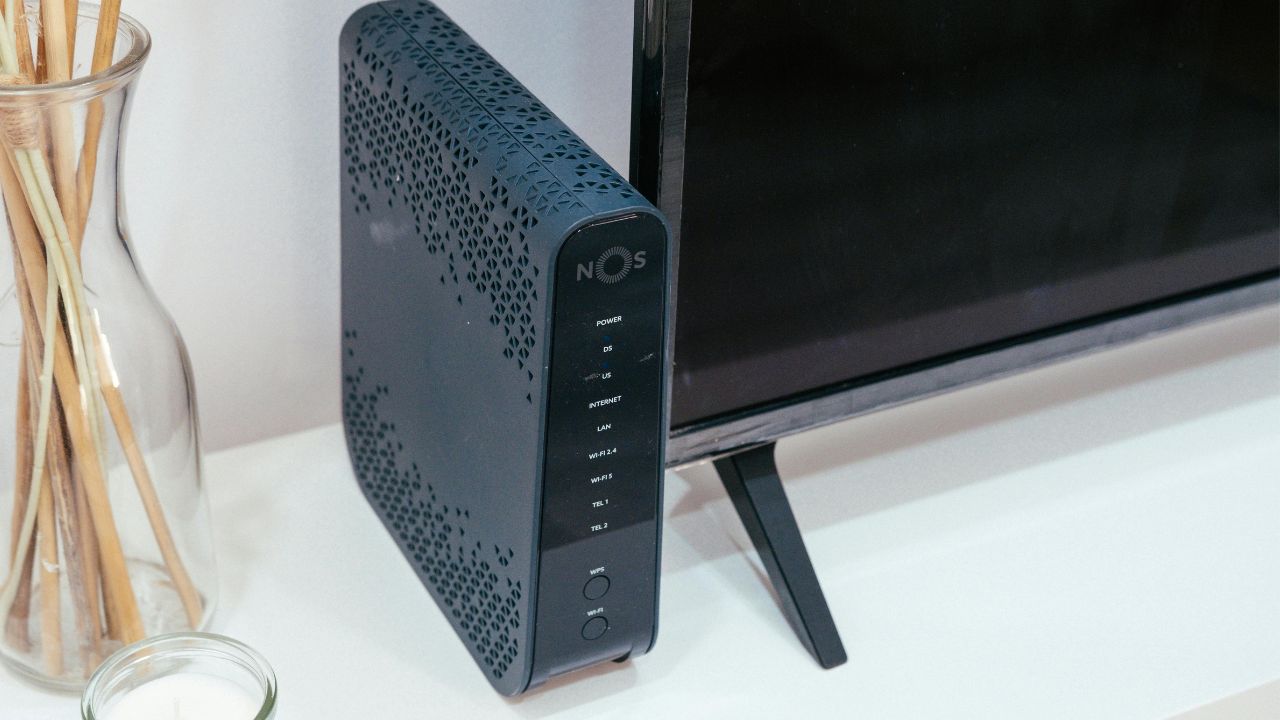
Start by placing your router in a central location within your home. The closer your device is to the router, the stronger and more reliable your Wi-Fi signal will be. For a wired network, connect a switch or Ethernet hub to an available power outlet using a high-quality Ethernet cable.
Once your router is installed, it’s time to configure the security settings. Find your router’s online setup page on the instructions, which are usually provided with the device or printed on the router itself. Key settings to change include renaming your network (SSID) and updating the network security key. Check our list of the top routers for best security here.
BEST PRESIDENT’S DAY DEALS
2) Decide if you want a wired or wireless setup
When setting up your home network, you’ll need to choose between a wired or wireless configuration. Wired networks offer enhanced security and faster speeds, but wireless networks offer the convenience of connecting multiple devices without needing additional hardware.
Wired devices:
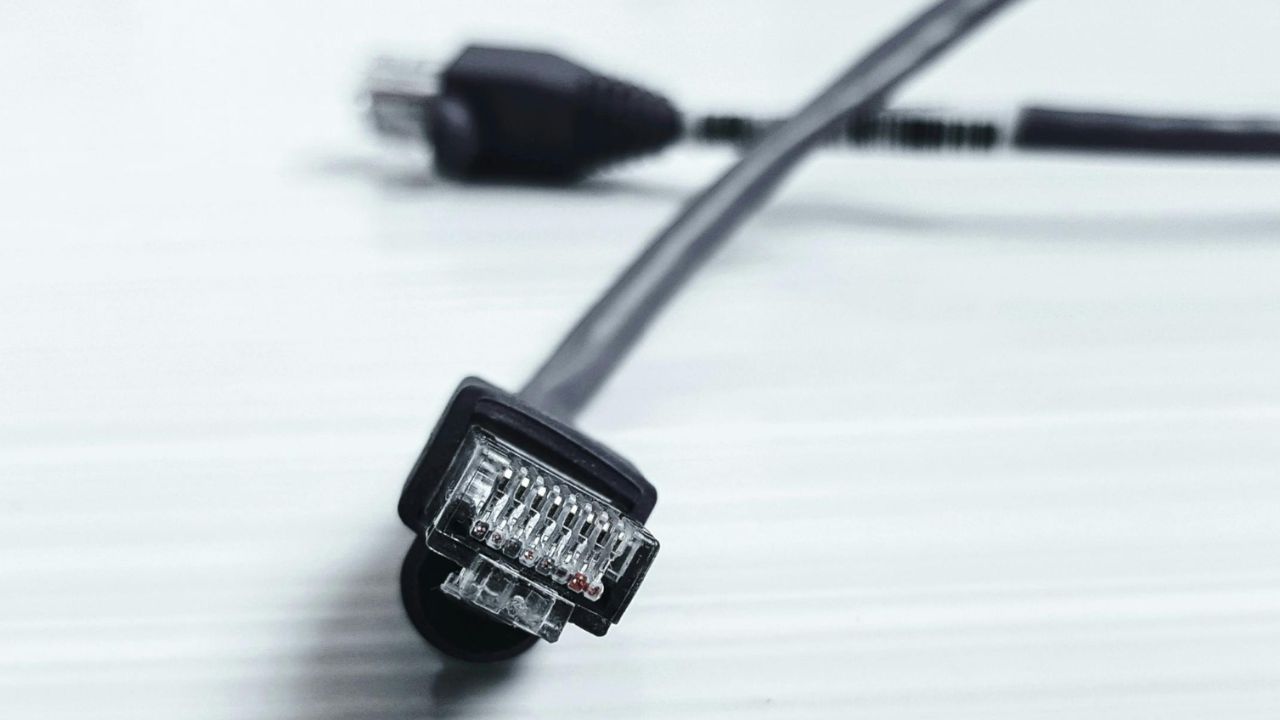
Use an RJ-45 network cable to link your device to the router or switch. Most modern routers support Gigabit Ethernet (1,000 Mbps). For performance, it’s best to use Cat5e, Cat6, or Cat6a cables between your devices and router.
Cat5e supports gigabit speeds, but can struggle over long distances.
Cat6 and Cat6a cables offer superior performance with speeds up to 10 Gbps. While Cat6 is adequate for most homes, Cat6a is ideal for longer distances or for homes with 10 Gbps devices. Cat6a cables are typically used in high-demand environments, like data centers or large offices.
Switches are essential for connecting multiple wired devices within your home network. They allow devices to communicate over a single Ethernet segment and can be cascaded to extend your network. There are two types of switches:
Unmanaged switches: Affordable and straightforward, these typically offer basic features and come in 5- or 8-port configurations.
Managed switches: Higher-priced but offer advanced features such as virtual LANs (VLANs), traffic segmentation, and even the ability to block traffic from specific devices.
Some switches also provide Power over Ethernet (PoE), which can power devices like access points (APs) or security cameras without needing a separate power outlet. This is particularly useful for devices in hard-to-reach areas.
Wireless devices:
To connect wireless devices, you’ll need a Wi-Fi-capable router or wireless access point (AP). Wi-Fi comes in different generations, such as Wi-Fi 5 and Wi-Fi 6. Make sure your devices and router are compatible with the latest Wi-Fi version. If needed, a USB adapter can help update your devices for compatibility.
Wireless networks operate on two primary bands:
2.4 GHz: Offers longer range, but with lower bandwidth. It’s ideal for devices like smart home gadgets that don’t require high-speed data.
5 GHz: Provides higher bandwidth and faster speeds, but has a shorter range. It’s perfect for devices like laptops and streaming devices that need fast, uninterrupted connectivity.
HOW TO SPEED UP YOUR WIFI AND INTERNET CONNECTION
3) Extend your network range
Both wired and wireless networks can experience connectivity issues if there are physical barriers or long distances between devices and the router. To expand the range of your network, consider these options:
Ethernet cables: Ethernet cables can extend up to 100 meters. Adding a switch allows multiple devices to connect at different locations in your home. You can also use powerline adapters, which send your network signal through your home’s electrical wiring, enabling network access in rooms far from the router.
Wireless repeaters: These devices extend the
Wi-Fi signal by amplifying and retransmitting it.
Mesh systems: A mesh network uses multiple nodes (router-like devices) that communicate with each other to create a seamless Wi-Fi network. They’re easy to set up and provide consistent coverage. Check out our top mesh networking winners here.
4) Secure your home network
Securing your home network is critical to maintain your privacy. Here are some best practices to follow:
Change default passwords: Make sure to change the default passwords on all devices that control or access your network.
Activate the firewall: This helps block unauthorized traffic and protects against potential threats.
Minimize open ports: Routers use virtual ports for specific services, such as web traffic on port 80 or secure browsing on port 443. Opening only the necessary ports helps reduce vulnerabilities.
Disable remote access: Turn off remote access to your router and cable modem unless absolutely necessary.
Use WPA2 or WPA3 encryption: Always secure your wireless network with a strong password and WPA encryption to prevent unauthorized access.
Kurt’s key takeaways
Setting up an optimal home network might seem complex, but with the right approach, it becomes a straightforward process that dramatically improves your digital experience. By understanding your network’s components, prioritizing security, and investing in quality equipment, you’ll create a reliable digital infrastructure that supports your work and lifestyle. Remember, a well-configured network is an investment in your productivity, entertainment, and peace of mind.
What other home technology topics would you like tips and tricks on? Let us know in the comments below.
Copyright 2025 CyberGuy.com. All rights reserved. CyberGuy.com articles and content may contain affiliate links that earn a commission when purchases are made.
In a major market movement, a Dogecoin whale transferred a sum of 100 million DOGE, worth around $25.42 million, to the crypto exchange Binance. This significant transaction has generated debates about future Dogecoin price directions
Dogecoin Whale Significant Transaction
According to data from Whale Alert, a Dogecoin whale moved 100 million DOGE worth $25.42 million through Binance cryptocurrency exchange transactions. The substantial transfer took place through the address “A8tdnDg3oxG” which remains anonymous.
The substantial transfer has created uncertainty among cryptocurrency analysts and investors about a downward pressure on Dogecoin price.
Market experts track the impact of whale transactions due to their signaling power for shifting market patterns. Analysis revealed no significant price drops yet demands close attention in this period.
Potential Breakout from Current Patterns
Crypto analyst Ali Martinez points out that Dogecoin price shows signs of a symmetrical triangle pattern in its trading charts which indicates an impending price movement. His assessment predicts this price pattern will drive prices up or down by about 25% marking an important phase for the cryptocurrency.
Dogecoin price chart | Source:X
In addition, the technical setup described by Martinez serves as an indicator that traditionally signals large price movements across crypto markets.
– Advertisement –
As Dogecoin approaches the peak of its triangle pattern traders await market sentiment to determine whether the price will break through upward and form a bullish trend or fall downward for a bearish outcome.
Market Consolidation Amidst Volatility
In the last seven days, Dogecoin price dropped by 2% which aligns with general market patterns. Price stability could emerge from this consolidation phase yet market forces could also bring forth major price movements.
Meanwhile, recent analysis shows that the Dogecoin price chart displays a bullish potential based on the Golden Cross pattern which shows the 50-day moving average surpassing the 200-day moving average. As DOGE is gaining market activity, the liquidity map on Gate.io shows strong support at $0.2336 and resistance at $0.2621.
Dogecoin ETF Impact
More so, the NYSE Arca’s recent submission to list a Grayscale spot Dogecoin ETF introduces fresh elements into market sentiment surrounding Dogecoin. If the U.S. Securities and Exchange Commission approves the Grayscale spot Dogecoin ETF it will spark positive investor sentiment leading to higher Dogecoin price.
The hype surrounding this ETF marks the first step for the financial entity to embrace a cryptocurrency long viewed with suspicion for its ‘meme’ origins.
ForgeMaster Dice, a innovative innovation designed to elevate your TTRPG experience. Crafted from aerospace-grade materials and featuring a patent-pending magnetic system, these dice are more than just tools—they’re a perfect blend of precision, durability, and style. Imagine rolling dice that not only look incredible but also deliver consistent, fair results every time. Whether you’re a seasoned dungeon master or a casual player, ForgeMaster Dice promise to bring a new level of excitement and reliability to your game nights.
Precision Magnetic Tabletop Gaming Dice
Early bird tier pledges are now available for the unique project from roughly $99 or £79 (depending on current exchange rates), offering a considerable discount of approximately 38% off the suggested retail price, while the Kickstarter crowd funding is under way.
Key Specifications :
Groundbreaking magnetic mechanics with 77 strategically placed magnets ensure balanced and fair rolls.
Crafted from aerospace-grade 7075 aluminum alloy with stainless steel bearings and pure copper components for exceptional durability.
CNC-machined to a tolerance of 0.01mm and anodized for wear and corrosion resistance.
Laser-engraved numbers for maximum readability and a magnetic locking system for secure result displays.
Highly customizable modular design allows mixing colors, numbers, and materials for a personalized gaming experience.
ForgeMaster Dice represent a notable advancement in the realm of tabletop role-playing games (TTRPGs) such as Dungeons & Dragons. These precision-engineered, all-metal dice combine advanced technology, premium materials, and thoughtful design to elevate the gaming experience. Whether you are a seasoned dungeon master or a casual player, ForgeMaster Dice aim to deliver fair rolls, exceptional durability, and a high degree of customization, setting a new benchmark for gaming accessories.
ForgeMaster Dice
If and when the ForgeMaster Dice campaign successfully raises its required pledge goal and fulfillment progresses smoothly, worldwide shipping is expected to take place sometime around June 2025. To learn more about the ForgeMaster Dice dice rolling reinvented project assess the promotional video below.
At the heart of ForgeMaster Dice is its innovative magnetic system. Using a patent-pending design with 77 strategically placed magnets, these dice are engineered to ensure balanced and fair rolls consistently. Traditional dice often face challenges such as uneven weight distribution or sliding, but ForgeMaster’s magnetic mechanics address these issues, making sure accurate randomization.
ForgeMaster Dice
This reliability means every roll—whether a critical hit or a saving throw—can be trusted. The modular design further enhances their versatility, allowing players to customize their dice setup. You can roll multiple dice simultaneously or detach individual components, such as the D20, for portability. This adaptability caters to diverse playstyles and scenarios, making the dice as dynamic as the games they are used in.
Premium Materials and Precision Craftsmanship
ForgeMaster Dice are crafted from aerospace-grade 7075 aluminum alloy, a material renowned for its strength and lightweight properties. Additional components, including stainless steel bearings and pure copper elements, contribute to their durability and precision. Each die is CNC-machined to an exacting tolerance of 0.01mm, making sure perfect symmetry and balance. To protect against wear and corrosion, the dice are anodized with a durable finish, preserving both their functionality and aesthetic appeal over time. This meticulous attention to detail ensures that ForgeMaster Dice not only perform reliably but also maintain their quality through years of gameplay.
Key material and design highlights include:
Aerospace-grade 7075 aluminum alloy for strength and lightweight performance
Stainless steel bearings and pure copper components for added durability
CNC-machined precision with a tolerance of 0.01mm
Anodized finish for long-lasting protection against wear and corrosion
Functionality and Customization
Functionality is a defining feature of ForgeMaster Dice. The laser-engraved numbers are designed for maximum readability, even in low-light conditions, making sure clarity during gameplay. The magnetic locking system allows for quick and secure result displays, while the balanced weight of the dice provides a satisfying tactile experience. This balance between heft and portability enhances usability, whether rolling for initiative or resolving a pivotal campaign moment.
Customization is another standout aspect. The modular design enables players to mix and match colors, numbers, and even materials, creating a set that reflects personal style or aligns with a character’s theme. This level of personalization adds an immersive layer to the gaming experience. Additionally, the compact design ensures the dice are easy to transport, whether heading to a friend’s house or a gaming convention.
A Blend of Functionality and Aesthetic Appeal
Beyond their technical features, ForgeMaster Dice celebrate craftsmanship and creativity. Their design, inspired by legendary weapons and tools, symbolizes strength, precision, and mastery. This aesthetic appeal, combined with their functional enhancements, improves them beyond a standard gaming accessory. ForgeMaster Dice become a statement piece, reflecting a player’s passion for TTRPGs.
By integrating advanced magnetic mechanics, precision machining, and premium materials with user-friendly features, ForgeMaster Dice offer a superior alternative to traditional dice. Whether prioritizing fairness, durability, or customization, these dice deliver on all fronts, making them a compelling addition to any tabletop role-playing game.
For a complete list of all available early bird specials, stretch goals, extra media and performance specifications for the dice rolling reinvented, jump over to the official ForgeMaster Dice crowd funding campaign page by navigating to the link below.
Source : Kickstarter
Disclaimer: Participating in crowd funding campaigns such as those found on Kickstarter and Indiegogo, involves inherent risks. While many projects successfully meet their goals, others may fail to deliver due to numerous challenges. Always conduct thorough research and exercise caution when pledging your hard-earned money.
Filed Under: Design News, Gadgets News
Latest Geeky Gadgets Deals
Disclosure: Some of our articles include affiliate links. If you buy something through one of these links, Geeky Gadgets may earn an affiliate commission. Learn about our Disclosure Policy.