What would it take for PEPE coin to achieve a 100% rally? The meme coin has been moving sideways for almost 2 weeks now, despite signs of accumulation.
This performance suggests that its bears have ran out of steam but the bulls haven’t garnered enough momentum for a sizable comeback.
PEPE exchanged hands at $0.000009603 at press time which means it was down by 65% from its all-time high in December.
It traded at price levels last seen at the start of its November 2024 rally. PEPE managed to rally by over 200% in November.
Its current price level could easily deliver a 100% uptick. A 100% gain means the meme coin would have to push to at least a $0.0000191.
Interestingly, that price tag is below its next major resistance zone near the $0.000021 price level.
– Advertisement –
PEPE Coin Struggles to Build up Momentum
As noted earlier, PEPE has been demonstrating signs of accumulation but demand has been relatively weak.
As a consequence, the bulls and bears have been locked in a stalemate with no signs of a clear winner.
PEPE price action/ source: TradingView
Among the bullish signs include the MADC’s upward trend ahead of its signal line, accompanied by bullish volume.
Even the MFI confirms that liquidity has been flowing back into the meme coin.
Perhaps the biggest explanation for PEPE coin’s weak demand could be the absence of whale demand.
Large holder net flows were significantly weaker in the last 2 weeks compared December and January.
PEPE large holder netflows/ source: IntoTheBlock
PEPE coin may finally bounce back once the bulls make a strong come back.
For now, price could also be prone to an unexpected price dip in case demand fails to put a foot forward.
The relatively weak whale activity reflects the recent dip in confidence in the market.
Nevertheless, on-chain data confirms that accumulation has been taking place.
Different classes of PEPE holders reveal more about the current market sentiment.
For example, cruiser (swing traders) balances grew from 136.66 trillion PEPE as of 10 December 2024 to 299.32 trillion PEPE as of 19 February.
PEPE balances by time held/ source: IntoTheBlock
Trader balances dropped aggressively from 208.5 trillion PEPE to 55.92 trillion PEPE during the same period.
HODLer balances dropped from 74.45 trillion PEPE to 62.31 trillion PEPE coin within the same time frame.
The key take-away from the balances by time held is that cruisers have been aggressively buying as prices dropped lower.
These are addresses that hold for weeks to months in anticipation of sizable price swings to profit from.
Meanwhile, traders have been declining sharply, signaling a declining focus on short term profit-taking.
This shift usually precedes a major price move. HODLer balances experienced their sharpest dip in November.
This confirmed profit-taking at the height of the last major bullish uptick. So far HODLer balances have not been accumulating.
Some potential reasons for this could be the weak market sentiment, lack of excitement and perhaps just waiting out the current bearish phase.
The Samsung Galaxy S26 Ultra is poised to capture attention in the competitive smartphone market. Combining advanced technology, refined aesthetics, and intelligent features, this flagship device is expected to set a benchmark for premium smartphones. Below, we delve into the most anticipated upgrades that could make the Galaxy S26 Ultra a standout choice for users seeking innovation and performance in a new video from Demon’s Tech.
Design Enhancements: A Sleek and Durable Build
Samsung is reportedly focusing on both durability and elegance for the Galaxy S26 Ultra. The introduction of titanium frames is expected to replace the aluminum used in previous models, offering enhanced strength while maintaining a lightweight structure. This shift not only improves the phone’s durability but also gives it a sophisticated, premium appearance that appeals to a wide audience.
Additional design refinements include a more integrated camera module, creating a seamless and polished look. New matte finishes are expected to reduce fingerprints, while an expanded range of color options provides greater personalization. These updates aim to blend style with practicality, making sure the device is both visually appealing and functional.
Camera Upgrades: Redefining Mobile Photography
The Galaxy S26 Ultra is set to transform smartphone photography with a 200MP telephoto lens, which could deliver unparalleled zoom capabilities and detailed portrait shots. This upgrade is particularly promising for low-light photography, where clarity and detail often suffer. Advanced sensors, such as the rumored HP9 or HP3, are expected to enhance hybrid zoom technology, allowing smoother transitions between optical and digital zoom.
AI-driven computational photography will likely play a significant role in improving image quality. By automating adjustments to lighting, color, and sharpness, the device could make professional-grade photography accessible to everyday users. Whether capturing landscapes, portraits, or night scenes, these advancements aim to simplify the process while delivering exceptional results.
Display Innovations: Brighter, Sharper, and More Efficient
Samsung’s expertise in display technology is expected to shine once again with the Galaxy S26 Ultra. The device may feature color filter on thin film encapsulation technology, which could make the screen brighter while reducing power consumption. This improvement would enhance visibility in direct sunlight, making sure a superior viewing experience even in challenging lighting conditions.
While under-display camera technology remains a possibility, it may not yet be included in this model. However, Samsung’s commitment to immersive visuals ensures the display will remain a key highlight, offering vibrant colors, sharp resolution, and smooth performance for gaming, streaming, and productivity.
Battery and Charging: Smarter, Faster, and Longer-Lasting
Battery performance is a critical factor for any smartphone, and the Galaxy S26 Ultra is expected to introduce silicon battery technology. This innovation could increase battery capacity without adding bulk, providing users with longer usage times. Paired with 65W fast charging, the device could significantly reduce charging durations, allowing you to quickly power up and stay connected.
Adaptive charging cycles are also anticipated, optimizing power delivery to minimize long-term battery wear. These features aim to balance convenience with sustainability, making sure the device remains reliable over its lifespan. Whether you’re a heavy user or someone who values longevity, these upgrades could enhance your overall experience.
Performance and Software: Power Meets Precision
The Galaxy S26 Ultra is likely to feature innovative processors such as the Snapdragon 8 Gen 4 or Exynos 2500, depending on the region. These chipsets promise faster speeds, improved energy efficiency, and better heat management, making the device well-suited for demanding tasks like gaming, video editing, and multitasking.
On the software side, the device is expected to run One UI 7, built on Android 15. This updated interface could offer enhanced multitasking tools, seamless ecosystem integration, and AI-driven features that make navigation more intuitive. Whether you’re managing multiple apps, editing photos, or connecting with other Samsung devices, the software is designed to streamline your workflow and improve productivity.
AI Integration: Smarter Tools for Everyday Tasks
AI is set to play a central role in the Galaxy S26 Ultra’s functionality. Generative AI tools could simplify complex tasks like image editing, allowing precise adjustments with minimal effort. Context-aware app suggestions and improved voice assistant capabilities are expected to make the device more intuitive, adapting to your habits and preferences over time.
Additional AI-driven features, such as real-time translation and smart replies, aim to enhance communication and productivity. These tools could transform the Galaxy S26 Ultra into a versatile assistant, capable of supporting both personal and professional needs. By integrating AI into everyday tasks, Samsung is positioning the device as more than just a smartphone—it’s a tool for efficiency and convenience.
Setting a New Benchmark for Flagship Smartphones
The Samsung Galaxy S26 Ultra is shaping up to be a pioneering device in the smartphone market. With its premium materials, advanced camera system, innovative display technology, and AI-powered features, it promises to deliver a comprehensive and innovative user experience. Whether you’re a tech enthusiast, a creative professional, or someone seeking a reliable and innovative device, the Galaxy S26 Ultra could redefine your expectations of what a flagship smartphone can achieve.
Explore further guides and articles from our vast library that you may find relevant to your interests in Samsung Galaxy S26 Ultra.
Source & Image Credit: Demon’s Tech
Filed Under: Gadgets News
Latest Geeky Gadgets Deals
Disclosure: Some of our articles include affiliate links. If you buy something through one of these links, Geeky Gadgets may earn an affiliate commission. Learn about our Disclosure Policy.
Generative AI art is currently a major trend in the AI world right now. You can create images using different Generative AI tools, one of the most famous tools is Fooocus. It lets you create realistic image generation, face swapping, image upscaling, inpainting, and outpainting. All these features are powered by the Stable Diffusion.
Fooocus works seamlessly on Nvidia and AMD GPUs. However, setting it up on a PC with Intel’s Arc GPU is more complex compared to straightforward installation. If you want to install and use Fooocus AI on your Intel Laptop powered by the Intel Arc GPU, you landed in the right place.
If you follow the official installation process from Fooocus’s GitHub page, you may encounter this error “Found no NVIDIA driver on your system.” You can easily resolve this issue, whether your system has Intel Arc A-series, B-series, 130V, or 140V graphics, you can follow our step-by-step guide to run Fooocus on your system.
Steps to Install Fooocus AI on Intel Arc GPU PCs
Reddit user, Electronic-Extent460, shared a step-by-step guide that helps me run Fooocus AI on my Lenovo Yoga Slim 7i Aura Edition powered by Intel Lunar Lake 258V chip and Arc 140V GPU. Let’s take a look at the steps.
Step 1: Download and Install Python 3.10
You need to install Python 3.10 on your PC, you can easily download it from this page.
Step 2: Download and Install Git on your PC
The next thing you need to do is, Install Git on your PC, here’s the download link.
Step 3: Open Command Prompt as an Administrator
Go to Start and type CMD, now click on Run as Administrator.
Step 4: Test If Python is Installed or Not
Before moving ahead, we need to check whether Python is installed. You can type this simple command.
python
Step 5: Change the User Directory
Change the directory by entering this simple command:
cd \users\YOURUSERNAME
Don’t forget to change YOURUSERNAME with your window’s user.
Step 6: Install Fooocus on your System
Now we can clone the Fooocus directory from GitHub on our PC, by running this command. The process may take some time so please wait after running this command.
git clone https://github.com/qiacheng/Fooocus
Step 7: Enter the Fooocus Directory
After cloning the Fooocus on your PC, you need to enter the Fooocus Directory. Run the following command:
cd Fooocus
Step 8: Create and Manage Python Environment
Enter this command.
python -m venv venv
In the next step, we need to change the directory.
venv\scripts\activate
Step 9: Install the Requirements
Run this command to download and install the required packages.
pip install -r requirements_versions.txt
Step 10: IMPORTANT STEP – Install Required Extension for Intel Arc GPUs
Make sure to install Intel Extension for Pytorch, it will download the required extensions.
It will download default models and other required packages when launched for the first time. So, you need to wait to complete the download and installation process. The model is quite hefty weighing around 6GB in download size.
Once done, you can start using Fooocus on your PC.
Run Fooocus on Intel Arc GPUs After Installation
For future usage, you can launch Fooocus by running three simple commands. Before launching it, please ensure you are inside the Fooocus folder directory. Now you can run following commands one by one.
You can also make a .bat file if you want to skip running it by entering these commands. Here’s how you can make a .bat file for your system
Make a Bat File to Launch Fooocus on Intel Arc GPU PCs
Step 1: Open Notepad
Step 2: Copy and Paste the below code in Notepad, make sure to change the directory path according to your PC (replace this path “C:\path\to\Fooocus”).
@echo off
cd /d "C:\path\to\Fooocus"
python -m venv venv
call venv\scripts\activate
python.exe -s entry_with_update.py --unet-in-bf16 --vae-in-bf16 --clip-in-fp16
Step 3: Save the file as run_fooocus.bat
That’s it. Now you can double-click the run_fooocus.bat file to launch Fooocus on your PC.
If you find this guide helpful, feel free to share it with your friends. Still have queries, drop them down in the comment box.
If you are an iPhone user, Apple CarPlay needs no introduction. Although the CarPlay setup process is a breeze, sometimes it acts weirdly and throws some annoying errors, making it tough to access and use.
One common problem that iPhone users face while using Apple CarPlay is the infamous black screen issue or error, whatever you call it. Now that you are here, we are aware that you are seeing a black screen when accessing Apple CarPlay.
We also know that you must be scratching your head, thinking, why is my CarPlay connected but the screen is black? Worry not, that’s what we are here for. Along with the fixes, you’ll also learn about the possible causes of the Apple CarPlay black screen issue. So, without wasting any further time, let’s jump right in. Shall we?
Why does my Apple CarPlay screen go black?
Honestly, it’s quite hard to pinpoint why exactly Apple CarPlay is showing a black screen. However, from our past experiences, we’ve listed some common reasons below that trigger this issue with Apple CarPlay.
Your CarPlay screen could go black due to some compatibility issues with the iPhone model you’re using.
In the case of wireless Apple CarPlay, a faulty Bluetooth connection is mostly the culprit.
A minor software glitch can also result in your car screen going black with CarPlay.
If you forget to enable CarPlay settings on your iPhone, the CarPlay is inaccessible on your car.
While we don’t care much about the car infotainment system, its outdated firmware can cause CarPlay to show a black screen.
In the case of the wired connection, a frayed, damaged, or incompatible USB-C cable can also trigger the issue.
A faulty iOS update or an iPhone running an outdated iOS version could also cause your Apple CarPlay screen to go black.
Now that you are aware of the possible reasons why your Apple CarPlay screen is black, it’s time for you to try some tried and tested solutions to fix the issue.
Also read: iPhone Won’t Connect to Apple CarPlay? Here’s How to Fix
How to Troubleshoot and Fix Apple CarPlay Screen Black Issues
As we mentioned earlier, Apple CarPlay can be pretty handy when you are behind the wheel and looking for directions or simply want to enjoy your favorite playlist.
But, there’s always the possibility of things going south, which can be super annoying. If you are among those frustrated with the Apple CarPlay black screen issue, below are a few things to try so you can resolve it.
Note: The troubleshooting methods given below are in random order and sometimes may be unrelated to the reasons we mentioned above.
1. Compatibility is the key
While most modern-day iPhones work flawlessly with Apple CarPlay, we can’t say the same for all iPhones out there. In case you are trying to use Apple CarPlay with a tad-old iPhone, older than the iPhone 5, you should know that it’s not possible. You can visit this official page to check if your iPhone is compatible with CarPlay or not.
2. Reboot your iPhone when you see the black Apple CarPlay screen
Restarting your iPhone is the first and easiest method to resolve the issue where CarPlay is showing a black screen.
Image: YTECHB
Here’s how to do it:
Press the side button and either of the volume buttons together on your iPhone
Now, slide the power button animation on the screen to shut down your iPhone
Then, wait for a few seconds and power on your iPhone.
This method has been effective in resolving multiple CarPlay-related issues, so it’s best to give it a try.
Also read: How to Install Apple CarPlay in Older Cars – Tested Methods
3. Restart your car to fix CarPlay black screen
Similar to iPhones, restarting your car can freshly start up its infotainment system, eliminating any bugs, errors, or issues. These days, modern cars offer the option to restart the stereo system separately. So in that case, you don’t need to restart your car.
4. Update your iPhone
It’s possible that your iPhone with the current version of iOS may be throwing the CarPlay black screen error. Sometimes when the issue is widespread, Apple generally pushes an update to fix the issue. However, when the issue is limited to some users, which might be the case with you, it’s still recommended you update your device to the latest version of iOS. Here’s how you can do it.
Head to Settings on your iPhone.
Now, go to General and select Software Update.
Then, wait for the system to scan for any new updates. If a new update pops up, make sure to install it as soon as possible.
Image: YTECHB
5. Check Wired & Wireless Connection to Apple CarPlay
If updating the iPhone doesn’t fix CarPlay black screen, it’s time to check the connection between your car and iPhone. Let’s first look at troubleshooting the wired connection.
For wired connection:
First, ensure that the USB cable that you are using is perfectly fine. In other words, it shouldn’t be loose or broken by any chance.
Next, you need to make sure that the cable you are using to connect your iPhone to your car is properly plugged in. To ensure a secure connection, it’s always recommended to unplug the cable and replug it.
If you’re still unable to get the CarPlay to work, you can try using a different cable to rule out the connection issue.
For wireless connection:
If there is any issue related to their range, you might end up seeing the black Apple CarPlay screen. Therefore, you should keep Bluetooth and Wi-Fi enabled all the time.
Image: YTECHB
Sometimes faulty Bluetooth and Wi-Fi settings can cause the CarPlay section of your car screen to go black. You can fix the faulty or corrupted settings by resetting the network settings on your iPhone. To do so, head to Settings > General > Transfer or Reset iPhone > Reset > Reset Network Settings.
Image: YTECHB
Finally, you should ensure that your car’s infotainment system is in Bluetooth or wireless mode for CarPlay to work as intended.
Also read: How to set up Apple CarPlay on Toyota Vehicles
6. Forget Your Car from iPhone CarPlay Settings
If you don’t find any issue with the connection to CarPlay, please make sure to forget your car from the CarPlay settings. Not only it will reset the connection between your iPhone and your car’s infotainment system, but it will also resolve underlying connection issues. It works similarly as Wi-Fi and Bluetooth reset. Here’s how to do it.
Go to Settings on your iPhone
Head to General and tap CarPlay
Now, open CarPlay to select your car, and tap Forget this car option.
7. Check Privacy & Content Restriction settings on your iPhone
Although it’s unlikely, you may have disabled CarPlay from inside the Content & Privacy Restrictions settings, which why your CarPlay is not connecting and showing a black screen on the car’s infotainment screen.
To fix this, simply enable the toggle switch for the CarPlay option from that setting. To do so, head to Settings > Screen Time > Content & Privacy Restrictions > Allows Apps & Features > toggle on the switch beside the CarPlay option as shown in the image below.
Image: YTECHB
FAQs about Apple Carplay black screen issue
1. Why is my Apple CarPlay screen black?
There are multiple reasons why CarPlay remains connected but the screen is black. In most cases, software glitches, connection issues, and incompatibility are culprits behind this infamous problem.
2. How can I fix a black screen on Apple CarPlay?
As a simple trick, you can restart your iPhone, check CarPlay settings, and reset the network settings of your iPhone. If that doesn’t fix the problem, you may have to check for connection issues, and more.
3. How to prevent the Apple CarPlay screen from going black?
Well, you can keep your iPhone and car’s infotainment system updated, use high-quality USB cables for wired connections, and most importantly keep the CarPlay settings always enabled on your iPhone.
Summing up
As with every other app and service, Apple CarPlay is also prone to several issues that may give an iPhone user a headache. So, rather than being frustrated, it’s important to understand the underlying cause of the issue and act accordingly. Moreover, the above solutions are quite similar to most CarPlay-related problems, but these are the ones that might help you with the Apple CarPlay black screen issue.
We’ve all been there—scrambling to find an outlet at the airport, watching your laptop’s battery dwindle during an important meeting, or juggling multiple devices that all seem to run out of juice at the worst possible moment. In today’s fast-paced, tech-driven world, staying powered up isn’t just a convenience—it’s a necessity. But let’s face it: not all power banks are created equal. Some are bulky, slow, or simply not up to the task of handling high-demand devices like laptops or gaming consoles.
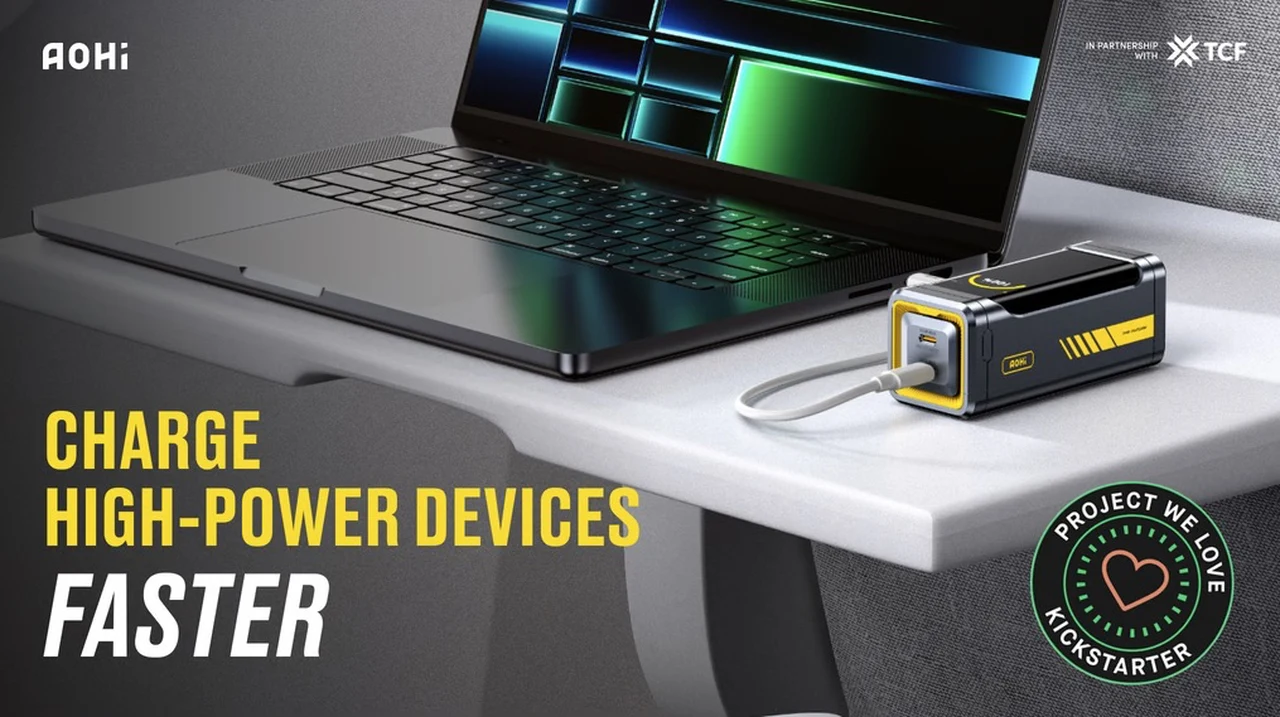
Enter the Starship Pro, a power bank that’s redefining what portable energy can do. Compact yet incredibly powerful, this 10,000mAh device delivers an impressive 210W output, making it a fantastic option for travelers, professionals, and tech enthusiasts alike. With features like dual 140W USB-C ports, rapid recharging, and a sleek, travel-friendly design, it’s more than just a power bank—it’s a lifeline for your devices. Whether you’re navigating a packed schedule or gearing up for an adventure, the Starship Pro promises to keep you connected without missing a beat.
High-Performance Portable Charging Solution
Backer early bird pledges are now available for the recently launched project from roughly $79 or £63 (depending on current exchange rates), offering a considerable discount of approximately % off the retail value, while the Kickstarter crowd funding is under way.
Key Specifications :
Maximum output of 210W with a 10,000mAh capacity, capable of charging high-demand devices like laptops, gaming consoles, and smartphones.
Dual 140W USB-C ports for simultaneous charging of two devices without efficiency loss.
Rapid recharging with a 90W input, reaching 60% charge in 15 minutes and full charge in under 30 minutes.
Compact, lightweight, and airline-compliant design for portability and convenience during travel.
Durable automotive-grade lithium-ion cells with 80% capacity retention after 3 years, plus global safety certifications (FCC, CE, CCC, PSE).
The Starship Pro power bank offers a compact yet powerful charging solution for users who require reliable, high-performance energy on the go. With a maximum output of 210W and a 10,000mAh capacity, it is designed to meet the needs of frequent travelers, busy professionals, and tech enthusiasts alike. Its blend of power, portability, and advanced features ensures your devices remain charged and ready, no matter where you are.
Starship Pro Power Bank
If and when the Starship Pro campaign successfully raises its required pledge goal and fulfillment progresses smoothly, worldwide shipping is expected to take place sometime around May 2025. To learn more about the Starship Pro compact power bank with 210W output project consider the promotional video below.
Exceptional Charging Capabilities
At the core of the Starship Pro is its impressive charging performance. It features dual 140W USB-C ports, allowing users to power two high-demand devices simultaneously without compromising efficiency. This makes it an excellent choice for charging laptops, gaming consoles, tablets, or smartphones. For instance, users can charge a laptop while simultaneously powering a smartphone, making sure uninterrupted productivity and connectivity. The 210W total output is particularly beneficial in environments where access to power outlets is limited, offering a fast and efficient solution for those who rely heavily on their devices throughout the day.
Rapid Recharging and Portability
One of the standout features of the Starship Pro is its rapid recharging capability. With a 90W input, the power bank can replenish up to 60% of its capacity in just 15 minutes and achieve a full charge in under 30 minutes when paired with a compatible charger. This speed minimizes downtime, making it ideal for users with demanding schedules or those preparing for extended trips. Whether gearing up for a long flight or a packed workday, the Starship Pro ensures users are never left waiting for power.
Despite its high capacity and performance, the Starship Pro maintains an impressively portable design. Its lightweight, pocket-sized form factor makes it easy to carry, while its compliance with airline safety regulations allows users to bring it on flights without concern. This combination of power and portability makes it a versatile companion for both daily use and international travel.
Smart Features and Durability
The Starship Pro incorporates smart features that enhance its usability. A built-in digital display provides real-time power monitoring, allowing users to track the remaining charge at a glance. Dynamic animations and an intuitive interface add a touch of sophistication, appealing to tech-savvy users who value both functionality and aesthetics.
Durability and safety are also key strengths of the Starship Pro. It uses automotive-grade lithium-ion cells, making sure long-lasting performance and reliability. Even after three years of regular use, the battery retains 80% of its capacity, making it a dependable investment. Additionally, the device meets global safety certifications, including FCC, CE, CCC, and PSE, offering peace of mind when used across different regions. The inclusion of a 140W USB-C cable further enhances reliability, making sure optimal power transfer for connected devices.
A Reliable Portable Energy Solution
Whether charging a laptop during a meeting, powering a gaming console on the road, or keeping a smartphone ready for action, the Starship Pro delivers consistent, high-quality performance. Its combination of power, speed, portability, and safety makes it a standout choice for users seeking a dependable portable charging solution.
For a complete list of all available project pledges, stretch goals, extra media and feature breakdown for the compact power bank with 210W output, jump over to the official Starship Pro crowd funding campaign page by inspecting the link below.
Source : Kickstarter
Disclaimer: Participating in crowd funding campaigns such as those found on Kickstarter and Indiegogo, involves inherent risks. While many projects successfully meet their goals, others may fail to deliver due to numerous challenges. Always conduct thorough research and exercise caution when pledging your hard-earned money.
Filed Under: Gadgets News, Top News
Latest Geeky Gadgets Deals
Disclosure: Some of our articles include affiliate links. If you buy something through one of these links, Geeky Gadgets may earn an affiliate commission. Learn about our Disclosure Policy.
If you have a Samsung phone, you are definitely going to want to adjust some of these settings. It’s possible that your settings aren’t optimized for your specific needs and the frequencies you can hear, plus your phone just isn’t set up for the best listening experience when it comes to watching movies, TV shows, or listening to your favorite tunes.
How to adjust Samsung settings for the best quality sound
Note: These settings may vary depending on your Android model. The steps below were done on a Samsung Galaxy Z Flip4 phone.
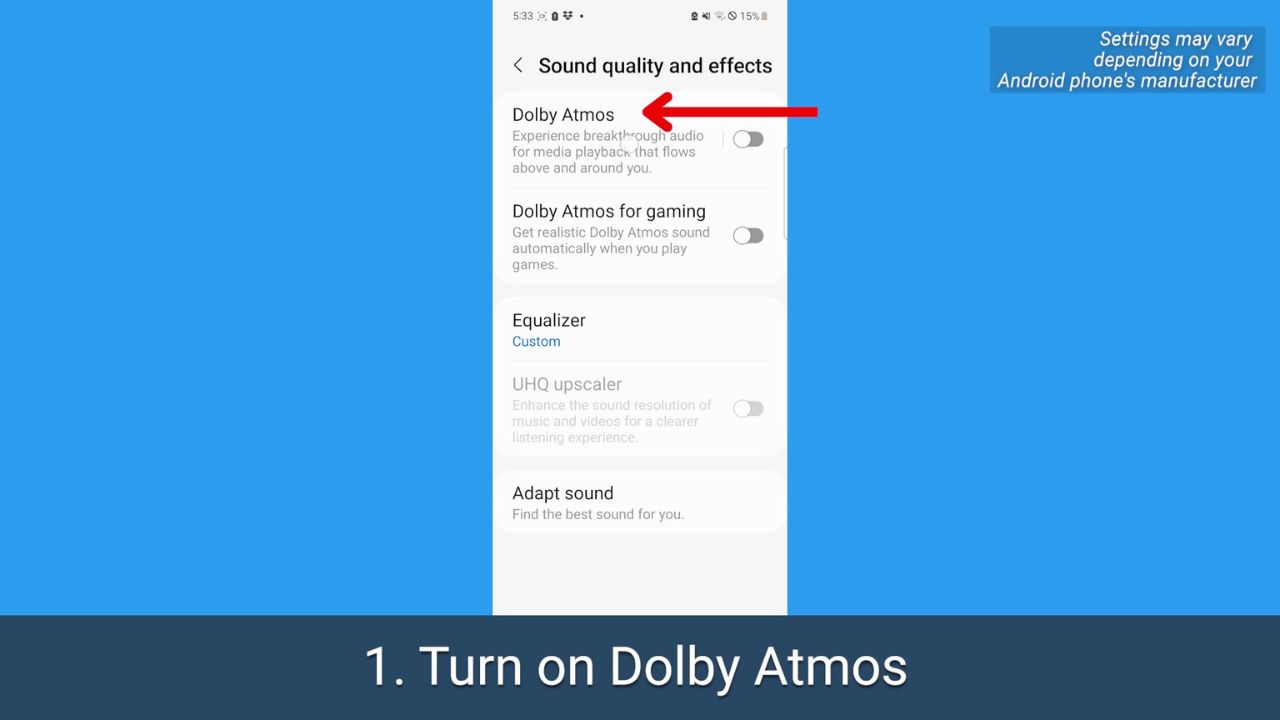
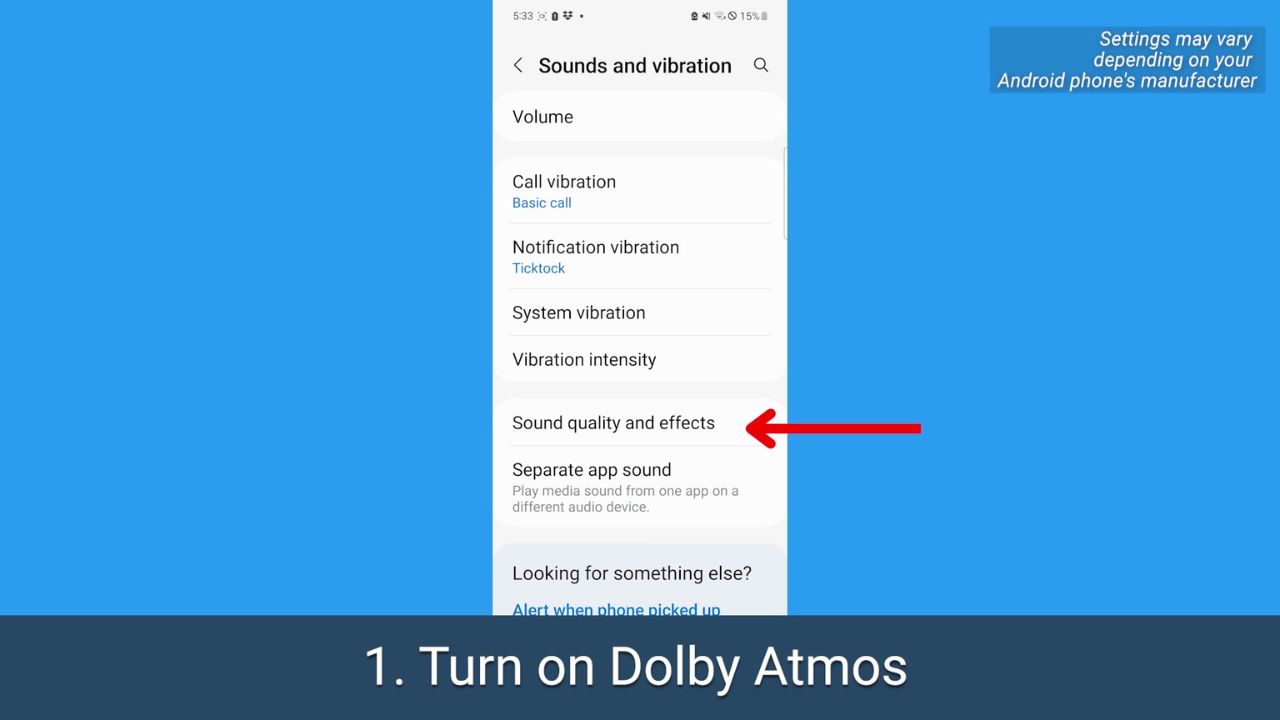
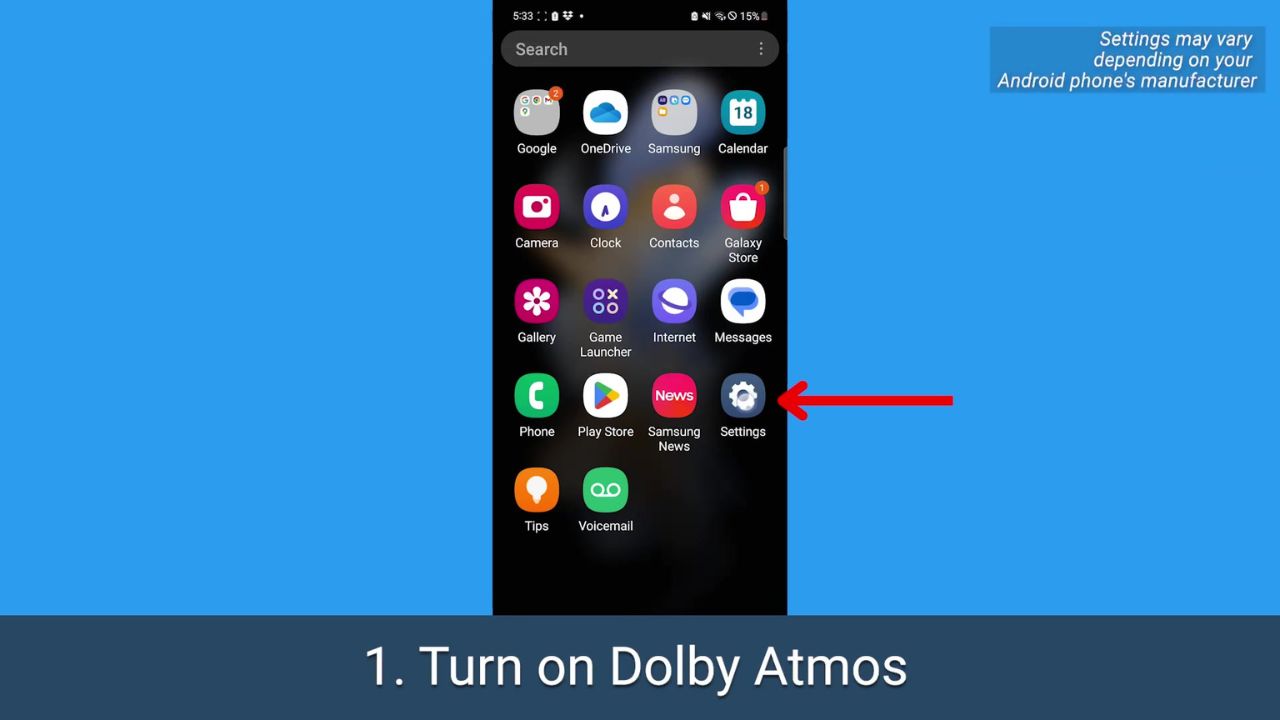
1. Turn on Dolby Atmos
This is a sound setting available on many Android phones that offers a “surround sound” effect. You can adjust it depending on what you’re watching or listening to.
How to turn on Dolby Atmos
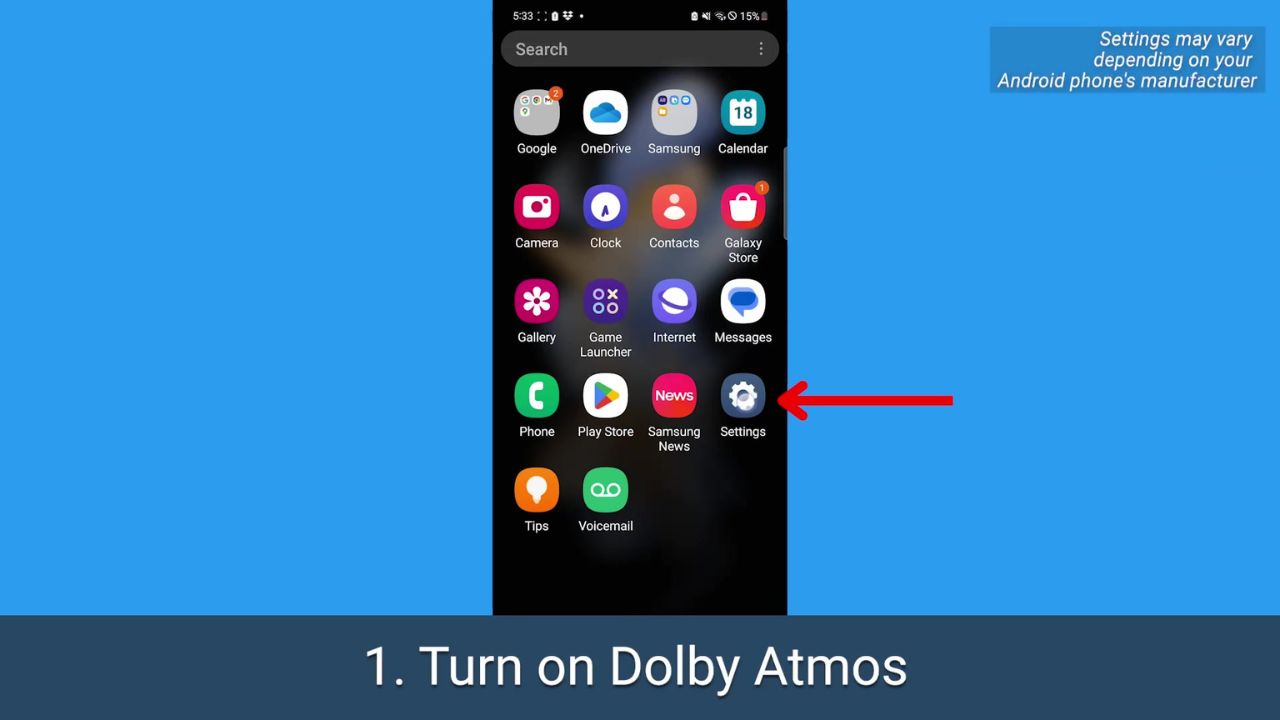
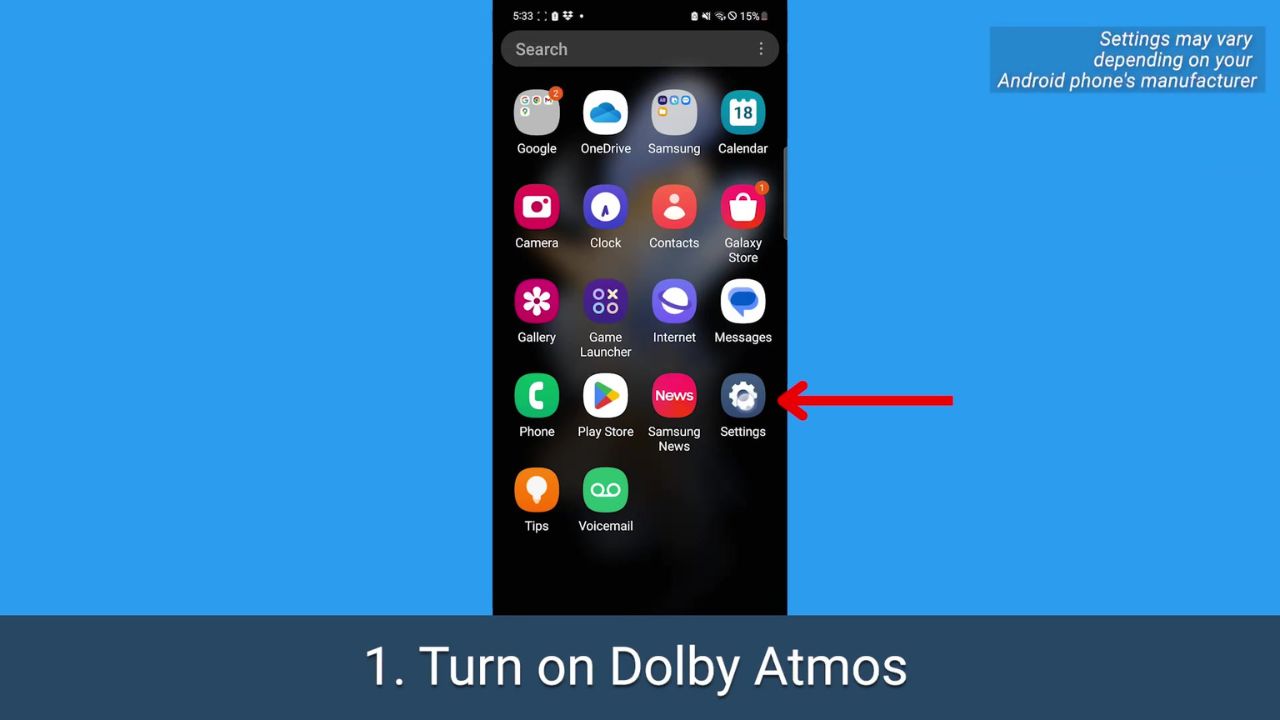
Open your Android’s Settings
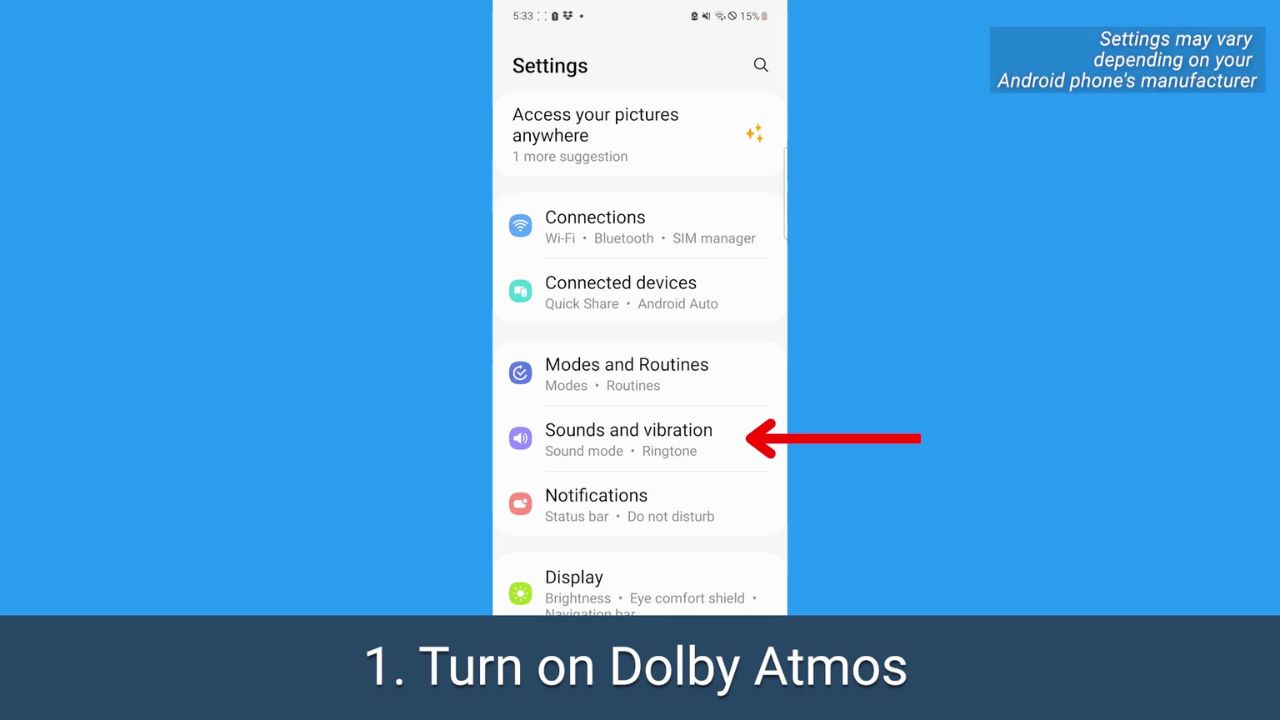
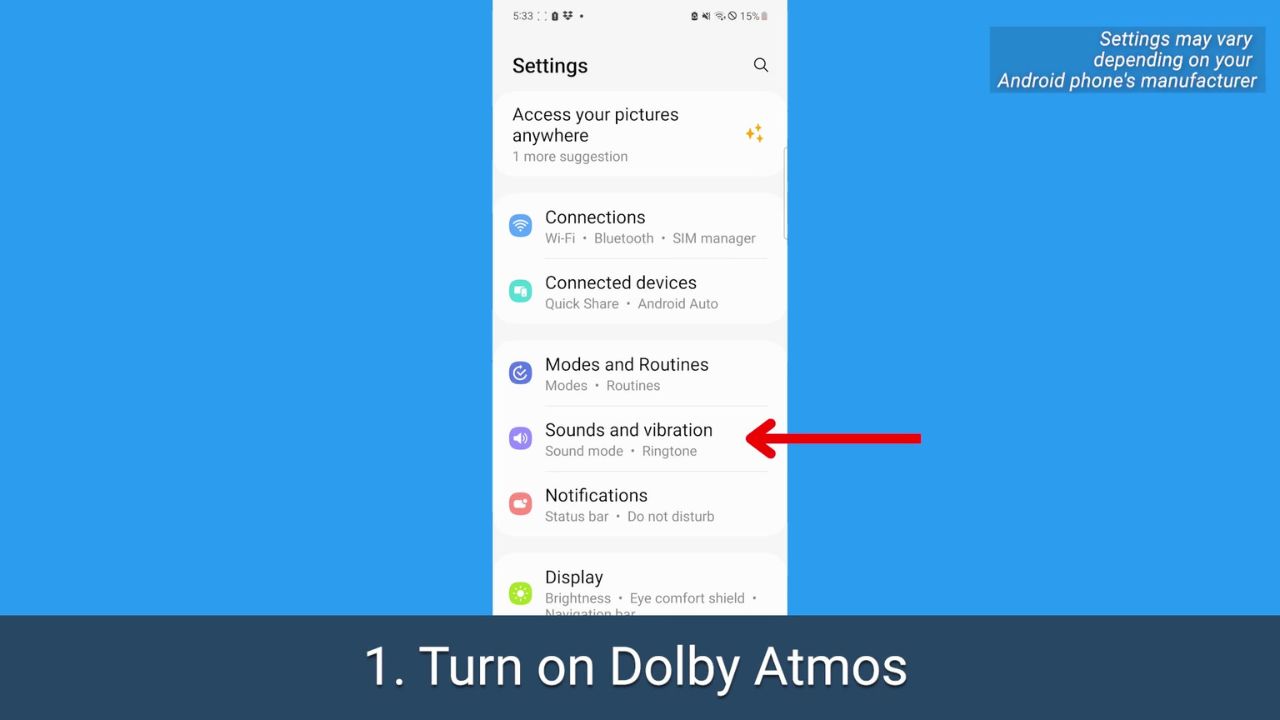
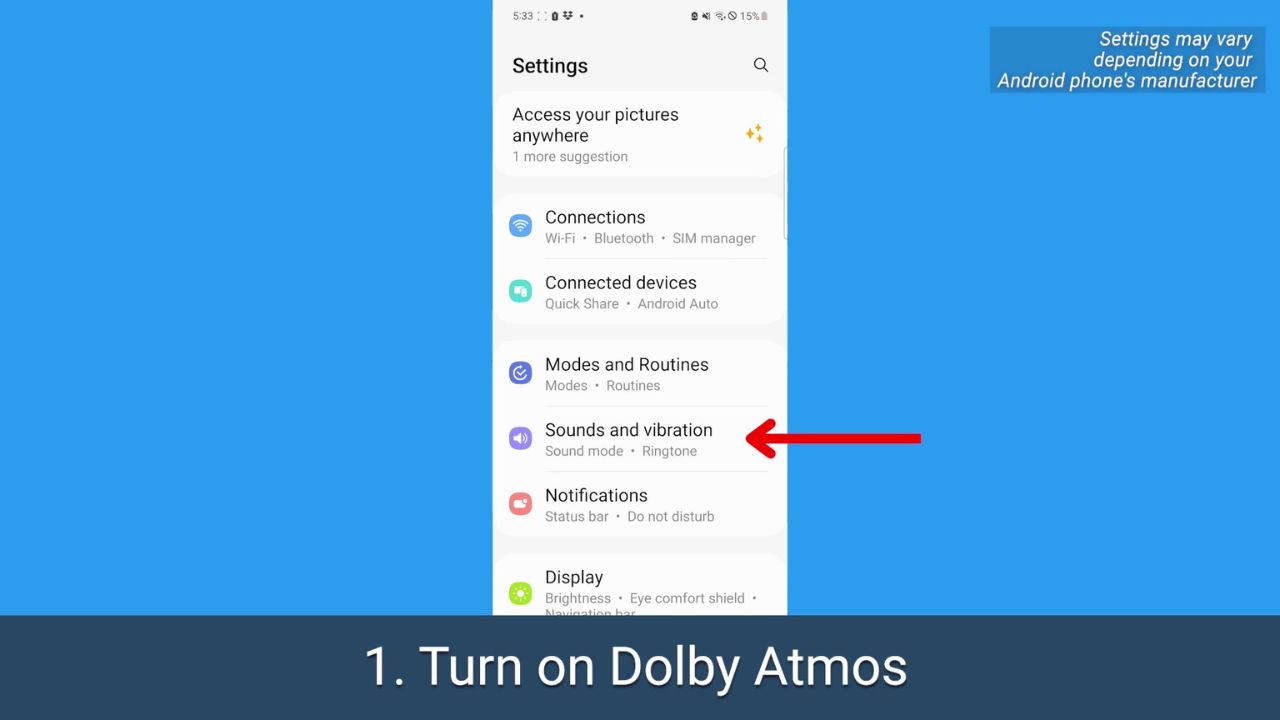
Tap Sounds and vibration.
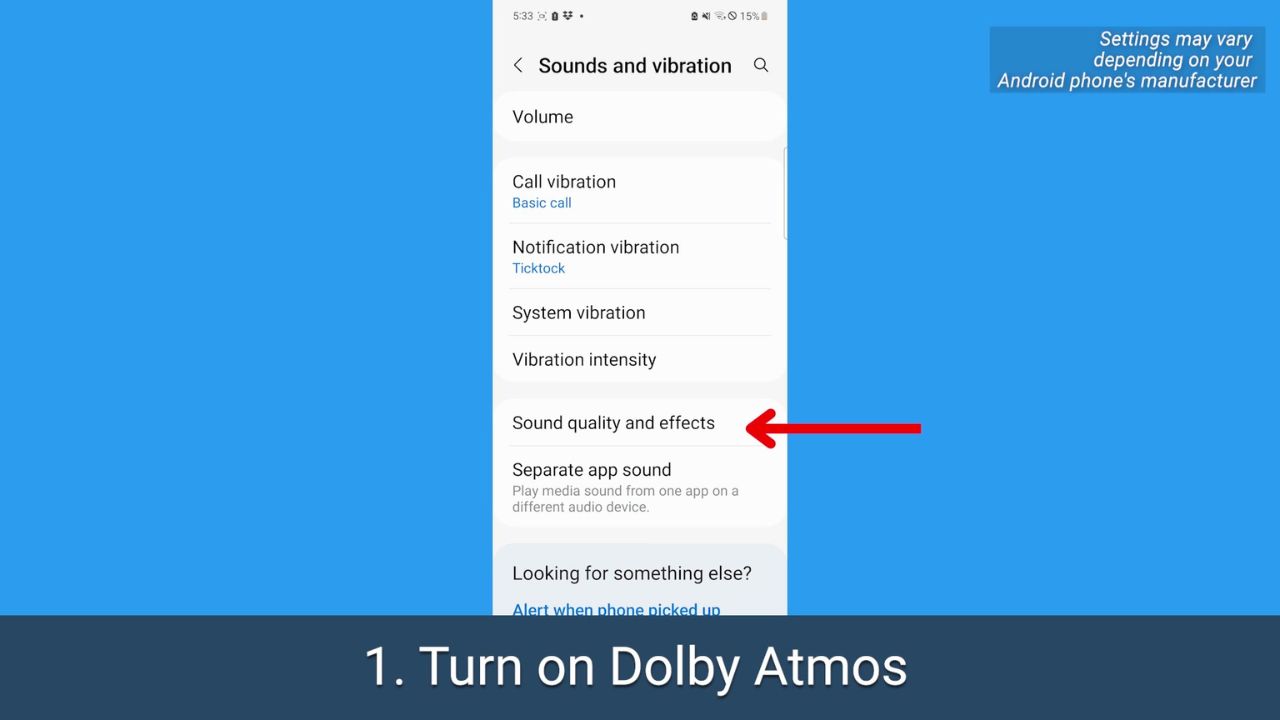
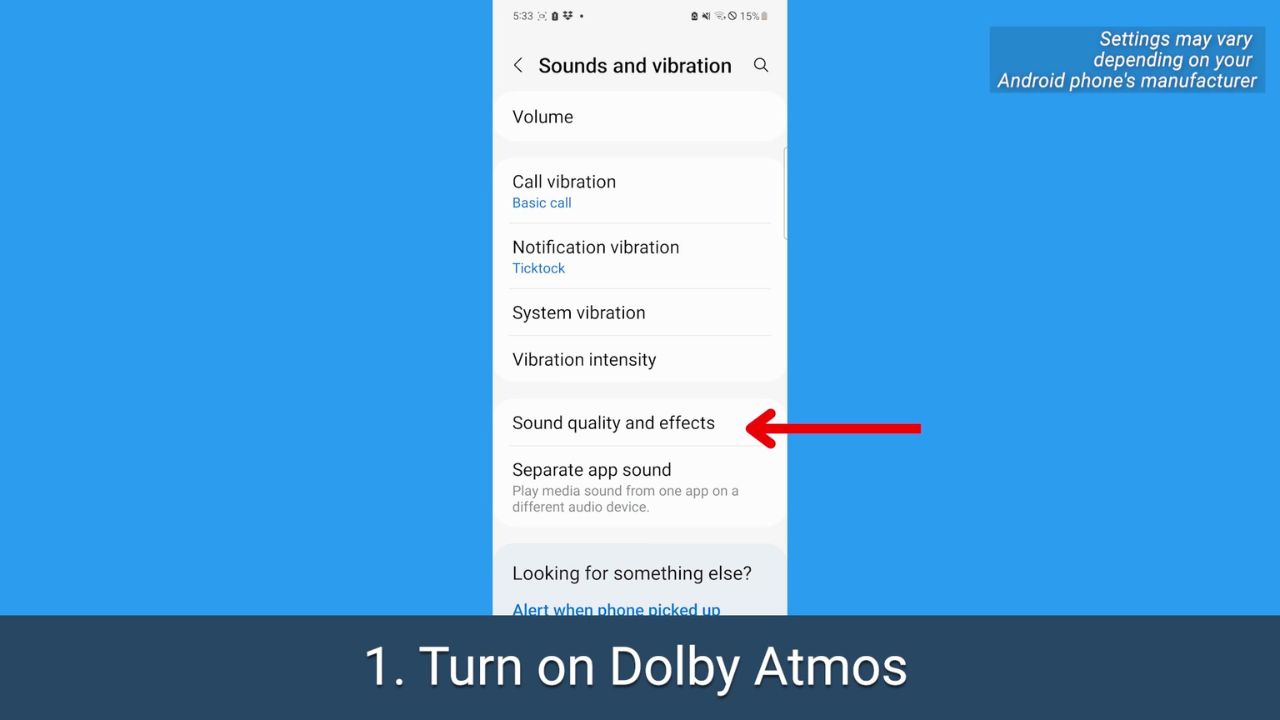
Tap Sound quality and effects
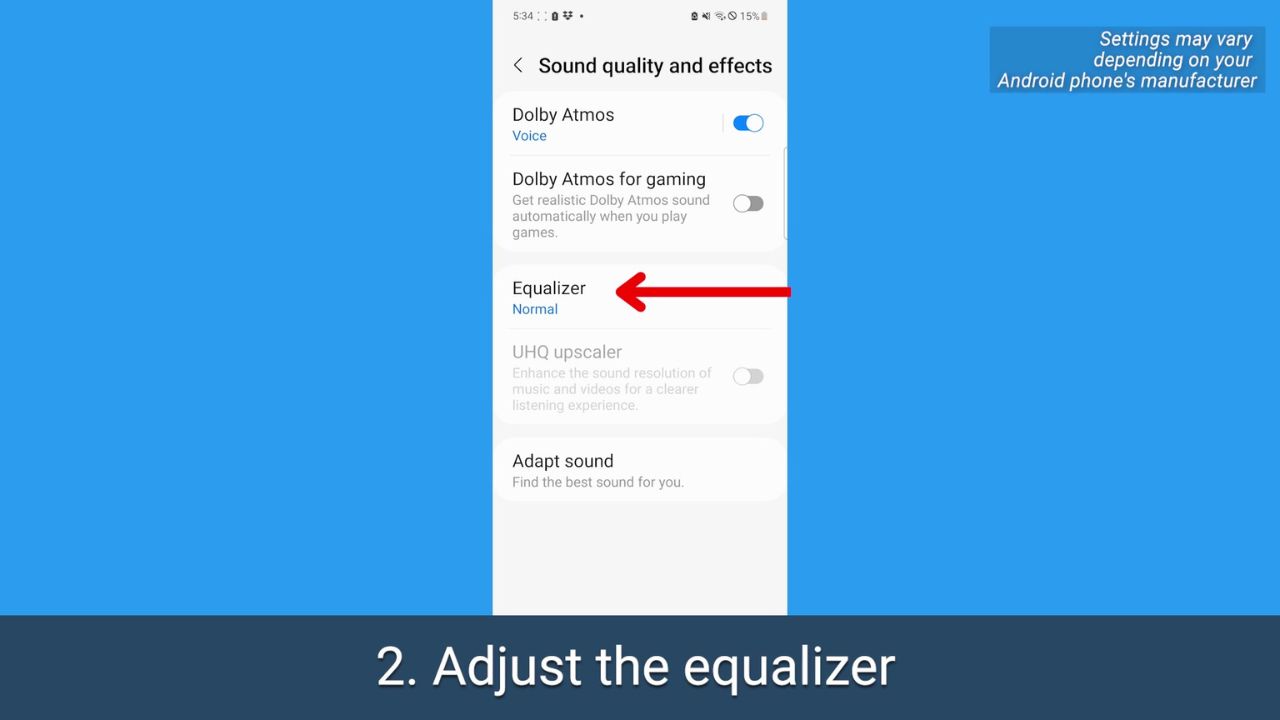
Before just toggling it on, tap Dolby Atmos
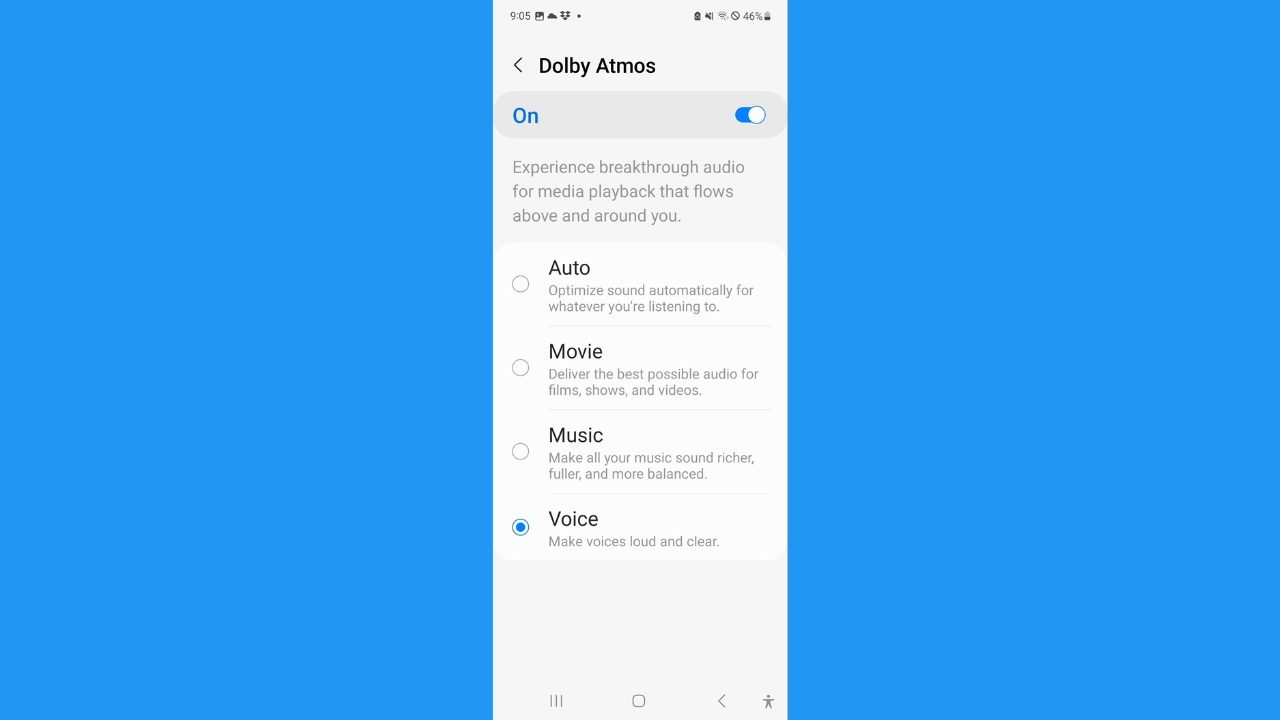
On the Dolby Atmos page, toggle it on
Depending on your operating system, you may be presented with these options: Select Movie to get better sound for movies and TV shows, tap Music if you want a richer, more balanced listening experience, or tap Voice if you want voices to come through louder while watching any video.
MORE: 5 THINGS YOU DIDN’T KNOW YOU CAN DO ON AN ANDROID
2. Adjust the equalizer
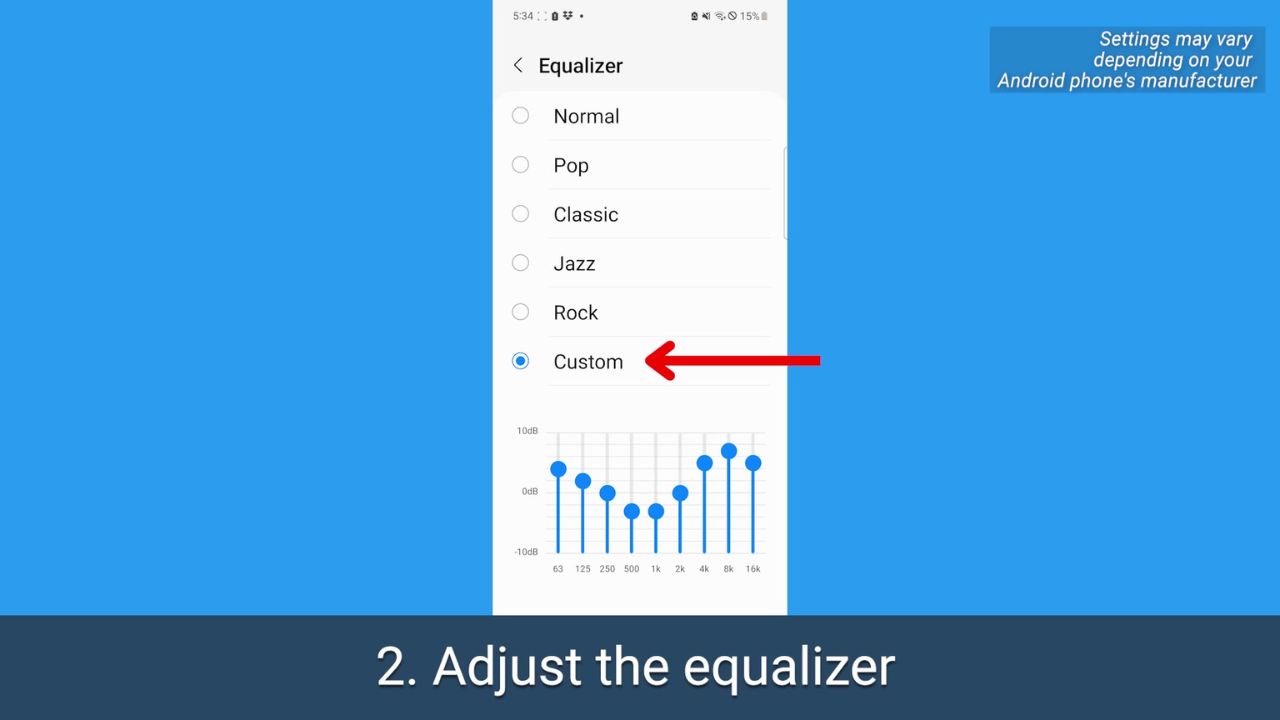
This setting lets you balance out sound depending on what you’re listening to or want to hear.
How to adjust the equalizer
Open your Android’s Settings
Tap Sounds and vibration
Tap Sound quality and effects
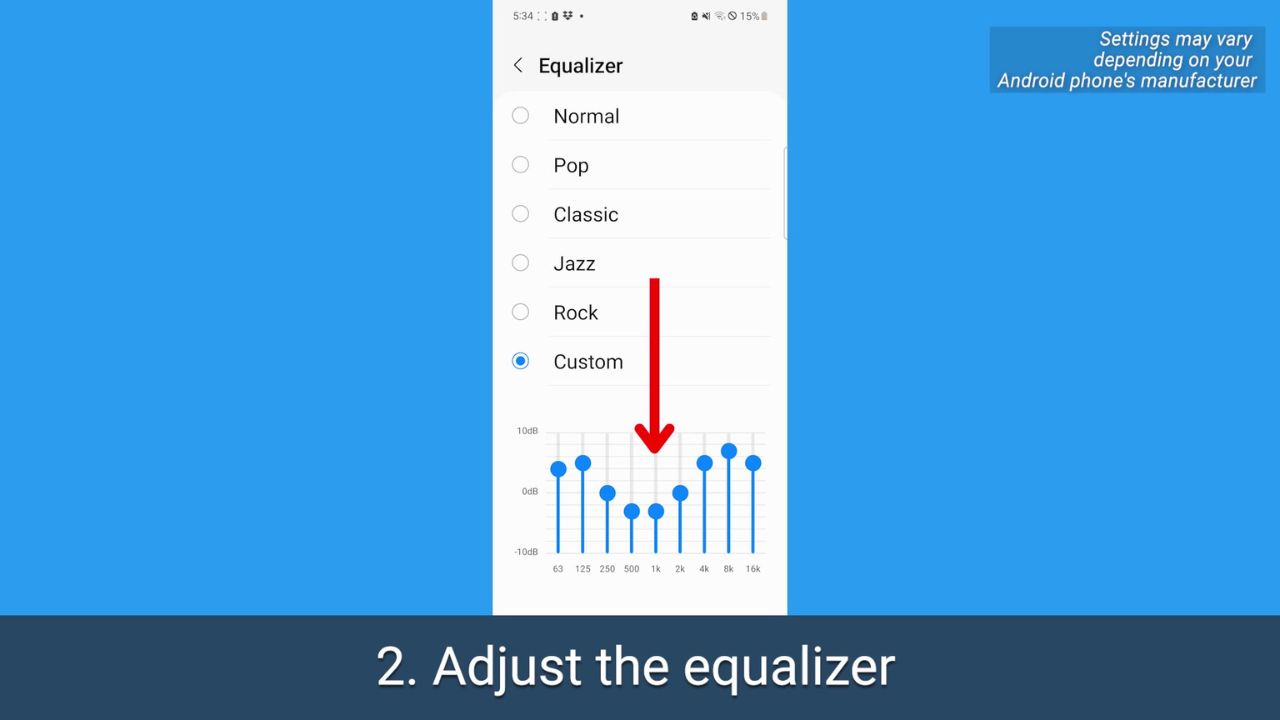
Play around with these sound levels – you can even do it while you have something already playing in the background. You may want to up the ones on the left for a higher bass, or the opposite if the bass is already too loud.
FOR MORE OF MY TECH TIPS & SECURITY ALERTS, SUBSCRIBE TO MY FREE CYBERGUY REPORT NEWSLETTER HERE
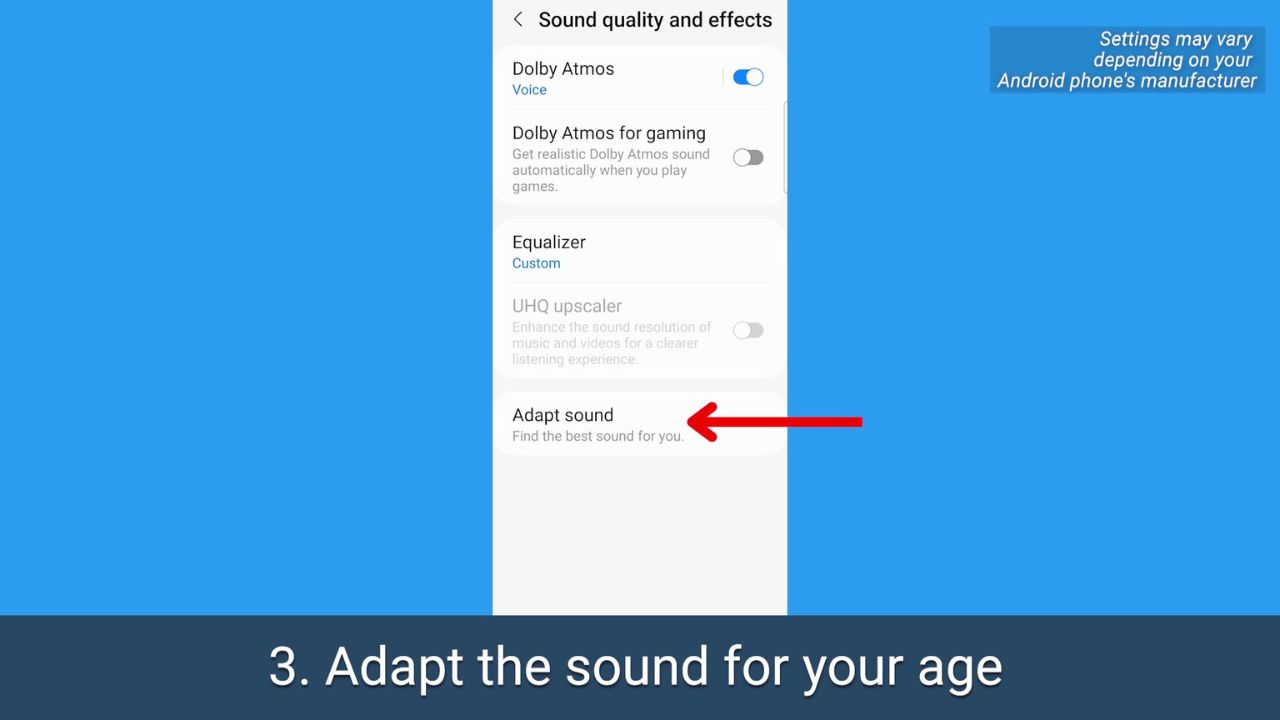
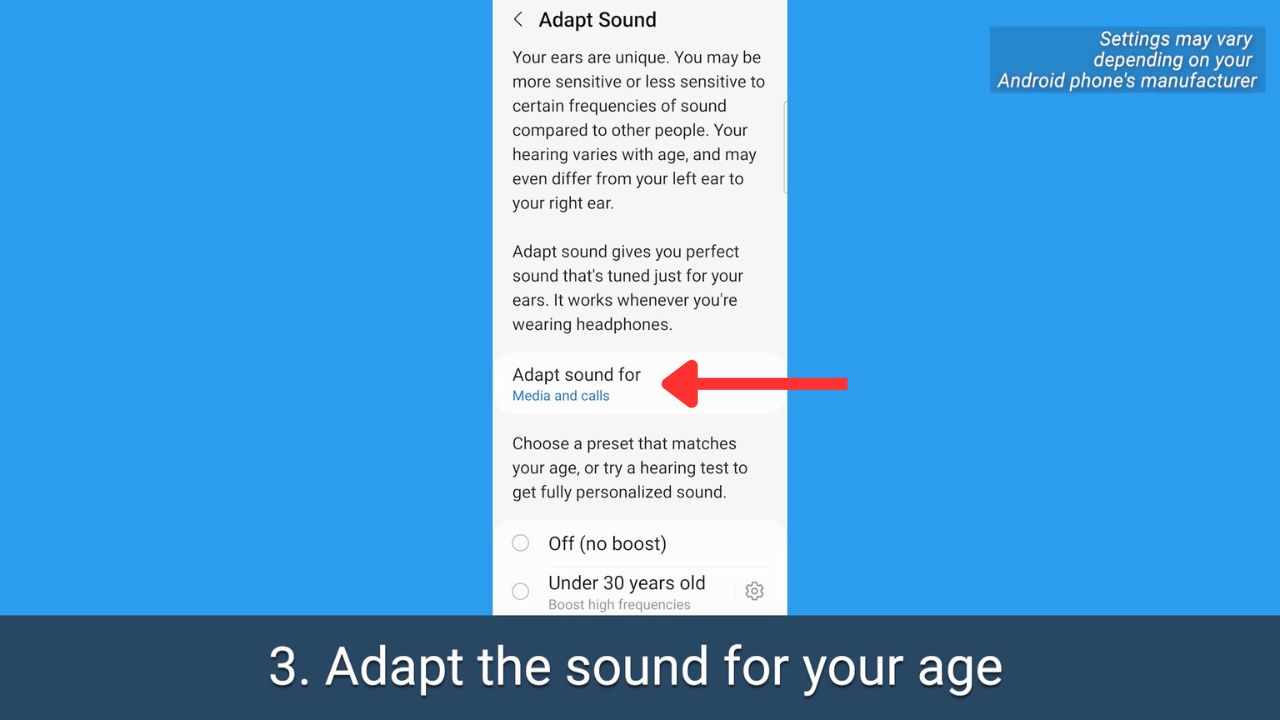
3. Adapt your phone’s sound for your age
We all hear sounds differently, and higher frequencies also become harder to hear as we age. Android lets you take a hearing test targeted for different age ranges, which will make listening through your headphones a completely personalized experience.
How to adapt your phone’s sound for your age
Open your Android’s Settings
Tap Sounds and vibration
Tap Sound quality and effects
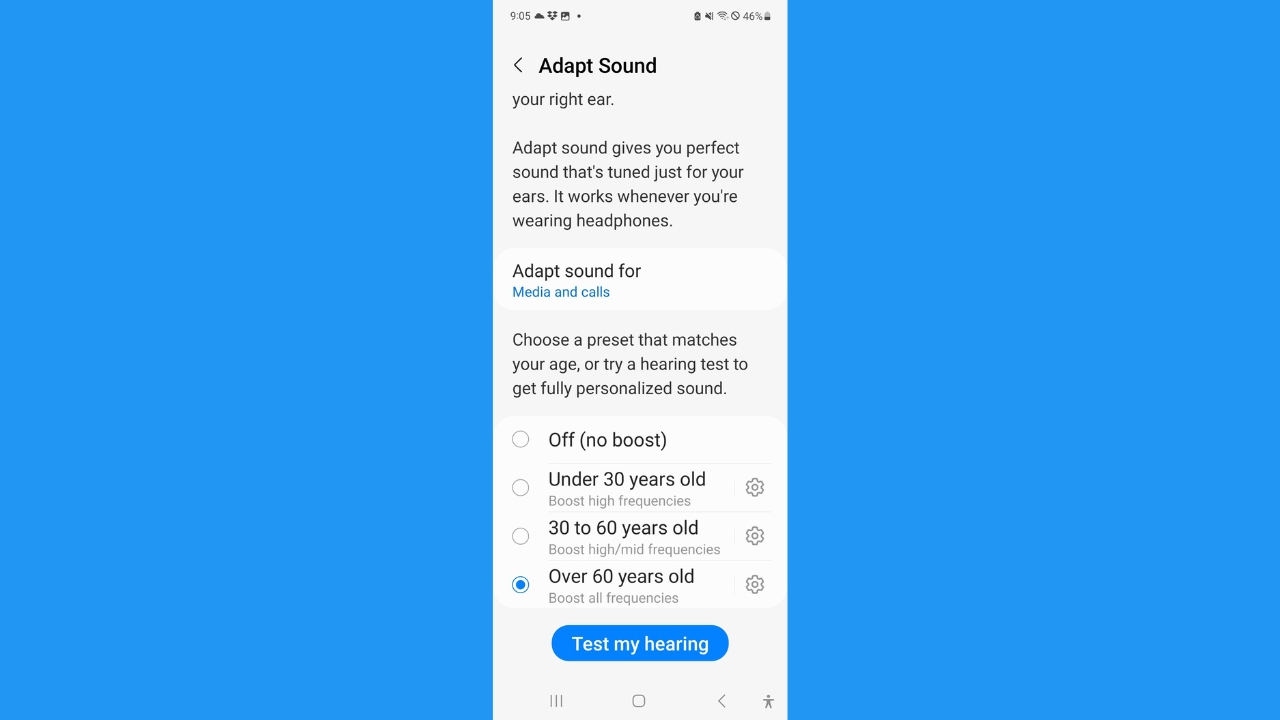
Where it says Adapt Sound for be sure to select Media and calls
Then scroll and select the age range that applies to you
Tap Test my hearing
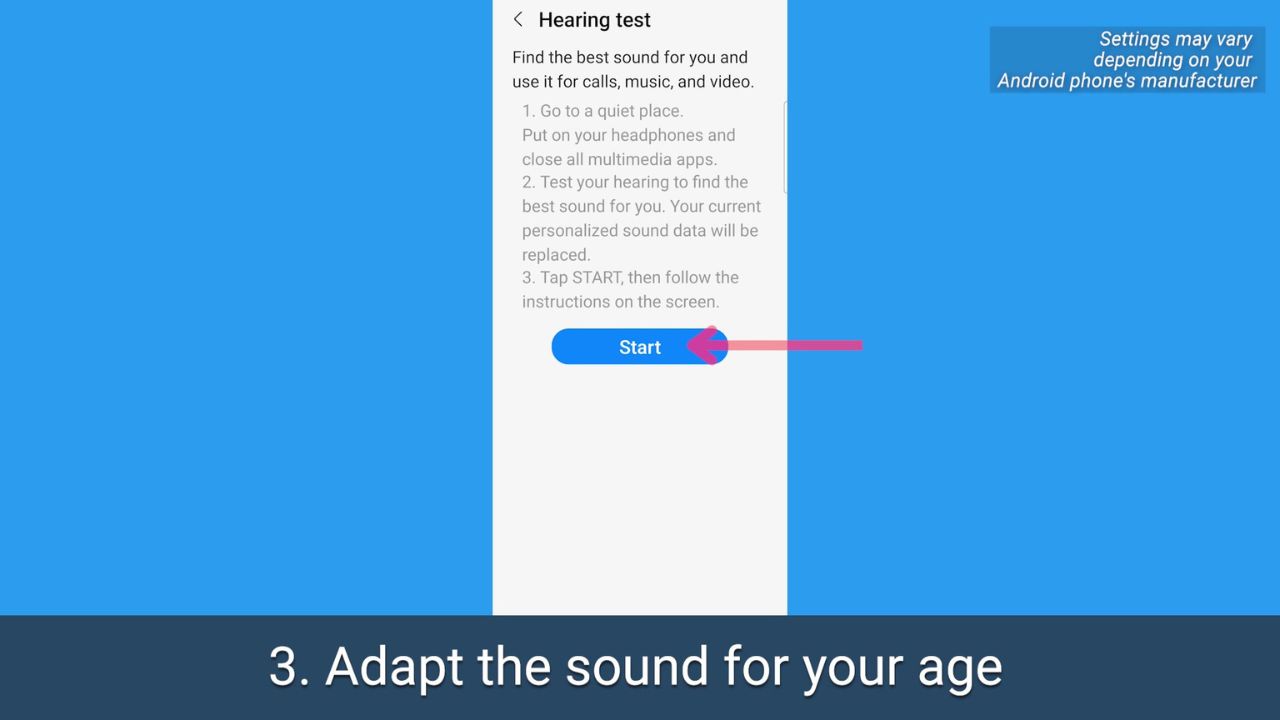
Be sure you’re wearing headphones, and you’re in a quiet place
Tap Start and follow the prompts to test your hearing and adjust your phone’s sound properly
MORE: HOW TO PICK WHICH WIRELESS EARBUDS ARE BEST FOR YOU
MORE: 5 BEST NOISE-CANCELLING HEADPHONES TO BOOST YOUR LISTENING FOR 2023
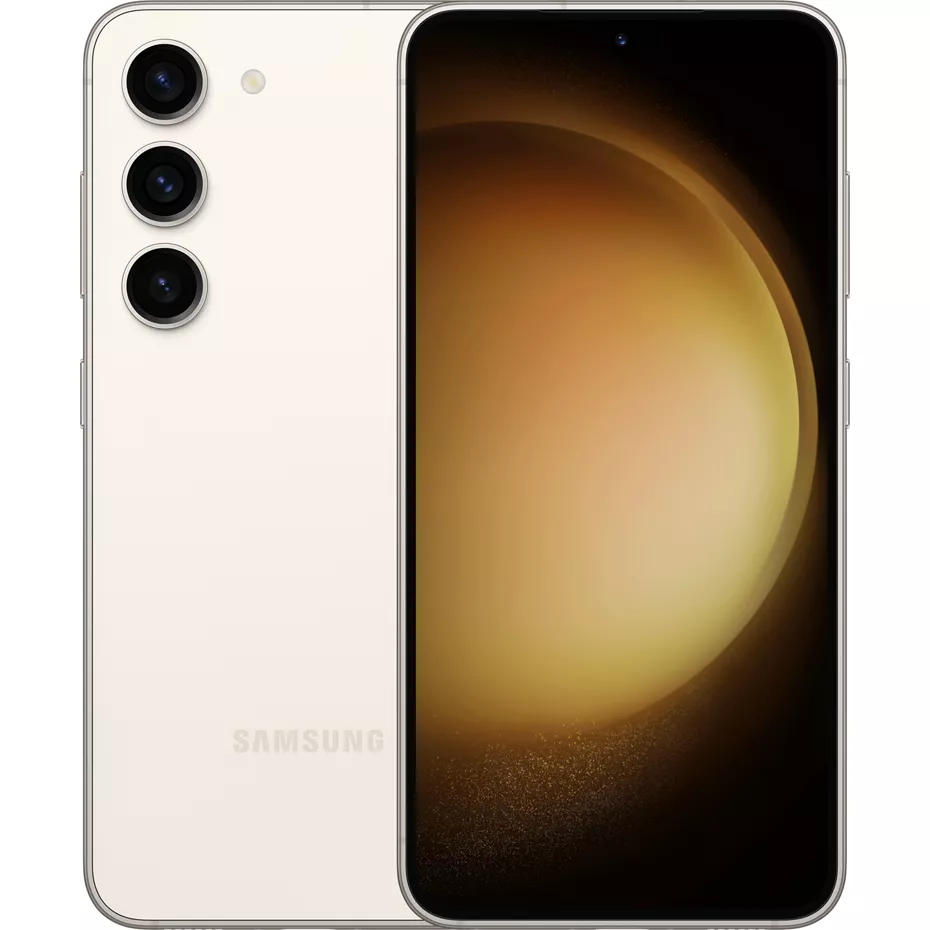
Get Samsung Galaxy S23 free with select plan & new line
Kurt’s key takeaways
Our hearing changes as we age, and at the end of the day, we’re all looking for different outcomes when it comes to sound on our devices. It’s great to know the options that are available in case you do find watching videos or listening to certain podcasts to be a little iffy because of the sound quality. After all, as our ears gracefully age, it’s comforting to know that we can still savor the symphony of life with the right tune-up for our tech.
What are some other ways you personalize your sound experience on your devices? We would love to hear your tips and tricks for optimizing sound quality. Let us know by commenting below.
FOR MORE OF MY TIPS, SUBSCRIBE TO MY FREE CYBERGUY REPORT NEWSLETTER HERE
Chainlink (LINK) closed indecisively at $17.96, struggling to break resistance at $19.50.
The price remained inside the $16.00 – $19.50 range, signaling market hesitation.
A breakout above $19.50 could push LINK toward $30.00, with a long-term target of $37.00 if momentum sustained.
Intraday volatility kept LINK within a tight consolidation phase. Above $19.75, buying pressure could strengthen, leading to bullish continuation.
Failing to hold $16.00 might trigger a decline toward $12.80 and possibly $10.00.
LINK/USDT daily chart | Source: Trading View
A W-pattern breakout played out in October 2024, leading LINK from $9.50 to over $20.00 in weeks.
– Advertisement –
Exchange supply dropped to 0.147, indicating fewer tokens available for sale, a historically bullish sign.
LINK needed more daily candle confirmations before upward continuation. Long-term, increased DeFi adoption and reduced exchange supply supported bullish price action.
A move past $30.00 would confirm LINK’s recovery, with a strong probability of reaching $37.00.
What Plummeting Chainlink Supply on Exchanges Means?
Analysis of Chainlink’s exchange supply dropped to 0.147, marked a sharp decline. Historically, such trends signaled whale accumulation rather than sell-offs.
This pattern suggested a potential supply shock in the coming months. LINK’s price fell to $17.80, correlating with the declining exchange supply.
Despite short-term weakness, supply reduction often preceded strong price rebounds. The last major supply drop in late 2024 led to LINK rallying from $9.50 to $25.00.
Whales accumulated aggressively as retail panic-selling increased. OTC transactions likely influenced price suppression, ensuring accumulation at lower levels.
The market’s current manipulation phase suggested institutions were positioning for future price surges.
LINK exchange supply ratio | Source: CryptoQuant
LINK needed to reclaim $19.50 to confirm strength. A continued decline below $15.00 might trigger a test of $12.80.
Shrinking exchange supply, combined with increased DeFi adoption, positioned LINK for a potential breakout in the short-term which could ignite the long-term uptrend continuation.
Once demand outpaces supply, LINK could surge toward $30.00 and eventually $37.00.
DeFi Market Trends TVL Volume and Raises Growth
Chainlink’s also TVL surged past $20 Billion, showing increased capital flow into DeFi projects. Historically, rising TVL correlated with LINK’s price appreciation.
Trading volume peaked at $1.8 Billion, reflecting heightened market activity.
A previous spike in 2021 led LINK to all-time highs, making similar patterns at the current market conditions worth monitoring.
The rise that reached $3.5 Billion indicated significant funding within the DeFi space.
More investments suggested institutional confidence, which historically led to long-term price increases.
LINK TVL | Source: DefiLlama
Despite recent price consolidation at around $18, LINK held above this key support levels.
A breakout past the $20 psychological level could trigger a move toward $30.00 and $37.00.
LINK needed sustained TVL growth to confirm market confidence. If TVL declined, LINK might retest $16.00 or even $12.80.
Rising TVL and investments positioned LINK for a bullish cycle. If demand outpaced supply, LINK could reach $40.00, reinforcing its role in DeFi.
Windows 11 is fresh air and looks like a modern OS, even in 2025. But there are several changes, some intentional, and some only reserved for those who love prying into the OS.
If you are bored with the current features or find the new OS lacking performance, visual appeal, or power, these hidden settings will help you get more out of Windows 11. Without further ado, let’s jump into the post.
1. Push the Start button into the corner
The new centered Start button isn’t easy to get accustomed to. While new users might like the modern, middle look, Windows 8 or old users prefer the left-aligned start menu.
Earlier, you had to resort to registry tweaks to get this done, but now a simple Taskbar setting tweak can push the Start button to its original location.
Right-click on the Taskbar and select the Taskbar settings option. Expand the Taskbar behavior and choose the Left option.
2. Bring back the old desktop context menu
The shortened desktop context menu wasn’t good for daily use. It is too small and lacks useful options like the GPU app access. Microsoft tried to adapt it to daily use, but some prefer the old one more.
To do this trick, you need to modify the registry. We advise you to manually backup the registry to a USB drive and make a system restore point. It ensures you can return to a working state if you wreck your PC.
Launch the command prompt with admin rights and paste the following command to restore the old context menu:
Close the Command Prompt window and restart to apply the registry changes.
3. Align your Priorities with Focus Mode
Focus Mode can help you not deviate from your track and stop all the disturbance in the background. Search for Focus settings in the Start menu, and you can start a timer for a short duration where your OS activity and notifications won’t bother you.
There are a few options, but we suggest using the default settings for maximum productivity.
4. Restore File Explorer Windows
We all use the hidden files feature in File Explorer but ignore this small yet useful setting. As someone who works with files scattered across multiple locations, I use a lot of tabs and windows. However, manually reopening each one the next day is a chore.
Here’s where the Restore File Explorer windows at logon can save you. Click on the three-dots button in the File Explorer and select Options.
Switch to the View tab and enable the Restore previous folder windows at logon option to skip reopening folders again.
5. Access Phone Storage from File Explorer
If you ignore the Phone Link setup pop-up while setting up your Windows 11 PC, you miss out on many things. After the 24H2 update, you can peek inside your phone storage wirelessly using Managed devices features. All you need is to install the Link to Windows app on your Android or iOS device, and you’re good to go.
Visit the Mobile Devices page under the Bluetooth and devices settings and set up the Managed Devices.
You can access and modify files after pairing and enabling the “Show mobile devices in File Explorer” option. It’s not fast due to Wi-Fi limitations, but it is good enough to copy docs and images from phone to PC.
6. Use the Phone as a connected Camera
Don’t have a webcam but want to use your phone as a camera? Earlier, there were third-party apps to do this trick, but now Managed Devices can help you. Pair and set up the phone as you did in the previous trick, then enable the Use as a Connected Camera option.
Then, you can use the phone’s front or rear camera as a webcam and adjust many other settings. No more missing out on Zoom or casual meetings and sticking to audio mode because you don’t have a webcam.
7. Super God Mode
What if you had a gateway to access all the possible settings in Windows 11? Super God Mode can help you with it. It is way more powerful than God Mode, a trick discovered in 2021. But does it make you a god?
No. You cannot make your Windows 11 PC do anything more than it was designed to. However, you get a categorized folder that lists all the OS settings, and finding and sorting them is much easier.
There is no need to navigate the Control Panel or the Settings app to find a less-known display or network setting. Developer Theojoe created a batch file to create the Super God Mode folder for you. Download it from GitHub and run the file to access the folder.
8. Windows Sandbox
Windows Sandbox is a mystery to many. Some think of it as a useless app, but it can be a powerful isolation testing tool for anything sketchy you download. Earlier, virtualization-supported systems were not common, but Windows 11 needs a TPM-capable virtualization-ready CPU, so it’s highly likely you have one.
Also, you need to have Windows 11 Pro because it isn’t available in Home. The recent updates allow secure clipboard sharing, resizing, and audio/video inputs.
So, you don’t need to create a virtual machine using VMware or other software and can check apps and files inside Sandbox.
Wrapping Up
We hope these hidden or less-known Windows settings helped you get more out of your Windows 11 PC. We love the Managed devices and Sandbox a lot because it lets us repurpose the mobile camera as a webcam, and Sandbox reduces the chances of running anything malicious on the PC.
Share any other unpopular Windows 11 settings in the comments.
Magsafe is one of the most useful and cool way to charge an iPhone. Ever since Apple introduced MagSafe, many users have loved it, especially because of the various accessories that make life easier. But does the new iPhone 16e support MagSafe charging? Let’s find out
Apple has finally launched the affordable iPhone 16e (expected as iPhone SE 4), which is the successor to the iPhone SE 2022. With the release of iPhone 16e, the iPhone SE lineup concludes. However, aside from the name change, everything else remains the same. It is affordable, packs the latest features including Apple Intelligence, and is available at a lower price than the number series models.
Does iPhone 16e support MagSafe?
No. While everything is at par with flagship models, the iPhone 16e does not support MagSafe charging. This means you cannot use those amazing MagSafe accessories with the newly launched iPhone 16e.
The iPhone 16e still supports 7.5W Qi wireless charging, but it lacks MagSafe support. It’s not surprising that the iPhone 16e doesn’t support MagSafe since it’s essentially the successor of the iPhone SE, which also didn’t have MagSafe charging. However, since now it has number series naming, many expected it to include MagSafe.
If you’re considering using MagSafe cases and wallets with the new iPhone 16e, you’ll be let down. Who will not be disappointed, after all, MagSafe is a convenient and safe way to charge iPhone wirelessly.
The iPhone 16e features the Type C port instead of the Lightning port found in the last generation iPhone SE. As usual Apple hasn’t shared the actual charging rate support. Nevertheless, they mentioned that the device can be charged to 50% in just 30 minutes.
The new iPhone 16e is priced at $599, while the vanilla iPhone 16 costs $799. If you’re planning to use various MagSafe accessories, it might be a good decision to invest in the iPhone 16, as it offers additional features such as improved camera setup.
There are options like a Case or a magnetic ring to attach MagSafe accessories with a non-compatible device. But it can not charge the device faster and have some other limitations, they still provide the option to use MagSafe accessories.
While MagSafe support might not be a big of concern for most users, it could be a dealbreaker for some, especially those who already own MagSafe accessories. We’d love to hear your thoughts on this matter. Is it a deal breaker for you?
In a major market movement, a Dogecoin whale transferred a sum of 100 million DOGE, worth around $25.42 million, to the crypto exchange Binance. This significant transaction has generated debates about future Dogecoin price directions
Dogecoin Whale Significant Transaction
According to data from Whale Alert, a Dogecoin whale moved 100 million DOGE worth $25.42 million through Binance cryptocurrency exchange transactions. The substantial transfer took place through the address “A8tdnDg3oxG” which remains anonymous.
The substantial transfer has created uncertainty among cryptocurrency analysts and investors about a downward pressure on Dogecoin price.
Market experts track the impact of whale transactions due to their signaling power for shifting market patterns. Analysis revealed no significant price drops yet demands close attention in this period.
Potential Breakout from Current Patterns
Crypto analyst Ali Martinez points out that Dogecoin price shows signs of a symmetrical triangle pattern in its trading charts which indicates an impending price movement. His assessment predicts this price pattern will drive prices up or down by about 25% marking an important phase for the cryptocurrency.
Dogecoin price chart | Source:X
In addition, the technical setup described by Martinez serves as an indicator that traditionally signals large price movements across crypto markets.
– Advertisement –
As Dogecoin approaches the peak of its triangle pattern traders await market sentiment to determine whether the price will break through upward and form a bullish trend or fall downward for a bearish outcome.
Market Consolidation Amidst Volatility
In the last seven days, Dogecoin price dropped by 2% which aligns with general market patterns. Price stability could emerge from this consolidation phase yet market forces could also bring forth major price movements.
Meanwhile, recent analysis shows that the Dogecoin price chart displays a bullish potential based on the Golden Cross pattern which shows the 50-day moving average surpassing the 200-day moving average. As DOGE is gaining market activity, the liquidity map on Gate.io shows strong support at $0.2336 and resistance at $0.2621.
Dogecoin ETF Impact
More so, the NYSE Arca’s recent submission to list a Grayscale spot Dogecoin ETF introduces fresh elements into market sentiment surrounding Dogecoin. If the U.S. Securities and Exchange Commission approves the Grayscale spot Dogecoin ETF it will spark positive investor sentiment leading to higher Dogecoin price.
The hype surrounding this ETF marks the first step for the financial entity to embrace a cryptocurrency long viewed with suspicion for its ‘meme’ origins.