Categories
Android Apple Apps How To iphone Kurt's Picks My Top Picks News PC Privacy Protect Your Devices Quick Tips Safety Scams shopping Software Tech Tips & Tricks

How to know if your VPN is working

A VPN, or Virtual Private Network, enhances your online privacy and security by encrypting your internet traffic and masking your IP address. This makes it harder for third parties to track your online activity. John from Danbury, CT, recently wrote to us asking:

How do I make sure the VPN I purchased and installed is actually working? Thanks, John.

It’s a great question, John. To ensure your VPN is doing its job, you can perform a VPN test to confirm your connection is functioning properly and not leaking your real IP address and location. This can be done by checking your IP address, running DNS and WebRTC leak tests, and conducting a VPN speed test. Here are some simple steps you can follow to test its functionality and make sure your VPN is working properly.


Stay protected & informed! Get security alerts & expert tech tips—sign up for Kurt’s The CyberGuy Report now
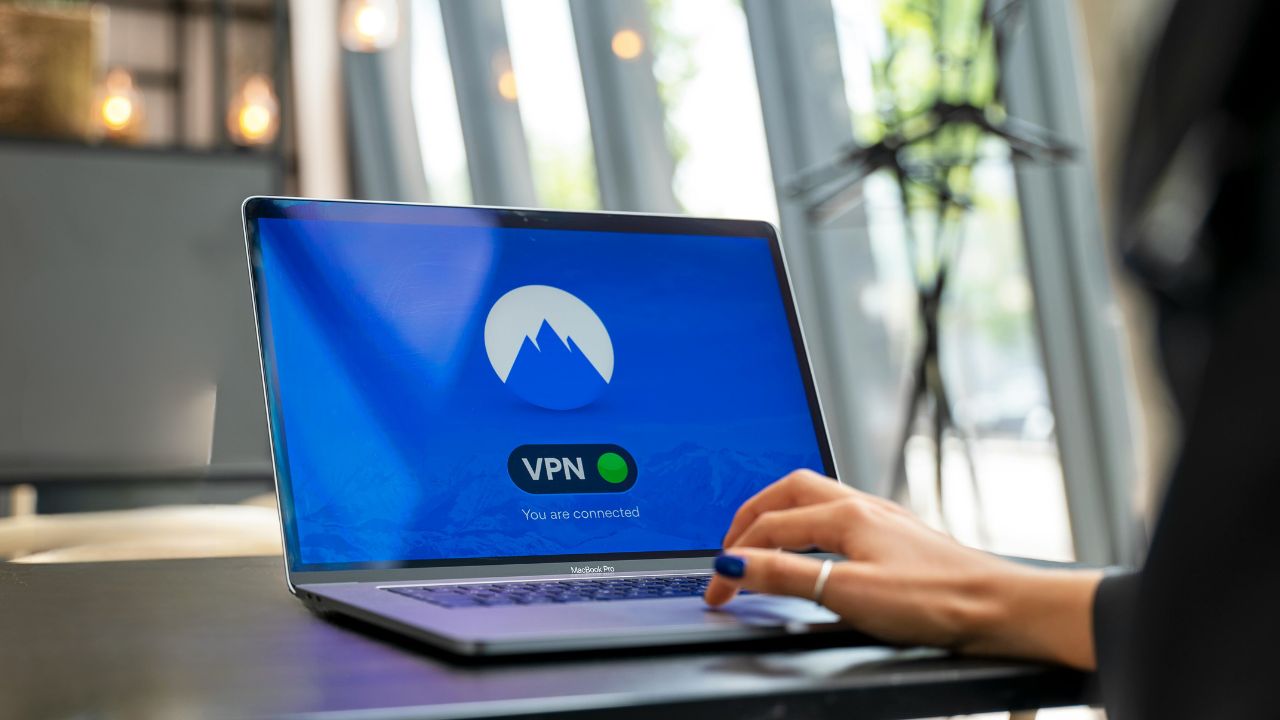
 

Image of a VPN running on a laptop


How to verify your VPN is working

Here are five essential steps to ensure your VPN is operating correctly:


1) Check your IP address

  • Before connecting: Visit a site like WhatIsMyIPAddress to note your current IP address and location.
  • After connecting: Turn on your VPN and connect to a server in a different location. Check the IP address again on the same site. If it shows the location of the VPN server instead of your real one, your VPN is working.


2) Test for DNS leaks

  • Why it matters: A DNS leak can reveal your browsing activity even with a VPN.
  • How to test: Visit tools like DNSLeakTest or BrowserLeaks. Perform an extended test. If the results show only the DNS servers from your VPN provider, you’re secure.


3) Test for WebRTC leaks

  • What it is: WebRTC can expose your real IP address through your browser.
  • How to test: Use tools like BrowserLeaks’ WebRTC test. If only the VPN’s IP address appears, you’re safe.
A person on a VPN


4) Check your connection status

Most VPN apps display whether you’re connected. Ensure that the status reads “Connected” and verify that the server location matches your selection.


5) Run an Internet Speed Test

  • Why speed matters: A slight drop in speed is normal with a VPN, but significant drops may indicate issues.
  • How to test: Use services like Speedtest before and after connecting to assess performance.


Common issues and fixes

  • DNS leaks: Misconfigured settings or ISP interference can cause leaks. Use a reliable provider with built-in DNS leak protection.
  • WebRTC leaks: Disable WebRTC in your browser settings if leaks persist.
  • Connection drops: Enable the “Kill Switch” feature in your VPN app to block internet access if the connection fails.
A woman using a VPN on her cell phone


HOW TO REMOVE YOUR PRIVATE DATA FROM THE INTERNET


Our top VPN picks for 2025

A reliable VPN is essential for protecting your online privacy and ensuring a secure, high-speed connection. Based on extensive testing, here are our top recommendations:


ExpressVPN – Best for Speed & Security

ExpressVPN is the go-to choice for those who prioritize ultra-fast speeds, reliability, and top-tier security. With servers in 105 countries, ExpressVPN delivers blazing-fast performance for streaming, gaming, and secure browsing. It supports P2P file sharing, offers best-in-class encryption, and maintains a strict no-logs policy—with all servers running on RAM for enhanced privacy. You can connect up to 8 devices simultaneously, and setup takes under 2 minutes. Plus, with 24/7 live customer support and a 30-day money-back guarantee, ExpressVPN is a premium choice for security-focused users who want speed without compromise.

CyberGuy Exclusive ExpressVPN Deals:

Save 48% – Get 3 months FREE with 12-month plan for $6.67/month. Try 30 days risk-free.
Save 61% – Get 4 months FREE with 24-month plan for $4.99/month. Try 30 days risk-free.


Surfshark – Best for Unlimited Devices & Budget-Friendly Security

If you’re looking for a more affordable VPN without s
acrificing security, Surfshark is an excellent choice. Like ExpressVPN, Surfshark operates under a strict no-logs policy and offers top-notch encryption to keep your data safe. However, Surfshark stands out by allowing unlimited devices on a single account—making it perfect for families, small businesses, or users with multiple gadgets. It also includes features like MultiHop (double VPN) and Camouflage Mode to bypass VPN restrictions in censored regions. With a budget-friendly price and feature-rich security, Surfshark is ideal for those who want privacy on a budget.

CyberGuy Exclusive Surfshark Deals:

Save 81% – Get 3 extra months FREE with 12-month plan for $3.19/month. Try 30 days risk-free.
Save 87% – Get 3 extra months FREE with 24-month plan for $2.19/month. Try 30 days risk-free.

Both ExpressVPN and Surfshark are excellent choices—ExpressVPN excels in speed and security, while Surfshark offers unbeatable value with unlimited connections. Choose the one that fits your needs and stay safe online.


TOP 6 REASONS WHY YOU NEED A VPN WHEN YOU TRAVEL


Kurt’s key takeaways 

By following these steps, you can confirm whether your VPN is functioning as intended. Ensuring that your IP address is masked, DNS queries are secure, and WebRTC leaks are blocked will give you peace of mind while browsing online. If you’re still unsure about which VPN to use, consider one of our top picks—they’ve been rigorously tested for reliability and performance.

What are your biggest concerns about online privacy? Let us know in the comments below. 

FOR MORE OF MY SECURITY ALERTS, SUBSCRIBE TO MY FREE CYBERGUY REPORT NEWSLETTER HERE


Copyright 2025 CyberGuy.com.  All rights reserved.  CyberGuy.com articles and content may contain affiliate links that earn a commission when purchases are made.

Categories
Altcoin Altcoins Crypto News

BlackRock’s Silent Power Play in Strategy’s Bitcoin Pivot

Strategy, previously known as MicroStrategy, rebranded on February 5, 2025, to reflect its focus on Bitcoin. It has been buying Bitcoin since 2020, now holding 478,740 BTC, valued at $46.4 billion as of recent purchases on February 10, 2025.

Despite a $670-million net loss in Q4 2024 as reported on Feb 5, it bought 218,887 BTC, its most aggressive period yet. BlackRock, managing $11.6 trillion, also runs the iShares Bitcoin Trust ETF and increased its Strategy stake, signaling interest in crypto through corporate exposure.

Strategy’s Aggressive Bitcoin Accumulation

Strategy rebranded on February to emphasize its Bitcoin focus. Since 2020, under CEO Michael Saylor, it has amassed 478,740 BTC, valued at $46.4 billion based on a Bitcoin price of $97,567, as per recent data.

Its Q4 2024 earnings, disclosed in public reports, revealed a $670-million net loss. Yet it purchased 218,887 BTC, marking its most aggressive accumulation, according to Strategy’s filings.

Strategy’s $2-billion offering, detailed in a press release on 20th Feb 2025, features senior convertible notes with a 0% coupon, maturing March 1, 2030.

According to the press release, each $1,000 note converts to 2.3072 shares at $433.43 per share, a 35% premium over the current market price of approximately $321, calculated from the premium.

– Advertisement –

Conversion terms adjust with market conditions, and it targets qualified institutional investors, with an option for an additional $300 million within five business days, as per Strategy’s announcements.

BlackRock’s 5% Strategy Stake: A Vote of Confidence?

BlackRock, managing $11.6 trillion, increased its Strategy stake to 5% on February 7, 2025, per SEC filings. This followed a 2.8% stock surge, tracked on TradingView.

BlackRock’s iShares Bitcoin Trust ETF complements this move, offering direct crypto exposure, while its Strategy stake provides indirect access via corporate holdings. This dual approach, noted in market analyses, suggests strategic diversification.

The market responded positively, with Strategy’s stock rising 2.8% on February 7, 2025, per TradingView data. SaylorTracker reports unrealized gains of over $15 billion, with a 49% return on Bitcoin investments.

Additionally, 12 U.S. states hold $330 million in Strategy stock, indicating institutional interest, as per public reports up to February 20, 2025. California, Florida, Wisconsin, and North Carolina stand out as some of the U.S. states with the largest investments in Strategy stock.

Looming Tax Dilemma

The Coin Republic previously highlighted MicroStrategy’s looming tax challenge tied to its Bitcoin stash. The company’s $47 billion in holdings, including $15 billion in unrealized profits, could trigger a hefty bill under the U.S. corporate alternative minimum tax (CAMT).

New FASB rules this year require firms to report crypto at fair value, boosting MicroStrategy’s retained earnings by up to $12.8 billion and deferred tax liabilities by $4 billion.

This shift ties Bitcoin directly to financial statements, heightening exposure to regulation and market swings. Meanwhile, the IRS plans to monitor crypto trades on exchanges starting in 2025, hinting at tighter oversight.

Categories
Displays News Gadget Gadgets News Hardware Top News

4URPC Gen 2 True Wireless 4K Type-C Transmitter and HDMI Receiver

Wireless 4K HDMI transmitter and receiver for seamless streaming

The 4URPC Gen 2 True wireless 4K Type-C transmitter and HDMI receiver has been designed with ease and efficiency in mind, this compact device promises to eliminate the hassle of traditional setups, delivering seamless wireless video and audio transmission with just a few clicks. Whether you’re leading a collaborative meeting, teaching a class, or simply enjoying your favorite show at home.

With features like plug-and-play functionality, 5G WiFi connectivity, and multi-device support, it’s tailored to fit into your life without unnecessary complexity. In the following sections, we’ll explore how this innovative device redefines convenience and performance, offering a solution that’s as practical as it is powerful.

Wireless 4K USB-C Transmitter & HDMI Receiver

Specially priced early bird pledges are now available for the excellent project from roughly $114 or £95 (depending on current exchange rates), offering a considerable discount of approximately % off the consumer price, while the Kickstarter crowd funding is under way.

Key Specifications :

  • Supports 4K resolution at 30Hz and 1080P at 60Hz for sharp visuals and clear audio.
  • Features 5G WiFi technology for fast, stable connectivity with low latency.
  • Plug-and-play functionality with pre-paired setup for instant connection in 0.01 seconds.
  • Compatible with Type-C devices and supports up to five transmitters per receiver for collaborative use.
  • Compact and durable design with 100W power delivery support for uninterrupted operation.

The 4URPC Gen 2 True Wireless 4K Type-C Transmitter and HDMI Receiver provides an efficient and straightforward solution for wireless content sharing. Designed to deliver both video and audio with precision, it supports 4K resolution at 30Hz and 1080P at 60Hz, making sure sharp visuals and clear sound. Whether used in professional presentations, classroom teaching, or home entertainment, this device eliminates the need for cumbersome cables and complex setups, offering a smooth and efficient user experience.

High-quality 4K wireless HDMI solution for gaming and work

4URPC Gen 2 Kickstarter

If and when the 4URPC Gen 2 campaign successfully raises its required pledge goal and the project progresses smoothly, worldwide shipping is expected to take place sometime around April 2025. To learn more about the 4URPC Gen 2 true wireless 4K Type-C transmitter and HDMI receiver project check out the promotional video below.

Advanced Connectivity and Low Latency

At the core of its performance is the integration of 5G WiFi technology, which ensures fast and stable connectivity. This feature minimizes interruptions, making it suitable for real-time applications such as live presentations or collaborative discussions. The device’s low latency is particularly significant, as it reduces delays between user actions and display output. This is especially beneficial for interactive scenarios like gaming or live demonstrations, where precise timing is critical. Even in environments with multiple wireless devices, the 5G WiFi maintains consistent, high-quality transmission of both video and audio.

Ease of Use and Compatibility

The plug-and-play functionality of the 4URPC Gen 2 simplifies its operation, eliminating the need for additional apps, Bluetooth pairing, or complex configurations. Pre-paired during production, the device establishes a connection in just 0.01 seconds after the initial setup. This intuitive design ensures accessibility for users of all technical skill levels, allowing you to focus on your content without worrying about connectivity issues.

Type-C wireless HDMI transmitter with plug-and-play functionalityType-C wireless HDMI transmitter with plug-and-play functionality

The device’s compatibility further enhances its practicality. Supporting Type-C connections with DP Alternative Mode, it works seamlessly with a variety of modern devices, including laptops, tablets, and smartphones. This eliminates the need for adapters or converters, streamlining workflows. Additionally, the device supports pairing of up to five transmitters with a single receiver, making it ideal for collaborative environments. This feature allows multiple users to share screens effortlessly, fostering productivity during meetings or brainstorming sessions.

Portability, Durability, and Power Delivery

Weighing just 50 grams and measuring 0.6 centimeters in thickness, the 4URPC Gen 2 is compact and portable, making it easy to carry between locations. Whether traveling for work or setting up at home, its lightweight design integrates seamlessly into your routine. The included Type-C cable is built for durability, having undergone rigorous testing to withstand over 30,000 bends, making sure reliable performance even with frequent use.

A notable feature is its power delivery support, which provides up to 100W of power to connected devices. This ensures that laptops, smartphones, or other devices remain charged during use, eliminating concerns about battery life during extended presentations or streaming sessions. This uninterrupted operation is particularly valuable in scenarios where maintaining power is essential.

Compact and portable 4K HDMI transmitter for presentationsCompact and portable 4K HDMI transmitter for presentations

Versatile and Reliable Performance

The 4URPC Gen 2 True Wireless 4K Type-C Transmitter and HDMI Receiver is a versatile tool that meets the needs of professional, educational, and personal applications. By combining advanced technology with user-friendly functionality, it offers a dependable and efficient way to share content wirelessly. Whether leading a meeting, teaching a class, or enjoying entertainment at home, this device delivers a seamless and high-quality experience tailored to diverse requirements.

For a complete list of all available campaign pledges, stretch goals, extra media and product capabilities for the true wireless 4K Type-C transmitter and HDMI receiver, jump over to the official 4URPC Gen 2 crowd funding campaign page by following the link below.

Source : Kickstarter

Disclaimer: Participating in crowd funding campaigns such as those found on Kickstarter and Indiegogo, involves inherent risks. While many projects successfully meet their goals, others may fail to deliver due to numerous challenges. Always conduct thorough research and exercise caution when pledging your hard-earned money.

Filed Under: Displays News, Gadgets News, Hardware, Top News

Latest Geeky Gadgets Deals

Disclosure: Some of our articles include affiliate links. If you buy something through one of these links, Geeky Gadgets may earn an affiliate commission. Learn about our Disclosure Policy.

Categories
Computing How To PC windows Windows 11

How to Make a Desktop Shortcut for a Website on Windows PC

If I ask whether you still access your favorite websites by opening a web browser like Google Chrome, and others on Windows PC, you’d probably wonder what kind of question that is, right? After all, using a web browser to visit websites has been the traditional method for years. 

However, there’s a faster and easier way to access websites that don’t require you to type in a URL address every time. I’m talking about creating desktop shortcuts to websites, which most of you might be aware of. Since you are here, we know that you want to learn how to create a desktop shortcut to a website on a Windows PC. Don’t worry, we’ve got your back.

In this guide, we’ll explain each and every step to create a desktop shortcut for your favorite website using different browsers on Windows, starting with Google Chrome. So, without wasting further time, let’s jump right in.

How to create a desktop shortcut to a website using Google Chrome on Windows

Creating a desktop shortcut to a website using Chrome is pretty straightforward. All you need to do is go through a few options and you’re done. You can check the steps below.

1. First, open Google Chrome on your Windows PC.

Create desktop shortcut for a website using Google ChromeCreate desktop shortcut for a website using Google Chrome

2. Next, open the website for which you want to create a desktop shortcut.

3. Then, click the three vertical dot menu (aka Kebab menu) from the top right to open Chrome’s control menu.

Create desktop shortcut for a website using Google Chrome (1)Create desktop shortcut for a website using Google Chrome (1)
Step 2 & 3

4. Now, click the “cast, save, and share” option.

Create desktop shortcut for a website using Google Chrome (2)Create desktop shortcut for a website using Google Chrome (2)

5. Once you tap on it, you’ll see different options right next to the control menu. From there, click the “create shortcut” option. 

Create desktop shortcut for a website using Google Chrome (3)Create desktop shortcut for a website using Google Chrome (3)

6. Lastly, you’ll see a prompt asking you to create a short for the website. Simply click on “create” button, and you are done. 

Create desktop shortcut for a website using Google Chrome (4)Create desktop shortcut for a website using Google Chrome (4)

Now, every time you have to open your favorite website, simply click on the created desktop shortcut as seen in the image below and you are good to go.

Also read: Best Hidden Windows 11 Settings You Should Enable Right Now

How to make a desktop shortcut to a website using Mozilla Firefox on Windows

Mozilla Firefox users are extremely fortunate because it allows creating desktop shortcut for a website in the easiest way possible. Here’s how to do do it.

1. First, open Mozilla Firefox.

2. Then, open the website for which you want to create a desktop shortcut.

3. After the website loads, minimize the browser’s window and place the cursor on the padlock icon beside the URL address of the website.

Create desktop shortcut for website using Mozilla Firefox (1)Create desktop shortcut for website using Mozilla Firefox (1)

4. Now, drag the cursor as it drags the website URL to the desktop as seen in the image below.

Create a desktop shortcut for website using Mozilla Firefox (2)Create a desktop shortcut for website using Mozilla Firefox (2)

Well, that’s all you have to do in order to create a website’s desktop shortcut. It can’t get easier than that.

Create desktop shortcut for website using Mozilla Firefox (3)Create desktop shortcut for website using Mozilla Firefox (3)

NOTE: Dragging and dropping a website’s URL to desktop is also possible with other web browsers.

Also read: How to Customize Copilot Key on Windows 11

How to create desktop shortcut to a website using Brave browser on Windows

If you are someone who uses Brave browser as your daily driver, the above steps to create desktop shortcut to a website is applicable in this case too. That’s because the Chrome’s control menu and Brave’s control menu looks pretty much identical.

The only difference is that you have to click on the “Save and share” option from the Brave’s control menu to access the “create shortcut” option.

Desktop shortcut created for a website using Brave browserDesktop shortcut created for a website using Brave browser

Also read: How to Remove Recommended Section from File Explorer on Windows 11

How to make a website shortcut on desktop using Microsoft Edge on Windows

Unlike Chrome, FireFox, and Brave, Microsoft Edge requires you to fiddle around multiple options in order to create a desktop shortcut to a website. However, it’s not complicated.

1. First, open Microsoft Edge on your Windows PC.

Create desktop shortcut for website using Microsoft EdgeCreate desktop shortcut for website using Microsoft Edge

2. Then, open the website for which you want to create a desktop shortcut.

3. Now, click on the three-dot menu located at the top right to open Edge control menu.

Create desktop shortcut for website using Microsoft Edge (1)Create desktop shortcut for website using Microsoft Edge (1)
Step 2 & 3

4. Next, click on “Apps.

Create desktop shortcut for website using Microsoft Edge (2)Create desktop shortcut for website using Microsoft Edge (2)

5. Now, click on “Install this site as an app.

Create desktop shortcut for website using Microsoft Edge (3)Create desktop shortcut for website using Microsoft Edge (3)

6. Then, click on “Install” button when you see a prompt on the screen.

Create desktop shortcut for website using Microsoft Edge (4)Create desktop shortcut for website using Microsoft Edge (4)

7. On the next screen, checkmark the “Create desktop shortcut option” and click “Allow.

Create desktop shortcut for website using Microsoft Edge (5)Create desktop shortcut for website using Microsoft Edge (5)

Also read: Best Microsoft Edge Themes You Should Try in 2025

Once you are done, a website shortcut will be visible on your desktop. Now, everytime you have to visit that website, you don’t need to open your browser, simply double click on the shortcut and you are good to go.

That’s all for now in this guide. We hope this piece helped you create website shorcut on Windows desktop without any issues. If you are using Windows 11 and want to remove distracting objects from your photos using AI, make sure to check out this guide.

Read More:

Categories
Apple iphone News

Does the iPhone 16e come with the Camera Control button?

Apple’s iPhone 16 lineup debuted the Camera Control button. This button lets you easily take pictures and adjust several camera settings by just swiping on it. So, does Apple’s flashy new iPhone 16e come with a Camera Control button? Let’s take a look.

iPhone 16e is the newest entrant to the iPhone 16 series. The new iPhone is targeted to those users who want an iPhone that does the basic stuff such as FaceTime and iMessage. As it is with Apple, you get a good SoC, a full-screen experience with the notch, and of course Apple intelligence tools.

Does the iPhone 16e have the Camera Control Button?

Nope. The new iPhone 16e does not come with the Camera Control button, It seems like a fair decision considering that this is a phone that is termed as a budget iPhone by Apple itself. Since the iPhone 16e comes with just a single 48MP fusion rear camera, the need for a Camera Control button seems pointless.

While the Camera Control button is not on the iPhone 16e, it does come with the Action button. The Action buttons debuted with the iPhone 15 Pro and the iPhone 15 Pro Max. You can configure the Action button on the new iPhone 16e to take pictures using the Camera app. 

Since the iPhone 16e incorporates the styling and design cues from older iPhones like the iPhone 14, the iPhone 16e internally is similar to that of the iPhone 16 series that was launched in 2024.

What is new on the iPhone 16e is Apple’s first-ever in-house modem, the Apple C1. The new chip is slated to give users an even better battery life thanks to Apple’s tweaks and software optimization.

iPhone 16e: Who Is This Device For?

The iPhone 16e is the perfect device for those who want a new Apple device at a not-very steep price tag. This is also good for the older members of the family who want to stay in touch with their friends and other family members via FaceTime and iMessage.

Will the next iteration of the e-Series iPhone get the Camera Control button? It might, if Apple decides to ever go with a rear dual camera setup on its budget lineup of iPhones. This is something that only Apple knows. But, to keep the iPhone in its current price bracket, having an additional camera is just going to increase the device’s price tag.

If you want the Camera Control button, it would be ideal to wait for the prices of the ongoing iPhone 16 series to drop or see if you can manage an iPhone 16 series device from the second-hand market.

Explore More:

Categories
Apple ios 18 iphone News

Apple seeds iOS 18.4 Beta 1, adds Ambient Music support

Apple released the iOS 18.3 to the public last month, followed by a small iOS 18.3.1 update earlier this month. After a three-week gap since the last big public release, Apple has finally started testing for the next big update, iOS 18.4 which is expected to release to the Public in April.

The iOS 18.4 Beta 1 is now available to developers, and it will soon be released to public beta testers. If you are eagerly waiting to try out iOS 18.4, you can easily get the beta build on your eligible iPhone.

Usually, Apple releases an update early in the week, but sometimes, they also release updates much later in the week. You can expect three to four beta builds before the public release.

iOS 18.4 Beta 1iOS 18.4 Beta 1

Today, not only did iOS 18.4 Beta 1 land, but also iPadOS 18.4 Beta 1, watchOS 11.4 Beta 1, tvOS 18.4 Beta 1, macOS Sequoia 15.4 Beta 1, macOS Sonoma 14.7.5 RC, macOS Ventura 13.7.5 RC, and visionOS 2.4 Beta 1.

Apple has released the first beta of iOS 18.4 with build number 22E5200s. Since this is the first beta, the update size will be more than 5GB depending on your device, so make sure to use WiFi to download the update.

iOS 18.4 finally brings Apple Intelligence to the European Union. However, there might still be some regions where you’ll need to switch to English. Another new feature is the Ambient Music toggles in the Control Center, which play music based on your mood.

Since this is still a new update, all the changes are being explored. We will update all the findings below.

If you own an eligible iPhone and are interested in testing the iOS 18.4 before its public release, you can opt for the iOS 18 beta from Settings > General > Software Update > Beta Updates. Once you’ve selected the preferred beta, you will receive the beta update immediately in the Software Update.

Before switching to the beta version, make sure to backup important data. Also, charge your iPhone to at least 50% before installing the update.

Thumbnail: Apple

Also Check:

Categories
Computing

I used NoteBookLM to help with productivity – here’s 5 top tips to get the most from Google’s AI audio tool

The idea of AI podcasts built from whatever documents you have lying around still feels like a trick of some kind, but Google‘s NotebookLM has shown me repeatedly that it can make informative, if not always lively, audio episodes on whatever subject I like.

The concept is simple: texts and transcripts become conversations among AI characters. They might casually discuss your research, breaking it down in an engaging, digestible way. You can even jump in, ask questions, and guide the discussion if you want.